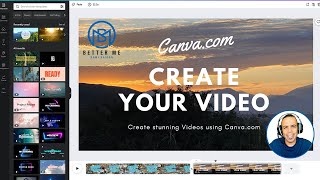
Learn how to make HD videos in Canva by uploading your own clips and images, adding text with animations and transitions, then exporting as MP4. The tutorial covers the full process from template selection to final export, including how to handle premium assets on a free account.
Chapters
Hey everyone, today I'm gonna show you how to use Canva.com to create your own videos. You will learn how to add images, titles, transitions to your videos. First, we're gonna go to Canva.com, and here you'll see a lot of different designs templates, so go to Create Design and choose Video 1920x1080, which is the HD quality. A blank page will open and a timeline will appear. Uh, you can skip the tour here. So this is the blank page where you're gonna insert your videos. You can choose an intro from the templates here. Some of them are free, some of them are not, which is required the Pro membership, I guess. You can try the Canva Pro to activate the other ones. So once you roll over on the thumb, you will see, uh, the video, the intro, how it moves. You can choose Also the outro, which is the end of the video. You can choose the news, you can split the screen between, uh, two clips with the titles. For now, I'm gonna choose just the any one. Remember, you cannot choose the Pro one if you have the free account. I'm going to choose this template for now, and I'll show you here. So down there, this is the video timeline, the length of the video clip, and here's the text. You can double-click on the text to change it. So I'm gonna change this one. Edit. Alright, and play preview. Yep, it's working. So here down there you can adjust the time. So I'm gonna make it like 16 seconds intro. You can make it 5, 10, it depends. So I'm gonna add a page, a blank page, and add my own video now. So you go to File, press Upload Files. And here, browse your computer to upload your video. So I'm gonna try with something, a short video from the nature that I shot. So here you go to videos and you'll see your uploaded videos here. All right, same thing, you can check the time and adjust the, the length of the video. So if you want a cut right here, you can move this cursor and adjust the time. Now I'm gonna add an image, so I press Add a Page and then Upload Files and choose the photo I want. I'm gonna choose this one. I'll show you how to resize it. So once the upload is complete, you drag it or double-click on it, it will be added to the page. You can adjust the size, right? So this is second, third video, and here you can adjust the length for how many seconds you want it. So we got 1 and 2 and 3. Now we're gonna add text, so we press on text and choose any of these templates or pre-designs. Text. You can double-click on it to edit, and I'll show you also how to add your own, uh, text and design it. You can adjust the size, place it on the screen. To add your own heading, press Add a Heading. Double-click to edit. You can move it to the place you want, and here you can press Effects so you can adjust the color. So there's a styles that you can choose from, or you can do your own, uh, colors and style. Can also change the font. There is a nice feature here which is Animate. You can press on Animate to animate the text. There's some basic animation here. Can click on it to choose the preview. So I wanna do animate this one too. So choose basic fade pan. You cannot adjust the speed unless if you have the Pro account. Now it's time to add transition between videos. So you press this little plus icon here and press on transitions. You'll see also like 5 different transitions. Uh, there's dissolve, slide, and in each one there's different one you can choose. I'm gonna add transition between the first page and the second one. So I press this little plus icon here and press on Add Transition. Choose one. Maybe I'll choose this Circle Wipe and preview. So you press and preview, it will tell you the length of this video. I see this video is long as an intro, so I have to change the length of it. So that's the transition, it's working good, and I'll wait for the other transition, the second one. This one was too long, so I'm gonna make it just 5 seconds. And this one too, just a little bit, like 16 seconds. All right, up. Working. You can play around with so many different styles for the text or the appearance. Choose from, and if you don't like the changes, you can do undo. It goes back to original one. A cool feature here is adding charts, so you can add your live chart to your videos by choosing one from template and then go to the setting and edit the numbers. So you can edit the cells here and choose specific settings, settings for it. Also, with adding background, you can add the background you want to the video. There's also free one and pro templates one. So let's preview the video now. You can see the transition. Yep. And let's try to download the video. Press on download in the right corner and choose MP4 video and all 4 pages. So with the free account, we cannot use the premium elements with the download, so we have to delete them. If we want to use this video. So I'm gonna delete this content for now. So you press on this little dots and delete page, and same with the intro, delete page. I'm gonna try to download it again without the premium elements. So here you can share it, copy link, or share it to Facebook. So I'm gonna press preview. So make sure all the video is playing good the way you want, and then press download. Make sure to choose the MP4 video and press download again. So now the video starts downloading. Gonna check it. Yep, here's the final video with the text I added and the transition. Beautiful. So this is the final result, and the quality of this video, we can check it. Right-click on it, get info, and as you see here, it's the dimension is 1920 by 1080, which is HD high quality. Thank you for watching. This was a quick video on how to use Canva for your video clips. I'll see you again with another video. Thank you.