ClickFunnels 2.0 Complete Setup Guide: Create Your Account, Add a Domain & Explore All Features
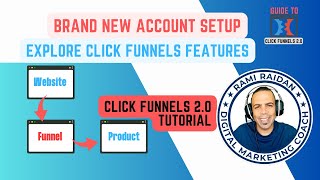
A complete walkthrough of ClickFunnels 2.0 setup, from creating your account and connecting a GoDaddy domain to building funnels, managing products, setting up email workflows, and configuring Stripe payments. The instructor walks through the dashboard, site customization, lead capture, order management, analytics, and integrations.
Chapters
So we start with the dashboard. Dashboard, usually later on you're gonna see it tells you total sales, total leads, orders, uh, the funnels. It will show you some funnels here, and down there it will show you some posts from your blog, or if you're doing a broadcast sending emails to your list. And the second one is the site. This is where your main area where you have this, um, the Hero theme where you can customize it or you can change it to a different theme. But I guess this one is, is more than enough. It got everything you need. Most of them, they look the same. Okay, so don't worry about changing the theme. So we customize it from here. Okay, but before doing that, we're gonna go, uh, through the other features here. All right, so from Overview, we customize the theme, and from the Blog here, where you customize your blog, because you're gonna have your website and you're gonna have your blog. All right, and inside the blog, you create posts and it's like, it goes like a shortcut to your blog, each post you create. Okay, then here we have the Customer Center. This is like the store for you, like the shop where if you have a course or a product, it will show here in the Customer Center. Okay, all right, then you have the funnel. Funnels are the pages that you create, okay? The web page that you create and make it a funnel to take action, okay? Okay, that turns visitors, uh, into leads. Like here, turn visits into leads. Let me put my phone silent.
So what is a lead?
Okay, all right. For example, if, if you create a post or a a free file. You tell people, I create this, um, guide to help you do this and that, uh, press on that link below to get your copy. So they press on that link, it's a funnel where they go to download, and before downloading that file, they have to put their, uh, information. That's an email, their name, email, and phone number. It depends what you choose. So that's a lead to make sales because they are interested in your content.
Okay, okay.
So this is the job of the funnel.
Okay, all right.
Pages are the pages, the web page that you create to make a funnel out of it. Then URL redirects, this is something advanced, we don't need it right now. Then there's courses, choose from a number of different course types and build your perfect course with unlimited customization. So you can create— you have your course here, and then the— this one is to connect your domain. So your domain is with who?
GoDaddy.
All right, so what we're gonna do now is go to your GoDaddy account, okay, and log in.
Okay, I'm in already.
We go back to ClickFunnels and connect existing domain. Okay, put out your domain here. Your domain is not live, right? No. Yep, guess we have to remove the, the setup we did.
Yeah, yeah.
Do I have to do this step? Let's do this step first.
Okay, so I have to do the www.
Yeah, www. Okay, okay, put add domain. Now we need to do the setup, start domain setup. So authorize with GoDaddy and then connect.
Wow, that was easy.
Yes.
Okay. Yep.
So this will take like up to this can take 24 to 48 hours to fully start working. We're not worried about this part right now. Okay, so we're gonna go to this— the other tab is Funnels. Is the same like this one inside the website, same shortcut here.
Uh-huh.
Funnels shortcut. Uh, other— we have a Product where you can add a product. For example, if you create a course You need to create a product in order to sell it. Okay, like you create the product, the course, and then they create a product and link them, link that product to that course. Okay, even if you're selling a physical product, same thing, you do it from here. A digital product from here. So this is for the product section.
So is this where we upload the videos?
No, just creating the product. Upload would be to the course section.
Got it.
Okay, I'll show you where exactly. Orders is when you have orders, it will show here from order number, customer email, which product, uh, billing, uh, total. Yeah, this is everything related to the orders. If you have subscriptions, same thing, you access it from here. Okay, if someone added something to the cart, they didn't check out.
Okay, yeah.
All right, then we have Contacts. Here you import and/or add contact, so you can add contacts manually from here or import them from a CSV file. One more thing. Analytics. This one will show you the analytics and the, like, how many people viewing your funnel, clicking, and the workflow— everything's happening on your website. Okay, then the most important thing here is the Marketing. This is where a big setup gonna, uh, play. All right, so Marketing. Where we create the, uh, email templates. We create the workflows. Okay, so you have to do this setup here.
Okay.
All right, so if you want to do it now or later, it's up to you. Um, okay, yeah, so footer text, don't worry about it right now. You can hide Powered by ClickFunnels. And what else you have, uh, here from addresses, this we're gonna add your email here. We're gonna select this one. You're not allowed to, um, oh, that's good, you have this So you're not allowed to use a personal email for marketing. It should be at your website. Yeah, which is— you have it already and it's, it's perfect. Then I have to set up the, the other setting for it. So this is—
oh, I saw that there was the option of the no reply.
Yeah, you can, you can do this for the no reply email, but right now you don't need You need the reply.
We need the reply. A lot of back and forth.
Yeah, yeah. Now we need the— here you can add more email addresses.
Okay, okay.
Topic, you can have different topic for the emails. And this is when we have to set up this once we add a new email address. Then we go to email templates. So here you create a new email template, and when I say this, that means, for example, if someone subscribed or they want to purchase your course or did anything and you want to send them thank you for blah blah blah, or thank you for registering for my workshop. So you create the template from here and you create a workflow for that email to go automatically.
All right, okay.
So all the templates gonna be from here.
Um, I create my own templates?
Yes. Okay, like me, I created more than 12 templates.
Okay, okay.
Uh, for everything there's an email template, and then you, you go to workflow and assign something here. Like if someone purchased my course, what do they get? Maybe the instruction how to go through the course. So it's automatically email.
Okay.
All right.
Is it easy? Is it like drag and drop?
It's, it's set up step by step. First you have to do the template, and after you're done, you go to the workflow and create, add a new workflow, and you tell the workflow how how to work. Okay, yeah, broadcast is where you want to send a broadcast. You came with a new product, you want to send that product to everyone on the list, you create a broadcast from here. Okay, uh, marketing is— this is, yeah, this is all about marketing. Okay, uh, sales tab is This is Sales Pipeline. This is more integration for your, your sales. They are working on it because they will have, uh, appointments coming here, same like Calendly.
Oh, okay.
Yeah, and phone calls, lead scoring, uh, conversations. So this is coming soon.
Okay.
All right, setting is the setting of the website and the, the setup. Like here, you, if, uh, you upload an image here for your workspace, like maybe your logo, uh, your workspace name here. Okay, uh, here if you want to add users to your account Depends which plan you have. If you have the basic one, you can have one administrator. So any other person you want to add, he's not going to be an administrator. Uh, notification here, you adjust like this as you set up the notification setting. Billing, this is your account billing setting, your payment method and how you, you pay. My Assets is everything you upload— your images, your logo, your videos. Uh, Downloads— if you want to upload a PDF file, it's gonna be from here. Ah, yeah, okay. Audio files, same thing. If you want to have custom fonts, it's gonna be from here.
So this is where those things live.
Yes, yes, this is your library.
I like that it's all in one place.
Yes, that's why I, I suggested you go with it.
Okay, so smart.
Yeah, thank you. Um, here is the integration. Yeah, uh, if you have a third-party integration— now we don't have any and we don't need any. Styles, if you have specific styles, you can adjust it from here.
All right, okay.
Then the themes, same thing, you can have add a new theme. There is a theme store with the ClickFunnels where you can buy themes and have it here. System emails is which, uh, email like can be sent if someone, uh, signed up for the course, the welcome email. Refer sale email. This is the system default emails, right? And webhooks, uh, this is more like external endpoints, you know, you don't need to, to worry about this.
Okay, okay.
So, and here, Payment AI, this one you set it up to accept payment. All right, you go by the— you follow the step, you add your bank account and this and that, and okay, like, uh, opening a merchant account.
Okay, okay.
Uh, so does it use Stripe?
Yeah, I use Stripe. They take percentage. Yeah, but they all— that's like PayPal, the same.
They all do. And I think Stripe, um, I worked— I used Stripe for a while. I kind of like it more than PayPal because it's direct. It just goes straight, straight to the bank, right?
Right.
While PayPal is different. And yeah, the business account difference, right?
Yeah.
More from Rami





How to Explain What You Do in One Sentence | Core Message Formula for Coaches
How to Create a Clear Core Message for Your Coaching Business | Content Clarity Roadmap