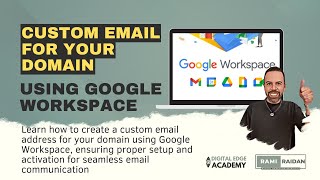
Rami Redan shows how to set up a custom domain email using Google Workspace and a GoDaddy domain. He walks through signing up for Google Workspace, connecting your GoDaddy domain via DNS records, and activating Gmail. The Business Starter plan costs $6 a month.
Chapters
Hey everyone, this is Rami Redan, and in this video I'm sharing with you how to create a custom email for your domain using Google Workspace. For example, if I have this, I have this email, Digital Edge Academy, at this domain, I mean and I need to create an email for it, for example, support or info@digitaledgeacademy.net. So to do that, I have the domain here with GoDaddy, right? So I have the domain, uh, I bought— I purchased the domain here with GoDaddy, and now I have the option to buy email, uh, service from here. right, using Microsoft 365 Email Essentials. But I prefer to work with Google Workspace, so I'm going to open new tab and search for Google Workspace. And here, uh, start to create the email service here. So try at no cost. And here the business name, uh, like my business name, the business, our Digital Edge Academy. And for now, just for me. And then next, they can use my personal email here. Okay, here they ask you how do you want to set up your Google Workspace with all your company, uh, with, uh, yourcompany.com address or with the.me address. So I'm selecting here with the mycompany.com address, which is the custom domain. And here they ask you, does your business have a domain? So yes, as I already purchased the domain, so I have one I can use. And here I need to put the domain, so I go to my domain here, copy, and then go here, paste it, make sure it's correct, press next. So use this domain to set up the account, say yes. And now you got to choose the username. So for me, um, I'm going to choose support@digitaledgeacademy.net and I choose a password. I'm not gonna tell you the password. All right, and here I'm not a robot and agree. It takes a few seconds. Here Chrome, uh, Safari is asking me if I want to save the password. I don't mind. So here is the trick. There is, uh, different packages on, uh, on Google. So if you go to Google Work Workspace, uh, prices, pricing, you will see the basic plan is $6 a month, but when you go here, it won't let you, uh, select it. So unless you press here, change payment plan, also it can— you can, uh, pay annual, right? But you cannot change to the $6 plan. But what I'm gonna do, I'm going to try for 14 days, right? Then after that, I will downgrade to this, uh, plan. All right, or if you want to start from here, actually you can go to this page right away and start from here. But because I already started, uh, from the main page, that's fine. I will change I will change the plan. So here, business name, my name, and the address. All right, you put your billing, uh, change— pay with PayPal. So here I need to do— you can pay with the credit card, but I prefer to use PayPal with all my Google accounts. So after you choose the payment, agree, right here they ask you again to upgrade to this, uh, business add-ons, and for now I press skip. And this is the welcome to your new account agreement. And this is where we access the admin console. Everything is here in this admin console. First step, we need to activate the Gmail for, for the new email. So it's going to be a Gmail account, and the Gmail, it's not @gmail, it's a Gmail account. So you can use the Gmail website or app to log in with this email. So you sign up, sign in to activate. Yeah, pop-up window. All right, here we need to connect with GoDaddy to add the records so you can configure it to work with the Gmail. So we need to connect the domain. And make authorization through GoDaddy in order for this to work. This is a very important step, and without it you cannot have a custom email, uh, with Google Workspace. Okay, now it's connecting with GoDaddy to, uh, to activate the Gmail. So it's making— verifying that your own digital— that you own digitaledgeacademy.net and updating Email setting with godaddy.com. You can also close page and return later after 5 minutes. Perfect. So when you refresh this page after, uh, 4 minutes, it will show you here that Gmail is activated for your domain. So you can add more users here, but for now I don't have— I don't need to add more users, so do skip for now. And here it is. So here it gives you more recommendation on what to do. You have this, a cool, amazing Google Workspace. Uh, for now I just want to go right away to the Gmail. All right, so this is here, you go to your apps, and here you have the Calendar, Cloud Search, Documents, Drive, all everything with Google, but I'm going to focus on Gmail now and log in to my email, my new email. Perfect. So this is my new email ready to use with my domain. So if you look here to— so this is from Gmail, a welcome email, and it's to my name, Rami Redan, at support@digitaledgeacademy.net. So I have the domain ready, right? Uh, one more thing now I still need to do is to change my subscription from the plan that they uh, want me, uh, from the— I want to change to the $6 plan. I need to go to the admin console over here. Continue. And here I want to change it to this one. All right, and from here You can go and manage your billing. All right, manage the billing or manage subscription. So yeah, this is the, the Google Workspace. You can upgrade a subscription here or add a subscription, or you can press here to upgrade, upgrade or downgrade. Okay, so again from Google Admin Console. You go to your account and subscription, and you go here. You see here, this is the plan that I want, Business Starter, but they gave me this one. All right, so now I need to downgrade and then go next. So if you go monthly with the $6 plan, if you pay monthly, it's going to charge you $7.20. If you pay yearly, it will charge you $6 per month. So it's— you do it, uh, as one payment. Right now I'm doing this, right? Done. Now my plan is the Google Workspace Business Starter. That was all about it. If you have any question, go ahead and comment, uh, below. Thank you for watching.