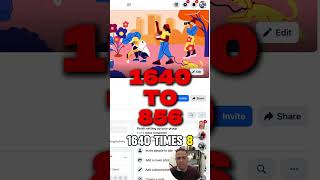
Step-by-step guide to creating a Facebook group for your business or coaching brand. Learn how to set privacy levels, upload a banner image at 1640 × 856 pixels, and invite your first members. The example group used is "Tech for Non-Techies."
Chapters
Want to create a Facebook group for your business or community but not sure where to start? Log into your Facebook account and look for groups section on the left-hand menu. Press on create a new group and give your group a name. And the second option is to choose the privacy. So do you want this a public group which anyone can see who's in this, in the group and what they post? Or you want it to private from the beginning, only members can see who's in and in the group and what they post. Next, you need to upload a banner. Best size for a Facebook group banner: 1640 856 pixels. You go to group setting here, you press on this, edit here, and here you give it a name, Tech for Non-Techies, and then save. The group is ready and you can start inviting friends from here by pressing invite and then select your friends.