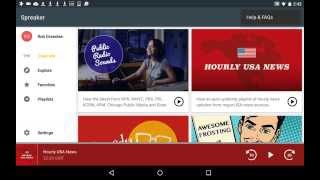
In this video, Rob Greenlee, head of content at Spreaker and veteran podcaster, provides a concise walkthrough of the Spreaker Podcast Radio app for Android. He introduces the landing screen, profile creation, and basic navigation (search and help). He explains the "Channels" section, which offers a radio‑style, curated lineup of podcast episodes (e.g., Public Radio Sounds) and demonstrates how to play, skip, and select individual episodes. Greenlee shows how to change channels to access genre‑based stations (Spanish, sports, finance, technology, etc.) and network feeds (HeadGum, Adore, KCRW). He then moves to the "Explore" area, highlighting staff picks, trending shows, curated lists from media outlets, and live 24/7 streams. The demo covers interaction with individual episodes—playing now, adding to favorites, sharing, downloading for offline listening, and using the "listen later" queue. He reviews the Favorites screen, the Playlists section (likes, downloads, history), and the Settings menu (profile editing, Pro plan upgrade, storage options, notifications, help). Throughout, Greenlee emphasizes the app’s ease of use, flexibility, and continuous content updates, and invites feedback via his email rob@spreaker.com.
Chapters
Yes, my name is Rob Greenlee, and I'm gonna give you a quick demo of the Spreaker podcast radio app for Android. It's gonna be a really quick demo. I'm the head of content for Spreaker, been a longtime podcaster for a very long time, and just wanted to do just a personal quick video demo of this important new app that Spreaker has launched and kind of show you the key functional areas. So let me start out just by by pointing out this is like the, the landing screen for the Spreaker app, just for Android. And if I click on the upper right-hand corner, there's two functions. There's search, so you can do a search for any podcast that's in the catalog. The little dots, you can get into help or frequently asked questions. So you have that capability right out of the gate. The upper left-hand corner here where it says Rob Greenlee, that's the kind of profile area that you can get set up really, really quickly just by creating an account. You don't have to be a podcaster to use this app, but if you are a podcaster and you're producing content for Spreaker or you're importing stuff as pass-through or something, your shows will show up in this area. As you can see, there's two shows that I'm involved in on the Spreaker platform, and you can get in and change your profile settings. You can update your photograph change a little description about yourself, your name, your email address, contact information, your Twitter account, those, those kind of things. You get in there quickly and do those kinds of things. You can also go in and, you know, the area around your profile description and who you are and stuff can be easily edited. You can add, you can click on to go to your Twitter or Facebook accounts right here. But let's go back to the main screen. Let's talk about what you're seeing right here. What you're seeing is a channels area, which is basically kind of more of a lean-back, programmatic, kind of radio station-like playback experience around episodes of podcasts. So what we've done is we've selected top podcasts. So you're looking at the Public Radio Sounds channel here, right in the middle upper of your screen. If I were to tap into that, what you would see is basically a series of different podcasts from public radio. And so what we've done is we've curated a list of terrific programs that could create like a public radio station type of experience, like what you would tune into in your local market to listen to the radio station. It's not going to have local programming, but it's going to have all the great NPR, PRI, and a variety of other sources on the public radio side in a radio type of experience. So you click the little play button, and it will start playing that. Thanks for listening to Marketplace. So it'll play those episodes on a back-to-back basis. And then if you click on the lower playback bar, that's that purple bar at the bottom, it'll actually launch a screen that will show you all the episodes that are lined up to be played as part of your radio station experience. And you can scroll ahead. To select what episode that you want. So you do have full control over what you listen to in here. So it's, it's very powerful. Or you can just let it do its own thing and lean back and drive in your car and just let it take care of playing, playing a terrific list of the most recent episodes from that list of programs. So, but later on in the app, you have— you can also have full control over what you're what you're listening to in a playback type of situation as well. So in the upper part of that screen, just above the Public Radio Sounds logo there, you can click Change the Channel, which basically will take you to another screen that will show you a list of all of the channels that are in there as well. So then you can, you can go to, let's say, let's say you want to listen to some Spanish, yes, you can do that. Let's say you're a football fan and You want to hear some finance, you know, daily full episode news audio podcasts, technology, politics. I mean, all that stuff is right here. It's quick and easy to get to. You can also fast forward, you can go back even within the radio channels itself. If you want to have that level of control, you have that in front of you. So we have a variety of channels here with comedy, fun, awesome frosting, Spanish programs, football, Spanish sports, money, finance podcasts, daily news like I showed you before, technology, politics, music, religion, relationships, science, basketball, baseball, fitness, hockey, a man cave radio channel and a she shed for women, travel, and then we also have some networks in here too, and we'll be adding more of those in here too that will always play the latest episodes from a network of podcasts. So if you're a fan of the HeadGum Podcast Network, you can always catch the latest episode there, and it will play it in a sequential order. And the Adore Podcast Network is actually a podcast network that's run by Spreaker. And then you can see here that KCRW has one in here too. You can always catch the latest episode from KCRW. And also keep in mind too that at any time you can go into any of these podcasts, and you can select that I want to play it now. I want to play that podcast now. I can add to my favorites, I can share it, or I can get some more information right there on that screen. You only have to go into it by clicking on— but you can go into it. And if you do go into, let's say, Art Talk, and you want to see all the episodes that are in that feed right now, you can also either play it in a sequential playlist, or you can Tap on those, those three little dots on the far right, get access to play it now, listen later, so you can add to the listen later area that I will show you in a minute, or you can download the episode and listen to it offline, or you can like it, or you can share it also to your social networks as well. So there's full capabilities here. You can also see a description by tapping on that little white circle in the in the gray black box there to see a description and has a link to the KCRW website if you wanted to find out more information about them. And let's go back. So that's the channels area, and we'll be managing that and adding new things in here all the time, so you'll be able to find terrific content in there all the time. So let's go in now into the explore area, which basically is an area that has a bunch of lists of various podcasts that are either featured on the Spreaker platform today across the entire platform, staff picks, ones that we've selected to give a feature to that are either on our platform or just pass-through, and then popular new shows. These are new shows that either have been added to the Spreaker platform or most likely they're going to be top podcasts that are trending very, very highly within iTunes, so you can get access to the top podcasts here as well. Not all of the shows that you're seeing here are hosted on the Spreaker platform, but they're available. So it's— we have this blend of shows that are hosted with us and ones that are just passing through, kind of like what iTunes does. So that's, that's why you can see that there's, there's shows in here, you know, like from NPR and stuff that may not be hosted with us., but we can make available, uh, these shows to you here in this app. So we have different groupings. We have like drama story podcasts, reality stories like Serial, The Moth, uh, a man cave channel, and, and we also have lists of podcasts that have been provided from various media sources too that have written articles around what are the best podcasts to listen to, like from CNET or from Mashable, the 12 Podcasts to Tell You a Story, Best Stories in Fiction Poetry from The Telegraph. So we've gone through and kind of brought in those recommendations in here to help you discover and find the best podcasts. CNN has provided all their podcasts to us here too, so we have that in there. And then we also support live 24/7 streams, so you can get access to the Twit livestream in the Spreaker app at any time to catch what's going on in Leo Laporte's studio down in Petaluma, California at any point. Podcasts about podcasting, you can learn about how to be a podcaster right here. Then we also have a live streaming. So Spreaker does support live streaming through their publishing tools on Android, iOS, Windows, and Mac through the studio apps. So these are shows that are live streaming to our platform. Using those tools. And then we also have a categorization area like business and finance, which is an example of that, of podcasts that are focused on a particular genre. So we have access to all that stuff right here. Now let me show you our favorites area. So we— you can also add in those while you're listening to different stuff. You can select your favorite shows by, by selecting a star at the very top. So as you can see, the upper right-hand corner of this, there's a little star that's, that's white, and if you tap on that, you can, you can either remove it from your favorites list, or you can tap on it again and actually add it to your favorites list. It's as simple as that, and then you can come in here anytime to get access to the shows that you like to listen to and get access to those right away just by tapping on, on the screen and clicking play. So it's actually really, really simple. And then let's go into playlists. So there's listen later capability. So as I showed you earlier, and now those 3 dots next to each episode, you can select what episode that you want to listen to later or program that you want to listen to later. There's also likes, so you can select shows that you like. You can also download through that, that dropdown as well that's next to each episode. So you can download one and that will drop into here and you can play that offline. So you don't have to be connected to the internet to play that particular episode. And then it also has a history list of all of the shows that you've maybe started and listened to, maybe you didn't complete. You can get in here and get access to those really quickly and listen to those again or whatever you might want to do. So the The last area is the settings at the very bottom. So down here you just tap on that, gives you access to edit your profile, upgrade to Pro Plan, block users, storage. You can set it to Wi-Fi or cellular data. You can get help, you can learn more about Spreaker, you can set your notifications in here as well. So that's the, that's the Spreaker podcast radio app for Android. It's only available on Android. If you have any questions or if you want to give me feedback on this, I'd be happy to hear from you. If you're a podcaster or not, my email address is rob@spreaker.com, and I'd be happy to hear from you. And thank you very much for watching this video. I hope it was helpful, and it would be great to hear from you. So thank you very much.