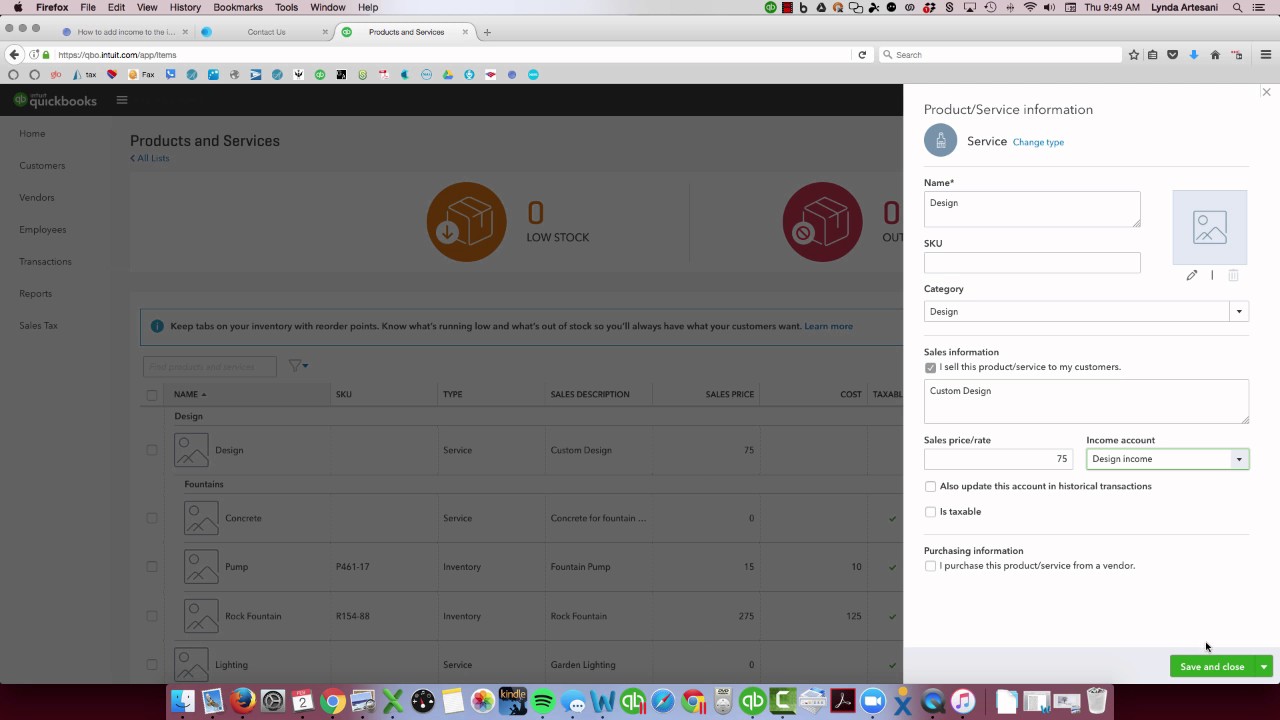
In this tutorial Linda Artesani walks through a common QuickBooks Online problem where income from invoices does not appear on the Profit & Loss report. The root cause is that the product/service item’s income account was mistakenly set to a checking (bank) account instead of the proper income account. Because invoices retain the original item settings, simply changing the item does not automatically update existing transactions. Linda demonstrates how to correct the item by editing its income account, then forces a refresh of affected invoices and sales receipts by temporarily switching the item to another type and back. She also shows how to use the bank reconciliation screen to locate mis‑coded transactions—sales receipts or invoices that appear on the checking account side of the reconciliation—so they can be re‑assigned to the correct income account. After these steps, the previously missing design income shows up on the Profit & Loss report. The video ends with an invitation to ask questions via Facebook.
Chapters
Hi there, Linda Artesani, Artesani Bookkeeping, and this is just a short video to explain how items work in invoicing and the reasons why maybe your income isn't showing up on your income statement. So we're going to come over here to our favorite little file here, Craig's Landscaping, and you are running a report on landscaping and you notice that on your profit and loss report Date range, I'm just going to use this year. The date range is here, and you see that there's no design income, and you know that you've created some invoices with design income on them, and you know that they are invoiced and paid. And in this case, since it's an accrual-based, it should show even with just the invoice being on the report. So why isn't it showing? You can come over here to make sure that the date range of your invoice to your customer is within the date range, and here it is, 2/2. That should show up. Here's an invoice where I billed out design in the date range of the report, and it's not showing up on my income statement as income. So I need to investigate why, and it would mean that it has to do with this particular setup of this item. So we'll go back to the item list and see why it's not showing up on my income report. So you come over to the gear wheel, Product and Services, come over to Design, and let's edit it to see where these are. When you come in here, you'll see that it's set up as an item, Custom Design, everything looks fine except the income account is listed as the checking account. And this happens a lot in QuickBooks. It happened in Desktop QuickBooks, it happens in QuickBooks Online. Instead of having the income account here, they select their bank account. So I'm going to come down here and put it in the correct account, which would be my Design income account. And I'm going to save and close. So you would normally think that now that I've changed the item to the correct category, it should show up now in my reports. However, with invoicing, as you can see, it's not here. With invoicing, once you create the invoice for the customer, it sits inside the— it's preserved in stone, basically. It's there, and the only way for me to reactivate it with the changed item It's going to remember my item where it was, so it's not going to disturb what I had done prior. So in order for me to fix this, it's $75. I'm going to come down here and just switch it to gardening just briefly, hit save, and then I'm going to come back up here and change it back to design. And that's now going to see my new design item with the correct account attached to it. Now I'm going to hit save. I'm going to close out of here. I'm going to go back to my report, profit and loss report, and now my design income for Amy Sanctuary is showing up. So in order to find the ones that are not in the right account, of course they're going to show up for you when you come into your bank reconciliation. Let me come over here. Let's see, bank reconciliation. It's in a different place. Oh, there it is. It's in a different place on my program than it is on the regular one. So I'm going to come over here to reconcile and reconcile my checking account. And you're going to find, you're going to see these, one of the ways you're going to know that this is here is you're going to see invoices in a really strange place on your bank rec. And that's how you'll know that you need to reactivate those items that were coded with the old item, the incorrect item. So they should be here. Search by type. And you'll see here's a sales receipt for Dylan Solfrank, and it's got the design item in it, but it's got the old one, and I want to activate it to the new one. So I'm going to hit save, come back here, and give it back— put it back to the new one, the new changed one. And now that will be on my income account. So anything in here that seems odd, you wouldn't see a sales receipt listed on your bank statement reconciliation page at all. So here's the invoices. So these invoices also have that design, the old design item with the wrong coding. So I just have to come over here, change it, change it back, and they will now all show on my income statement because now they've been refreshed with the item in the proper way. So you just have to clean up that and that will get those off. So that might be the first instance where you see What the heck is this? I've got invoices listed in my checking account on the, on the side where the checks would be, that, you know, the expenses would be. So that's a way to find out that you've got it in the wrong place as well, because they're not going to clear your bank because they shouldn't be there, certainly not on that side of the account. Hopefully that clears that up for you. I'll just show you now that if I go back to profit and loss report, you'll see now that I've got more design income in here. Those Couple of transactions that I've refreshed are now showing up. Hopefully that makes it clear. If you have any questions, please feel free to post on my Facebook page and I'll answer them and maybe make a video for you. Thank you so much for coming and watching the videos, and if you have any questions, please feel free to reach out to me. Thank you. Bye now.