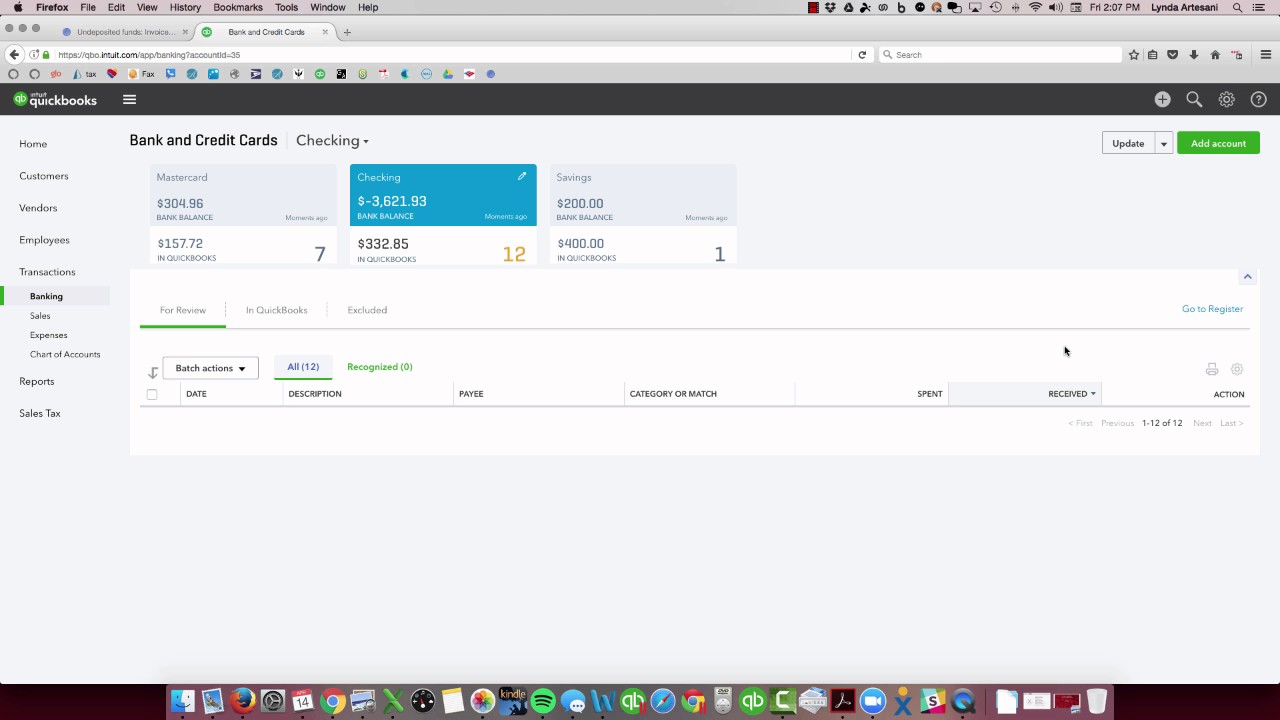
In this concise tutorial, Linda Artesani of Artesani Bookkeeping walks viewers through the process of recording credit‑card payments received via an external merchant service (i.e., not Intuit/QuickBooks Payments) in QuickBooks Online (QBO). She first contrasts Intuit’s built‑in ACH and credit‑card options with the scenario where a business uses a different processor to obtain lower fees. She then demonstrates step‑by‑step how to: (1) enter the customer’s payment, selecting the credit‑card method and posting it to the Undeposited Funds account; (2) create a bank deposit that pulls the payment from Undeposited Funds, adds the merchant‑service fee as a “Bank Charges” line item, and saves the deposit for the correct net amount; (3) match the newly created deposit to the actual bank transaction so QBO reconciles it automatically; (4) verify that the customer’s balance is cleared and that the fee appears correctly in the Profit & Loss report. Artesani also notes that the same approach applies to PayPal payments. She ends by inviting viewers to ask questions via YouTube comments or Facebook.
Chapters
Hello, I'm Linda Artesani and this is Artesani Bookkeeping and I just wanted to do a short online tutorial, a short video to help people who struggle with perhaps having— using a different program than QuickBooks has for merchant services. So let's pretend your bank has a better deal, less fees, and and you want to offer credit cards and have people be able to pay you by credit card, but you don't know how to record it in QuickBooks Online. Before I go there, I just want to show you, this is where you would go if you wanted to use Intuit systems. So they have a bank transfer one that you can use, and it's an ACH system. So I can actually send my invoice out and it will have a link on it to allow the person to pay by check with no, no fee attached, so it's free. And if you want to use that service, it's really wonderful. I use it with my clients all the time. They pay me by check. Once they set it up once, they have to put their routing number in and make a little account within it. It's secure. And once the customer pays me once, it's a matter of just the next time they go, they just click to pay me again and it's already in there set up. They can also pay by credit card if I check this box off. So you have the option each time you bill somebody to check that box off and they can pay you by Apple Pay. I believe Square is another one, Discover, Visa, MasterCard. Those are all options in the payment options. I try not to use that too often because if I'm doing an invoice like this for $1,350 a month to a customer, I don't really want to give back part of that, but it's up to you. Sometimes it's best to get paid, right? So we're going to come over here to— oops, wrong one. Let me come over here to Craig's Landscaping. So normally I would log into Craig's Landscaping, I'd come to this page, the homepage. I'm over to the checking account, I want to review my transactions and put them in. First thing I normally would do is I'd sort by this category or match column, and anything in green, I would just click over here, I select the top box, come down to the bottom box, and Hold the Shift key down and it's going to select all in between and then slide back up here. So it's green matching, it's an exact match. You don't have to worry about it, it's the right account, it is. And then hit Accept Selected. So now that brought all the others in here. And these I'd have to investigate to see if they're correct, but I'm working on my deposits. So I'm just going to come over here and sort by the Received column. And here's my $860, $815. I know that I received a payment from a customer I just entered it the other day. In fact, it was so recent when I worked in this file that I know it's here because it's the recent transactions are right here. And here's my payment from Freeman Sporting Goods. So Freeman's got a master category. So this is my customer name and then this is my job. So I've got a sub-customer and this is my job. So I'm going to record this payment and he paid me $895, but he paid by a credit card. I don't use Intuit's system. So he's paying by credit card. I would put in the credit card as a method, and you can put it in Discover and put the numbers in. I'm going to record my payment, but the most important thing here is I want to make sure I do it to undeposited fund account. So I'm going to save and close this. I've deposited to undeposited funds. It's not going to show in my register yet, quite yet. So I'm going to come over here, I'm going to receive my— make my deposit. So I'm going to create my bank deposit here. So I've got all my payments here waiting to be deposited, and here's Freeman's, and he's paid me $895, and it went in by itself, and I know that because I received the $868.15 as the amount I actually received. So I'm going to come down here, I'm going to put in my credit card fee, so I'm just going to call it bank charges. You could have merchant service fees. I've seen lots of different varieties of the bank charge, but it's banks charging me a fee to have the privilege of this person paying me by credit card. Okay. So I'm going to enter the fee itself, and I know this is the amount because I have a receipt on what I received for my deposit. So now I'm going to hit Save and Close. Let's make sure my deposit is $868.15. The deposit happened on 3/19. I'm going to hit Save and Close. I come back to my bank page, and now this undefined deposit is matched. I can take a peek in here and look, and it's— the bank detail as possible matches this deposit, which if I click on it, I can come here and see it's the deposit I just entered for Freeman's Sporting Goods. So it's matched, and it matched in green, so it's an actual match. So I'm just going to click here and click Match, and now I've matched the transaction. So that's basically the steps you would want to do manually if you're using an outside system to show the payment. Now the payment has cleared the bank, has cleared the customer account, so if I go to Freeman's, I will see here that he no longer owes me. His only open balance here is zero on this Ocean Road, which is what I invoiced him for. I can see my payment, $895, and my invoice of $895. So that's good. That's what I want to see. And if I come over to my reports, I can come into my profit and loss report, and I should be able to see my income, and then I should be able to come down to my bank charges and see the $2,685, which is what I want to see. So that is basically the short version of how to record A payment and then with the charges. So a lot of times people struggle with this with PayPal. If they're not using the app, you need to show the payment and then show the fee also. So that's a short version of how you can get that deposit in for the correct amount so it matches your bank. Hopefully that's helpful. If you have any questions or would like to see future videos on specific subjects, please feel free to either make a little note here on YouTube Or you can also reach out to me on Facebook, and I'll provide that link in the blog. Thank you so much. Bye now.