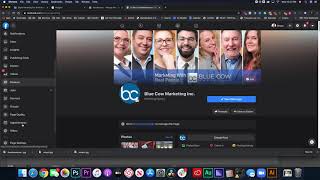
In this video Shaun Whynacht of Blue Cow Marketing walks viewers through Facebook’s March 2020 redesign, focusing on the changes that matter to business owners. He begins by showing the dark‑mode option and the new placement of core navigation elements (feed, notifications, Messenger, post creator, account menu, left‑hand shortcuts, and top bar items such as Home, Watch, Marketplace, Groups, Gaming). He then opens a business page, pointing out that the link to Business Manager is now tucked into the page header and that posts can be created directly from the page without Business Manager, though scheduling still requires Business Manager. Shaun demonstrates the new “default” dropdown that offers a handful of typography styles and background color options for text‑only posts, noting the limitation that these styles cannot be combined with images. He shows how to boost a post, where settings have moved to the left‑hand column, and how the Publishing Tools section now aggregates published, scheduled, and draft posts. Creator Studio is highlighted as the place for bulk video uploads, scheduling, and Instagram publishing. The Business Manager interface itself has not changed, but it now provides options for immediate sharing, scheduling, back‑dating, and saving drafts. Shaun explains the purpose of back‑dating (keeping chronological order while still notifying fans) and walks through the new audience‑targeting controls: restricted audiences (age, location), news‑feed targeting (interests, demographics), and the “Top Fans” feature for organic promotions. He suggests using these tools for micro‑targeted organic posts. The video concludes with a call to subscribe and engage with future content.
Chapters
Shaun over here at Blue Cow Marketing, and well, if you have opened up Facebook lately and you were posed with the option to try out the new Facebook, then you're seeing something like this. Now I took that plunge, as I like to do things a bit differently and try out new features that come out, and boy, what a big change. Now I chose the dark option. Now when you get that option to try out the new Facebook, they're going to pose you the question, you want light or dark? I chose the dark, I found it was a lot easier on the eyes. So what I want to do in this video is walk through the new Facebook. Now I'm not sure if everyone got served up that option or not, so you may not see that yet, but this is where it is headed. So I want to walk through, like I mentioned, the new interface and point out a few things relating to your business. That's what we're doing here is helping businesses grow, so we're going to focus on this. What we're seeing here is the basic personal feed, so I can scroll through here and see everything. Newsfeed's in the middle, just getting the lay of the land. The top right-hand side, your notifications are here, your Messenger is here, and then this one here, you can create a post or any type of content from there, and your account dropdown is there. Right-hand columns, any of the notifications for ads would show up here. We got some birthday announcements that show up there as well, and then your contacts, you can see see here if you drop them down, you can see all your different contacts there. Okay, now moving on to the left-hand side, and we'll get to the, the top buttons in a second. On the left-hand side, you've got your name, main profile, your groups, events, marketplace, videos. You can see more, drop it down, and your shortcuts are here. You can search Facebook, which used to be in the center at the top, on the top left. So all the features that we know to come to love are still here, they're just showing up in different places. Now let's take a look at the top. We've got our home option there with the host. Next one's our watch. We got a marketplace, we got groups, and now we've got gaming as a big part of Facebook. Now if you are using Facebook for business, let's go ahead. I'm gonna go into our shortcut for our page and I'm gonna show you and point out a couple things. So we're gonna go ahead, we're gonna click on that. So it's gonna bring up the page. Wait a few seconds here. The screen recording may delay it just a little bit in getting it to come up. Okay. So here is the page. This is our page. This is what it looks like. Now we're going to notice that if you use Facebook Business Manager— remember before it used to be a little gray option at the top to go to it— it's tucked in right here. It says go to Business Manager to manage this page. Now I'm going to point out a couple things here. You can still create a post on behalf of your page without going to Business Manager if you already have a Business Manager account. Now you used to not be able to do that. You would post as yourself as a guest.. Now you can go ahead and you can say create a post here and it's going to pop up and it's going to allow you to post content. Here is the thing that's missing. If you do it this way, you cannot schedule the posts here. You can create your posts and you can post it, but you can't schedule it without going into the Business Manager. But before we go into the Business Manager, I want to point out a couple things here that you're not commonly seeing or that you're not used to seeing, I guess. You can go ahead and create your post here. I'm just going to put in here, uh, test post. We're not going to actually post it, but something new you see down here is this dropdown called default. Now if we drop that down, we've got some different, let's say, typography text styles. So if we want to do clean, we can pop on this. It's going to pop up and give us a clean, um, font, I guess, so to speak. And you can change your background colors here, or if you don't want it, you can actually get rid of it and just go back to the text. Okay, so any one of these is going to bring up a background, right? It makes your, your post stand out. Again, you can go and pick from the colors that are here, and I don't think it gives you any more options than what are showing up here. So you're pretty limited to what it is that you're going to do, and you can flip between them obviously and do different ones with different headlines and things like that. Okay, so pretty, pretty straightforward. If you have this, you cannot combine it with an image. So you're gonna have to know that you have to go back to the default. If you want to do an image, you're gonna have to click on this, do a photo or picture, and go from there. Your locations and your more options for your other elements are here as well. Okay, you go ahead at that time, you can boost the post by clicking this over, hit post, and then it will give you the options to boost when you go ahead and post it. Now when it comes to your page, pretty straightforward. When you're going through, you're looking at all the content that's here. You can do everything that you could before. There's no new features features that are built into this. Okay, when it comes to getting your settings, remember it used to be across the top. All those things are now on the left-hand side— your inbox, your insights, your publishing tools, everything right here moving forward. Now with your publishing tools, you can go in here, wait for it to load, and here's where you see all your published, your schedules, your draft, all that kind of stuff. And you can also still open up Creator Studio, and I don't think the interface for that has changed to match the new styling, but Creator Studio is a great place to mass produce your content. So if you're uploading, uh, several videos, you want to schedule them all at one time, you can go in one interface and not have to do them back to back in here. And you also get Instagram publishing now available according to the features in here. So if you're really wanting to get a hold of creating your content, scheduling it, getting it all in one place, Creator Studio is a great way to do that, but this video is not all about Creator Studio. So we're gonna pop on back over here, and now let's just go back to the main part of the business page. And when we click on Business Manager, Business Manager did not get an overhaul, and it may be coming down the pipeline by Facebook, but as of right now, it is not that. It is still the Business Manager that we know and have used for for quite some time now. Now when we go ahead and we create a post, we're going to see the option under News Feed here where it says Share Now. You can go ahead and drop that down and you've got your scheduling, your backdate, or save a draft. Now I was doing a workshop the other evening and the question came up about why would you want to backdate something? Well, keeping in mind you are building your timeline, so let's just say you're a business and you hold an event. This was the example I gave. So let's say you hold a— or held a fundraising event, and that was on, let's say, March 10th. So on March 10th, you had a bunch of photos, you uploaded all to Facebook. A week later, you got more photos submitted or whatever, and you want to do a post about it. You can backdate that to March 10th. So in the timeline, in chronological order, it would still come up on the right date. It would also post as a new post for you at the time of posting it. So even though you backdated it several days prior, anybody who likes your page would be notified or will see that there was a potential new post from you and it would not get missed. So that is why you would want to backdate something. You've got the option here also to public, restricted audience, newsfeed targeting, so you can base it on specific interests or your top fans only. Top fans are a new feature of Facebook that's rolled over the last several months where fans that are engaging most will be self-selected as top fans. So if you wanted to offer a promotion for those top fans, this is a way to do that. It's a new feature added into Facebook, which is extremely helpful. And we got new things rolling out. Now when you look at restricted audiences, you're going to go in here and you're going to be able to look at different age demographics that are here. You can base it by location. Now location would be coming in handy if you've got multiple locations for your business and maybe you wanted to do a post about a certain city or town in which you are doing a promotion or promoting news about something you didn't want the other one to see it, you can then manage it all there as well. Now when looking at the news feed targeting, you can look under interest, age, all the different things that you may be familiar with if you're running Facebook ads. Now you can do in a specific post. You don't have to pay for it, but it's then going to look at your audience and say of that audience or of those fans, which would be the audience here, the organic audience, who meets these criteria, show the post to them that way. Now, may beg the question to think, hey, could I start to make micro posts that are based on different targeting so I could have special messaging towards people that may be of that younger demographic? So maybe you're going to post a promotion that may be the same for a promotion base. So let's say what, a coupon or event or whatever, that all stays consistent, but the main content of the post, you may want to talk to different you know, generations. So you can go ahead and do multiple posts based on that, so then they're gonna see that. So that's how you could use those different features of Facebook. So getting back to what we started this about, the new interface, really the biggest rollout for that is for personal users using it on a day-to-day basis. And then also if you're managing your page without Business Manager or using Creative Studio, then you're gonna notice a big difference. There's no timeframe right now as to if the Business Manager's gonna get an overhaul or not. I think it works quite well the way it does, but they're looking to spice things up from the more user interface with it. So love to hear what you thought about this if you're using it, any questions along the way. And if you wanna catch or not miss another video, not catch, but you want you to see it, go ahead and subscribe to our YouTube channel. And we love making these videos for you. Leave a comment, I'll reply to it. And, uh, hope you have a great rest of your day and have a great time growing your business.