Shaun Whynacht walks through creating posts, photos, videos, carousels, and canvas content on a Facebook Page. He covers promotional offers with coupon codes, call-to-action buttons that work like lightweight ads, setting up Events with ticketing, and using Notes as a blogging tool for businesses without a website.
Chapters
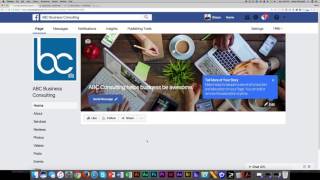
So we talked about setting up your page. Now we're going to talk about creating content and posting out information through your Facebook page. And that's where using Facebook becomes really beneficial, because those who click like say they want to know more about what you're doing, they want to be involved. So creating content and putting it out is where the essence of Facebook and social media really thrives. And to do this, we do it on our page in this section right here. And Facebook has done a great job of making these images pretty self-explanatory about what they do. Now if you want to create a general post where it says write something, you would just click and you can write something in here. So for example, hope you're having a great day. "Hey, what are you up to?" Now this is just a very static text post, but one of the key things that I put in here was I asked a question. And why did I do that? It's because I wanted to create some kind of engagement. And that is where the power of social media comes in. If you're just posting stuff that people really can't comment on or want to share or, well, like, then you know, you're really only scratching the surface of Facebook. So, what are you up to? And maybe I could say, let me know in the comments below. Then people know what you want them to do. So we could go ahead and publish this. And if we do that, it's actually gonna create a post just like this. So now people can like, they can do one of these little emotional likes, they love it, or they can comment, or they can share it. So that's a very basic post. Some of the other things that you can do, you can share a photo or a video. So you can click on this and you can upload either photo or video. You can upload a photo album, so several images that make up a whole album, create a carousel that scrolls through. So you can actually put links to different products or pages of your website. So you can have different images that correspond respond to that. Creating a slideshow is a really cool option. You got 3 to 10 photos that actually create a video file and put some music to it for you. And a canvas will combine both photos, text, and video all in one. Now to create a photo post, we're just gonna click upload a photo or video. It's gonna ask us to actually pick an image to choose, so I'm just gonna pick one of these images that are here, and I think it's a picture of a little stuffed moose., and it is sitting on an Adirondack chair. So I can say something like, tell me what you're up to this Canada Day. Okay, so there's an engaging type of post. And I can do other things like put in little emotional feelings, which are a bit cutesy for, for a business page. You can check in where you're at. So if you've got a location here, so here's our office, we can put put that in there. We can add a message button to ask people to message us or reply through Messenger, or we can tag a product if we have products set up. So I'm gonna go ahead and click Publish, and now that post is gonna come out here, right? So it's gonna look like this, and then we've got this and the message button. So pretty straightforward. Some of the other things that you can do— and we'll get into live video in another training lesson, but you can create an offer. So if you got an online store or an in-store where you want somebody to come in and create a— get a promotion, you can create it on here. You can add a promo code and you can say when does the offer expire. You can upload an image. For example, here we're gonna say want to get 25% off— typo there— off 'Your whole order. Claim this offer.' We can say for 5 o'clock on the 3rd, we can upload an actual image. So we could say, okay, I'm going to use this one here because again, it's, it's one of the images I have saved. And we can say if it's online only, you can put in the website. Put off 25 off Facebook offer. And now we can go ahead and publish this. As people see this come through their newsfeed, what it's going to look like once the page loads here is just like this: a post, claim the offer, be the first to save this offer. So if they click save They have saved the offer and they will get an email notifying them of that offer with that coupon code that they can use moving forward. Some other key elements that you can use here are these 3 on the bottom here. So get phone calls, get messages, and help people find you. What it's going to do is it's going to actually build kind of like an ad, so to speak. You can change the image, you can click on this, you can change any one of these texts but it's putting a call to action button here, so call now. Now the benefit with this is if you're on a mobile device and they touch that number or they touch that button, it's gonna actually dial your number for your business. So that's pretty cool if you want people to call you. Same type of thing with get messages, pops up the same way except it's using the Facebook Messenger. And the last one here, same thing, but it's giving them GPS directions to your business so they know how to get there. So you can use these depending on what it is that that you wanna do. Let's say you're putting on an event. You can create an actual Facebook event page that is hosted by your business page. And to do that, you just click on this event. You can change the event image. You can upload an event name. When does it start? When does it end? Is it multiple dates and times? Category description, free admission, kid-friendly. Where can they get tickets if it is a ticketed event? Are you co-hosting this with other pages and friends? Anybody can post, can post, reported posts must be approved by you, or anyone can post, meaning every post that is put on there is approved, or only the host can post. So up to you. And do you want people to know who's coming? So display or not display the guest list, and then you can go ahead and click publish. The last one under See All, which is kind of hidden here, is notes. And this is really a great way for you to position yourself as an expert in your field because You're able to write articles and post them out on Facebook using this feature. So you can go ahead and you can upload images, so it's gonna look at some of the images you've already uploaded, so you can just choose one here. You can write here like test blog, or using this to write as a blog is a great way, and you can put your article title here, you can write stuff, you can upload an image. When you put in some text here, you've got some other options to bold and put links on it. So you've got a lot of functionality, especially if you don't have a website that you can blog on. Now you can use probably the world's biggest social platform to do that. So that's some really cool stuff that's in there. So that is in essence a basic overview of creating content and creating posts. So what we're gonna do is we're gonna go more in depth about video in the next lesson.