FB CreatingPage
Shaun Whynacht shows how to create a Facebook business page from scratch, covering page type selection, business name and category, profile and cover images, a call-to-action button linked to Messenger, and a short description. He flags common issues like address validation and location database gaps.
Chapters
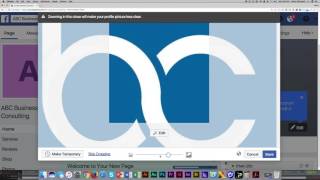
Hello and welcome to Facebook 101. Throughout this course, we're going to be looking at how to use Facebook for your business. We're going to cover a lot of topics around how to set up a Facebook page, what are some of the key settings you really need to know, and why do you need to know them. And then we're going to move into content and how to utilize Facebook to to leverage its ability to reach new people online and also build and solidify stronger relationships with your existing clients. So we've laid out this course in several different modules and topics and self-guided. You go through those courses and you can watch the videos, watch the training, and if we've got additional handouts and information, those will be available in each of the modules moving forward. So that being said, why don't we get started? Now, taking into consideration that we're gonna be talking on a very basic level, there may be things that I will cover in this training that you already know, and that's okay. But there's also some things that I guarantee you don't know, and that's where the strength is gonna come in watching each and every one of these modules. I'm assuming that you already have a personal Facebook account, so we're not going to go through how to create your own physical Facebook account. If you don't know how to do that, just go to facebook.com and it's really quite simple. But in order to have a Facebook business page, you're going to need a personal page as well. Now you don't have to utilize that, you don't have to friend people on Facebook, you just need to be able to log in to Facebook. So what you're seeing here on the screen is my personal Facebook account, but that's not what we're going to look at. We're going to talk about creating a whole new Facebook page for your business, and throughout this, we're going to do it for a fictitious business name. So you're going to notice on the top right-hand side, there's a little inverted triangle here. It's a drop-down menu and allows you to drop down to a greater menu. You're gonna scroll down to this part here where it says Create a Page, Manage Page, and so forth. At this point, I want to talk to you about the difference between a page and a group. Now, a page has been created several years ago by Facebook to be leveraged by businesses and organizations where we're requesting people to come to our page and we actually ask them to just click Like, and it's just like following us and saying I want to know more about what you're doing, and I'm interested in hearing about that in my personal Facebook life. So that's what a Facebook page is. A group is a set group of people, kind of like a closed room, and there's different settings for that. And we'll talk about groups in one of the other modules coming up. But in the sake of this, we're going to click Create a Page. And now Facebook has laid it out to really be quite simple, and there's 6 different types of pages. There's a local business or place, which is primarily what I'm assuming you're gonna be doing since you're taking this training, would be a local business or place. A company, organization, or institution. So it could be, I guess, one or the other. Once you get your Facebook page up, maybe down the road you wanna come back and you create a whole new page just for a product brand that you actually create. So if there's a brand that you have developed for a specific product, you can create a whole page and following around that. Now if you're an artist, a band, or a public figure, maybe you have been in your industry for quite some time now and you are going out there and you're speaking and you're doing training, you might wanna have a Facebook page for yourself as a public figure because you are out in the public and you are part of a brand. So I would use this if you're doing that. Entertainment, this would be, you know, using pages for movies and different types of games and those kind of things. You could do this well, or a cause or community. So if you're a nonprofit, you would use cause or community. In this training, we're just going to walk through local place or business. So I'm going to click on this. And now it's going to ask me some information. So it's going to say, what's the name of the business? So we're going to call this ABC Business Consulting. And it's going to ask for a page category. So if I start to put in any kind of word, so I'm going to type consulting. So there's consulting agency in here. You can go ahead and look through, there's hundreds of different ones. There may be a chance that there's one that doesn't precisely articulate the category you're in. Pick the one closest to that. So go ahead and take some time and choose that. Next is gonna be your address. So I'm gonna use our actual address here. And this part here where it has the town and the city and so forth, not all rural areas are located in Facebook and it's not recognized. For example, our office here at Blue Cow Marketing Incorporated is in a place called Colebrook, Nova Scotia. Doesn't exist in the world of Facebook. So if I look up here, it says Colebrook, it doesn't come up, I mean it shows here, but it doesn't have my province, so I couldn't actually save this. It won't let me. I have to pick the nearest town available to us. So I'm going to head and click Get Started and move into the next phase. Alright, so now we're into the next step. Facebook has created the page for us for ABC Business Consulting. You're gonna notice here, and one thing I'm gonna point out, this may look very large on your screens because I've increased the scale of my browser for the sake of this training. One of the first things is on the very top left-hand side, this is your page profile image. This is like a thumbnail image that shows up on every post that you put out. What I suggest is that you use something that is representative of your business, whether it's an element of your logo or an image that would be easily recognizable anytime somebody sees it. So I'm gonna go ahead and click Change Picture, and I'm gonna choose to upload a photo. In most cases, that's what you're gonna do. You're gonna have the file on your computer you wanna use. This image is square, so make sure that you have an image that is actually square, not rectangle. If it's rectangle, it'll crop off the sides. So I'm gonna upload a photo, and what I'm going to do is I'm gonna actually pick an element from our business. So I'm gonna go ahead to our images. I'm gonna show you what we did. So here is our logo. And as you can see, if I uploaded this, it would crop it off. This is for our Blue Cow Marketing. So we've created an element of our logo that is square so that we could pull it out for the use of something like this. Now I'm just going to use this because I have this artwork already created. It's not on BrandPoint to a company called ABC Business Consulting, but it will make sense here. So I'm going to go ahead and upload this image. It takes a few minutes. And then this window pops up and allows me to drag and position. For example, I can move it around, or I can scroll this little block here to zoom in or zoom out to the full square, and I can click Save. Takes a few moments for this to save, and once it does, it has been saved. It'll reload, and now the image is here. The next thing we need to look at is a cover image. Now, a cover image is the top part of your business page, and this image is something you could change out more regularly. Maybe you wanna have something about different products you're doing or quotes and so forth. But keep in mind, most people don't come back to your business page. Once they click like, they see your stuff come through their newsfeed, which is a culmination of everything that they like, friends that they have been connected to. So thinking that if you put stuff up here, they're gonna always see it, isn't always accurate. This is kind of like your first impression. This is when somebody comes the very first time, they're obviously going to see this because they need to come to your business page. So I'm going to go ahead and click Add a Cover Image, and I'm going to upload a photo just like we did for the thumbnail image. And I'm going to see if I have one here saved from before. So I just found an image here, and for a digital consultancy So we're going to click and upload it. And just like before, we can drag and reposition to exactly where we want. Let's say we want to keep it— want to show the cup of coffee. We're good. We're going to click save. Now the next thing you see here on the screen is add a button. So a button is where people get to take an action from your page, so like sign up, message, or call you. So let's go ahead, we're going to click on this. It's gonna pop up and it's showing you that the image button would be right here. And we've got some different call to actions that we can do. We can book with you, contact you. So for book with you, we've got book now, request a time, start order, contact us, call now. For contact, you see a lot of these do overlap. These are the most common ones. Call now, send a message, send an email, or sign up. Now if it's sign up, it's gonna ask you to send them to an opt-in page. So whether you've got a CRM like Infusionsoft in place where you can build landing pages and have people opt in, I wouldn't have the sign up part because you're going to send them to your website, just your home page. They're going to have to go find where to sign up. So most commonly it's going to be call now, send message, or send email, or contact us. We're going to use send message, so I'm going to click on this and we're going to go down, we're going to say next. And it says your button says send message, and you could go ahead and change it if you want. You can change a different one if you choose the wrong one, but we're going to click next anyway and we're good. And where would you like the button to send people? And it's going to be sending it to Facebook Messenger. Perfect. We're going to click finished, and now the button shows up here. Now because I'm zoomed in, it's showing up in this spot. If I zoom out, it'll show up down in this spot down here. As you scroll down, next it's going to ask you to add a short description. So we can go ahead and click on this and we can write a short description. So ABC Consulting helps businesses be awesome, right? You'll put something a little more in-depth about your business, and there's a character counter here that shows you how many characters you do have, a limit of 155 characters for for this. It's just 1 or 2 sentences to describe what you do. I'm gonna click save. Now we can see here all the different business page tips, and it's making it helpful. It's showing you different things that you can do, how to make effective posts. So you can go through this in your own time. So that right there is how you initially create your page. Next, we're going to talk about some of the other settings, so we'll see you in that training module.
More from Shaun


Julie Vanexan recognizes Shaun Whynacht from Blue Cow Marketing at the Nova Scotia House of Assembly








