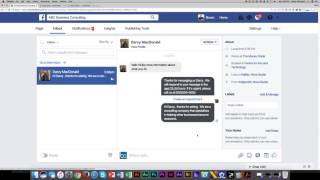
Shaun Whynacht walks through Facebook Page Messenger, showing how to manage incoming messages, create saved replies for repetitive questions, add internal notes and labels for your team, and schedule appointments directly in conversations.
Chapters
Okay, in this lesson topic, we're going to talk about Messenger and how it interacts with people on your Facebook page and the experience that you can have, and also some tips on how to utilize it more effectively, especially when you've got a lot of things that you're going to be commonly replying to people. So when I say Messenger, it's referring to this Send Message button that your audience can send you a message from. Now when people send a message, remember how we set up Response Assistant to respond back to them? Well, when a message comes through, it's going to show up, up on the top side of your, your page. So it's going to show up up here and it's going to be a little 1 by it. So a message would come in and you can actually go in here and see any messages that were sent to you. So what I'm going to do is I'm going to log in to Facebook in another browser and send a message through. Okay, so we've got a message that came through and we've got a notification. But if we click on Inbox, what we're going to see here is here's a message that was sent through by Darcy. It says, hello, I'd like more information about what you do. And there's our response assistant that came back. One thing that may happen as you use Messenger over and over again is the fact that you might be answering the same questions. For example, he asked, he'd like more information about what you do. So instead of me sitting here saying, you know, blah blah blah blah blah, this is what we do, you know, and then the next time somebody asks that I have to repeat that and write it in there, I can go down here to the bottom where this little icon is, and I can click on Choose a Saved Reply, and I can click on this, and it's going to come up with some pre-made ones that are in here. But we can go ahead and we can manage a reply, and we can add a new one. So we're going to put in here Create a Reply, and we're going to call it More Info About What We Do. Hi, put in— oh, not last name, we're gonna put in first name. Thanks for asking. We are a consulting company that specializes in helping other businesses become awesome. Okay, so if that was it, we would save this reply. And you can obviously put more information in there. You can obviously add images. But now when this message comes in, I'm just going to close this down. I can be like, okay, this is a general inquiry. This is a saved reply. I can just pop this up. More information what we do. There we go. It's in below. Now I can actually add more in here at this time, or I can upload an actual file and send it to him. But all I'd have to do is click Send and it will come through. And then you've got engagement back and forth. Some other cool features that are in here is you can add some notes. So you can add a note on file. So it could be Darcy works with a cool team and he is an A+ prospect. Now Darcy's not gonna see this. This is an internal note that's in here. And if you're sharing your account with other team members or other employees that are managing this and listening and responding, they can quickly look at the notes that are in here. Maybe it's important to label it for follow-up. Maybe it was an inquiry you need to follow up, or it's important. You can put a label on file. So now we know when we look through a list of them, oh, these are all the important ones. That are in here. You can choose this here and you can either flag it or mark it as spam, mark it as unread. So if you read it and you're like, oh shoot, I wasn't supposed to read that, wasn't for me, you can mark it as unread just like email. Or you can archive it. And in the top right-hand side, if Darcy's actually being a pain in the butt and, you know, saying things that you don't want him to say, you could ban him from the page right there within the chat. So chats are really— and this message thing is really a great option for you to stay in touch with prospects and know that this information is going to be coming through, through the chat side of things. Now the other thing that's new in here at the time of recording this is creating an appointment. So we can go ahead and say create an appointment. If you're chatting, you can say, okay, well, how about the, you know, the 27th at this time, it's going to end at this time, and you could go ahead and create that appointment. Now I'm not going to do that in this training because Darcy's a real person who I asked just to send this message through for the sake of this, so I don't want to create an an appointment in here, but it will send him a link back so that he knows when that appointment is going to happen. So that is the section of using Messenger in here. Now, you know, it may be some time since you've watched this training from when we recorded it, and there may be some different options that are in here, but in essence, this is the general messaging side of Facebook. If you want to click View Profile, you would go ahead and see this user's Facebook profile.