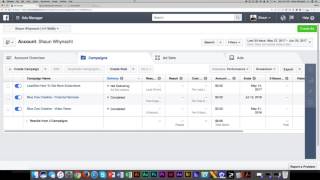
Shaun Whynacht shows how to set up a Facebook tracking pixel on your website. You create it in Ads Manager, copy the JavaScript code, and paste it before the closing </head> tag. Once live, it tracks visitor data so you can run retargeting ads.
Chapters
Now that you've got a Facebook Ads account created, the next thing you absolutely need to do is you need to add your Facebook tracking pixel to your website. Now if you're saying, you know what, I don't manage my website, it's not my thing, I don't understand it, that's okay because there's somebody that does, and I'm sure your web designer would be happy to add this to your page. Now what does a Facebook tracking pixel do? Now I guarantee You have been tracked by other businesses online at one point or another. And I don't mean in a creepy kind of stalker way. I mean that maybe you've gone to a website and then later went on Facebook and you started to see relevant content to that business show up in your Facebook newsfeed. That's because they're using a Facebook tracking pixel on the website that you visited. It's really not that hard, but it unlocks a huge powerful potential to advertise and promote your content to people who are generally interested in what you're doing. So once you go into your ad manager, you're gonna go to the very top, you're gonna drop down the option here, and you're gonna look for something called pixels. Now maybe on the left side, you may have to go down to all tools, and it's gonna be under assets. So we're gonna go ahead and click on Pixels, and what it's going to do is it's gonna come up and there's gonna be a button in here that says Create Pixel, and it's a one-click, and then it's gonna give you some website code. So I'm gonna show you what that looks like. Now don't get confused, don't freak out here because it's all kind of like gobbledygook and programming stuff. What you need to do, if you're able to do this, if you've got a web WordPress site and you're able to go in and add this, and they make it really quite simple. Locate the header code of your website and explains exactly what it is and what you should be looking for. And if possible, paste the code below before the closing head tag. So you just add this to your clipboard, copy it, and you would go over to your site editor and put it in there in the code before that closing head tag. Now, if you aren't comfortable doing this and you need to send it to somebody, you're able to go in here and get email instructions and send it to your web designer. It's going to come from you. It's going to give you all— or give them, he or she— all the information they need to put this on your site. Once it's on your site, you're then able to start to see some traffic coming through. Now, this pixel here that I'm in isn't generating any traffic because I don't have this one installed on a site. I have a different tracking pixel under a different account installed on my site, and that's the one that we're going to look at in the next video.