Get Social Proof for Free with Repuso | Detailed Review
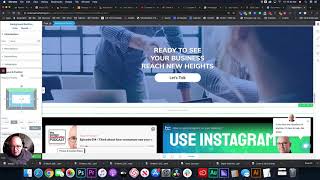
Shaun Whynacht shows how to set up Repuso, a free social-proof tool, by connecting review sources like Google and Instagram, filtering posts, and embedding the widget on your site. The tool aggregates mentions across platforms and routes positive reviews separately from negative ones.
Chapters
Shaun Whynacht here at Blue Cow Marketing, and today I'm going to talk to you about and show you some of the freebies that AppSumo has put out. Now, the first one that I just got a notice about is this one here called Repuso, or Repuso, reputation being the, the rep part of it. So they launch always some free applications that you can get absolutely free. Go to appsumo.com and when you get over there, let's just go back a step here. I'm going to show you where this is. So when you get to the website, you're going to see right here where it says freebies. So we're going to click on that and referencing this one right here. And I'm going to do a couple other videos on some other ones as well. So you go in here, you get it now, you're going to click on this. If you have an account, you can go ahead and get it so you don't have to pay anything. If you don't, you can register for an account with them and get it. So I already did that and Once I signed up, here is the application. Now I've not gone in and done anything yet aside from just sign up. So I wanted to walk through this with you. So it says here, your inbox is empty. Let's add some channels. So I can go to add channels here as well. And these are all the different channels that you can get reviews. Now I should preface the fact that this is a great way to— this, this software actually is, is helping you get reviews and display your reviews on your website. So if you have some challenges with that, here's a great way to do that. So we're going to go ahead and going to click Facebook page. And we're going to click add a page. I just want to show you how easy this is. Well, we got our fingers crossed. Like I said, I've never done this yet, so we're going to go through here and make sure. So I can go ahead and pick my company page, uh, that I'm getting the reviews from. I'm going to go yes. Uh, there we go. So it's going to connect that there. So I'm going to go ahead and we're going to do this for a couple of other different places as well. So I'm going to use Twitter and pull in my Twitter account here. That's the one we're logged into. We're going to authorize that. Let that do its thing. There we go, that's that. Instagram, let's pull in an Instagram account. Let's see here, let's switch to my, let's switch to my Blue Cow Marketing account. So far this has been pretty seamless. That. So we got a whole bunch of stuff in here, uh, it's gonna pull in different things. So we're gonna look at those in a second. We're just gonna see what other channels we may be able to pull in here. iTunes, don't have that. We got Google. Let's go, let's go put in, uh, Google as well. Business name, Blue Cow Marketing. There we go, we're showing up on the list. We're going to add that in. So auto tags, post fetch all the channels that's tagged with these tags. Um, where are you going to go? Just click save anyway. Uh, so there we go. Perfect. Now I wonder why our Facebook one wasn't showing up there. Let's just try this again. Oh, that's why I didn't actually click on it at the next stage. And then lastly, I don't think there's any other ones that we're going to be referencing. Now, if you've got any of these other sites that you use, then you can pull in those as well. Okay, so let's go ahead and look at the post side of it. Now in here, it's pulling in a lot of Twitter, some mentions in here. Go through what says Google, right? So here's a, here's a review, right? So from under my Google reviews, I can click on that. So it's really monitoring what's going on in the social world and allows you to pull in some stuff. So I'm going to really pull in my Google reviews by clicking the little plus sign that's there. You're going to see a lot more Twitter because you're going to have mentions in there. So if you don't want that, then you don't have to worry about it. And Wow, a lot of mentions. So the reason the benefit would be the mentions is if somebody says, you know, a really great thing about you, you can pull that in so it's pulled in from those points, okay? So maybe I'm going to pull in one of them just to see how it looks anyway. All right, you know what I'll do is I'll go back later and I'll find all my Google ones. I wonder if there's a sorting option. Let's see at the top here what they get for options. Posts approved, customs, all custom post types, search for posts. Here's a filter. Look at that. Let's pull in our— just our Google and our Facebook. Now Facebook, yep, so it's getting reviews there as well. So we've eliminated the other part. So we're gonna go ahead, I'm gonna pull in all my reviews here that I want to put into the system. Perfect. Now the reviews. Now let's see what we got here. We got widgets. So widgets, I'm assuming, will allow us to— look at that, we can put in these little reviews. So different types here that we want, right? So we can have a grid format, inline, a photo set, badges, flash, which will flash up, floating. Floating, let's see here, that's just gonna float over the page. So floating flash buttons on the right-hand corner of the website. So I'm impressed, there's a lot that you can go on here. So I'm gonna use grid for now. I'm just gonna say homepage. Widget. Now it's probably gonna give me a little code here, which it does. Look at that, I can email it. So let me just copy this and let me just open up another tab, and we're gonna run over to the website here and log in. Log in with one of my main logins. Once we log into the site, you can see we're using Thrive Theme Builder. So I'm just going to go back to the main part of the website and we're going to edit with Thrive. So we redid our homepage in the last couple days. So the reason I'm using floating is I'm using floating on the right-hand side for communication that way for chat communication, so I didn't want that to override that. So depending on your site, you may want to do that. Um, so where am I going to put some of these stats? Let's say, let's scroll down here. There's some things like that. Let's say I want to slam it in between this and this. Okay, so I'm going to go ahead and quickly throw in here a background section so that it's white and fix the, the top so it pulls it down a bit. And I'm going to throw in— that was an HTML block So let me go find the HTML section, custom HTML here, insert it. I'm going to paste in— oh, maybe I didn't copy it. Let's just go back here and we're going to copy and we're going to actually use Ctrl+V. There we go, pulls it in. Now in this view you're not going to see it that way, but I'm going to go here and go save. My little head's in the way here. Save and preview. Once it reloads, it's going to take us back to the homepage. Let's scroll down and see what we got here. Look at that, that's pretty clean. I'm impressed. Look at that. More posts. Wow. Okay, this is a really cool system. All right, let's go back and take a look at it a little bit more. Let's see what some of the advanced settings are here. Dables custom post, show post types, layouts. So we can change some of the function, we can change some of the coloring so it matches our theme. So view post button, more posts. Let's go more comments, view comments. Okay, excellent. Now collect. Now how do we get some reviews? So look at this, so we got an option here. So send people to collect a review. So this is the page, it's going to say this is a preview of what it's going to look like here. I'm sure we've got options to— what's this, review sources? Um, so click the reviews feedback here, form settings. Let's say routing. Um, so routing, so let's— you send good reviews to the social channels and other ones to the not so good. Awesome. So we can add the review sources. Good. And perfect. We can add the review sources right there. We're going to hit the plus sign. Yeah, we want to send the reviews to Facebook. Excellent. So this is, I'm assuming, going to be the link for it. So the link to review Facebook. So let me go over here and open up Facebook. And I think it's going to be your company name slash reviews. Review or reviews, I don't know which one it is. Let's try. Yeah, so it's reviews. So I'm going to copy that. And I'm going to come back here and then paste it in here. And perfect. Save those settings. Okay, so let's just take a look at this page. Oh, not paste. Shoot. Copy. Let's open up another tab. Paste this in here. All right, so this is what it would look like. So your feedback is appreciated. Could you please leave us a review? So this is either on the site or on Facebook. Facebook would then send it to there. Reposo, send it here. They can leave the reviews. So you guys rock. Let's see what this looks like. They give us a 5. Joe Test. And let's submit that review. Thanks for sharing your experience. Okay, so that's what that was. Let's go over here and see what would that would look like. So when we come back in here, we're going to see posts, right? So there it is right there. So it shows up in that list. That's awesome. Okay, perfect. Um, and we could delete it there as well. Uh, let's see what we've got for integrations. Integrations. Okay. Slack. So we want to be notified when there's a review on Slack or a webhook. You can do that as well. So overall for a free system, I'm impressed. You know, even if you're just pulling in some of the existing reviews, you're not using this to send out and being able to have this type of integration on your website. Highly recommended. This is social proof. This is something that is going to be extremely beneficial to you. So like I said, if you want something like this, go over to AppSumo.com, look at the free tools, and get yourself a copy of RepuSo, uh, however you want to say it. Um, that's where you go and you get it. So if you like this video, if you're watching this on Facebook, please comment, say love it, thanks, whatever in the comments. If you're watching this on YouTube, Go ahead and subscribe to our channels as we'll have more great videos like this, and then you'll get notified of all those videos as you are a subscriber. So thanks for watching, and we'll talk to you soon.
More from Shaun


Julie Vanexan recognizes Shaun Whynacht from Blue Cow Marketing at the Nova Scotia House of Assembly








