Get Vector Logos for Under $50 | My First Look At DesignEVO 👈
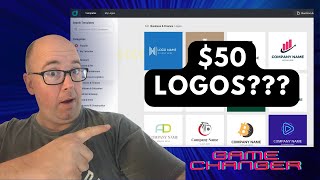
Shaun Whynacht walks through DesignEvo, an online logo maker that costs under $50 for vector files and copyright. He shows how to customize templates, edit fonts and colors, and explains the pricing: $24.99 for high-res raster or more for vectors and full ownership.
Chapters
Hey everyone, it's Shaun here with Blue Cow Marketing, and today we're going to be reviewing another online tool. This one is from a company called DesignEvo, Evo, EVO, whatever you want to call it. Now they reached out to me to do an honest review. I have not gone in and played with this other than setting up the account they provided for me to do this. So I'd reviewed a couple other of their softwares which were really great, and I chose this one as the next one that I wanted to bring to you here on the channel. So if you're liking the videos that we are creating, please show us some love, like and subscribe to the channel. Now let's talk about logos. For years I've been doing marketing for different clients, and one of the biggest pet peeves that I have is when a client or a business doesn't have a proper logo. A lot of times they may have even designed it in Microsoft Word Word or Paint or anything like that and they don't have the proper design files to even scale it or work with it. Mainly it could be just because they just don't know that they need it but in reality you do. The other side of things is up until tools like this came along, you would have to rely on a graphic designer and we have provided graphic design services to clients in the past and you know, it can become expensive. So I am a big fan of if you have a tool that allows you to do something like you're going to see here in this video, creating your logos, unlimited amount of logos for anything, any service, any product, then go ahead and invest in a tool like this. So let's jump right in. I'm gonna go ahead and sign into my account. Now I'm looking on the website right now and this is the one that I went to and I see sign up. Now again, I'm not coming here to say that everything is perfect. We are going to be going through this together and see what to do. So initially, you know, sign up, I'm like, okay, well, where's login? But in reality, it looks like make a logo on the top left-hand side is the button that we want. And it's going to take us into here. Now I do have an account. And I think if I click on my logos, then there we go. Then it's going to allow me to— no, it still says sign up. Oh, there we go. Log in. And we're going to log in. I think I logged in with my Google account, and we'll see where we're at with this. All right, now it looks like— yep, there's my, my icon at the top. Now, at first sight in here, 500 popular logos. You can scroll through and get some ideas. There's different categories on the left-hand side, so animals and pets. So if you've got like a dog walking service or, or anything like that, a vet maybe. Arts and entertainment. Food and drink, legal. As you can see, a lot of them have different styles and really can be a starting point for you to figure things out of what you want to do. Nonprofits, sports and fitness, technology and communication. So let's go ahead and let's pick one that's in here. Let's just go in here and let's just pick this one here. So we're gonna go, let's see what similar does. Similar will actually bring up other ones that are very similar to that. Very aptly named, good job on that. So really cool little button or feature. You've got the little heart here so you can actually go through when you're selecting and be like, okay, I like these ones. You know, these are the ones that maybe if you've got a meeting with your team, you can come back here, it looks like you can go My Favorites, yeah, there they are. So you can kind of breeze through and pick some categories or ones that you might wanna work with first as well. So let's go ahead, like I said, we're gonna pick one of them. I want one that I kinda like. Here, there's colorful. So we're going to click Customize. It's going to bring us into the design tool. One thing I notice, a lot of design tools very similar in the interface with these kind of menus on the left-hand side and then kind of all the settings here and then the canvas over here. So let's go ahead and call this, um, you know, Free Company. Slogan: We are awesome. Right, so that's the company. Let's see what we can do with these here. We can pull these out so there are two different ones. You know, we could do some stuff with it. Maybe you want to kind of play around with this. And so we see he's got the angles. That's a really cool feature. So if you want to match everything, so this is 333. Oh, I don't got to do that, the math. So I think 33, maybe. I don't know if that's the math right, but it looks pretty good, right? So you can kind of do some stuff like that, change it up. You got your fonts over here. We got art, so So different ways. So maybe I want to change this and let's say we want to go to, let's go like that. There we go. That's kind of funky, right? So we're going to throw that in there. Maybe we're going to be a little more cutting edge. Um, and let's say we want to add some more text to this. Maybe you want a website in this. So let's go text on left side. Let's see. Oh, add slogan. Oh, look at, there we go. And we can put www.freecompany.com. Oh my, wow. There we go. Classic. So you can pick any— for this seems to be quite a few fonts that are here. Oh, and you got the different font families. So you could do some— now obviously this is not how I would design it. I'm just playing with a bunch of stuff. I've never throw a handwritten URL in the mix, um, in a logo design. It's not too bad. Maybe if I was doing a cupcake company, that might work in there. But you got to be aware sometimes when you're putting in script fonts is the letter understandable, right? The fact that you have Free Company up here and then you have Free Company, you could tell that's an F, so you can figure that out. And you can change them up. What else we got here? We got shapes, so we could throw in some shapes if we wanted. Decorative, solid lines, banner images. So I think we could, we could throw in some stuff like this. Can we actually scale? It's scaling, but can we do it Like, no, we can't. So we can't pull it out. It always has to go to scale, which is not too bad. I mean, you make sure things don't skew. Now, how do we go to different layers? I think that's this button up here, Layer, and then we can go move back, move back, move back, move back. So as we see, it's going in behind. Can we change the color of it? We can. We can change that to a different kind of shade, and then we could say, okay, let's, let's play with some of these things here. Let's put this up top. And maybe we don't even want that anymore, so we're going to get rid of it, hit Delete on the keyboard, and we're going to pull this back down. We're going to go here and let's say, hey, you know what, we don't even like that. Let's get rid of that and we start to play with this a bit more in here. Let's look what we got under here for shapes. We got text, oh, we got icons. So let's go cupcake. I think there's a cupcake in here. Ooh, there is, look at that. Let's pick, lay all that there. Throw that up, we're gonna pick the color. Something that might work with it. Let's see what we got for colors. Oh, you can actually use hex codes, that's pretty awesome to be able to find the color that you want in there. Again, don't pick out my design skills in this video, that's not the purpose of this video. What do we got up here? We got flipping horizontal, flipping vertical, and then we got effects. What can we do for effects? Opacity, so we can make it transparent. You know, so far so good in here. What's this button do up here? Duplicate. So we want it to— right, we could have done that and changed it up. So we're going to delete that. Um, let's do a Ctrl+A. Does allow us to select everything, and it does. Pretty sick. That's awesome. Background's pretty simple as to what that is. So we're going to go and hit Save. So it's now saving the design. And I'm assuming it'll be there, but let's go back to the main page and we'll click on My Logos. So there we go, there's the one that's here. That was a free one. So the way they work is you can get a free account, allows you to kind of play with some logos, or you can go upgrade to an actual paid account. The difference is with the free one, you can download it as a JPEG or PNG. With the paid account, you actually get your vectored logos, and that's the key thing. With it if you want that vector logo. So we're going to come back over here and go back in and edit this interface. Is pretty fast. You can put a grid on. Let's see, because that— where's that go? I don't see the grid. You can choose your size, so you can make it bigger or smaller. What's that layout? Okay, interesting. And then your zooms. Now we can download. Now here's where it's going to show us, you know, what's our account. So congratulations, excellent logo! You can download your low resolution for free, and then you see the pricing let's hear. So your basic account, your paid one, $24.99 here, one-time fee, is going to give you your high-resolution JPEG and PNGs up to 5,000 pixels. In most cases, unless you're doing like a billboard or anything like that, something large, 5,000 pixels is a pretty large file that you can do. So that's perfect. And then you got all this stuff. Now the only difference is you don't get in the in the basic, the vector files or download the font files or copyright ownership, right? So that's okay if you're just doing print stuff. Now in the full one here, you get all that, okay? And so you can kind of choose the package that you want moving forward. So let's go back and we are gonna go back to my templates, my logos, and we're gonna say upgrade here. Now I'm gonna say choose. Now I'm pretty sure I went and did all this the other day, so I don't know why my account is showing that, because I know when I bought it— well, not bought it, but I had a promo code with them to be able to get the paid account to do this demo with you guys today. Maybe it's based off of each one that's here. So I'm gonna go ahead and just pause the video. I'm gonna grab the promo code they gave me, and I'm gonna see if I can get past this to show you the next step. Okay, so I put the, the promo code in that they gave me. I'm going to put it down to zero here. So I'm going to say download that logo. There you go, your logo has been upgraded. Click the button below to edit to my logo panel. There, so it is in the account now. Now I wonder if Pretty sure here I may have spoke out of turn when I did this video that the actual pricing is not for an unlimited account. It must be for per logo design, because if I go in and I look at this, and let's just say I do another one Right, because I use the coupon code. I hit download. It's gonna— yes, okay. So these prices are for the actual single logo you designed. This is not an unlimited account. This is a one-time fee to buy that logo. All that said and done, the fact that you can go in and design your logos and everything, and you only pay when you go to download them You can get that low-res version. Still gives you the ability to design as much as you want, and then you only use it when you pay for it. I mean, $49. I mean, we used to be charging $300, $400 to design a logo, and now you have complete control to do it for, you know, $50 USD. My recommendation is to do this and get the vector version and the copyright ownership. It is well worth it for that price. As you can see, it is most popular. So if you want to try this, please show the love, go to my tracking link in the description of this video, and then you will be able to sign up. And you know, I, I am an affiliate with this company now. Anytime I do a video like this, um, you know, just helps keep the lights on, uh, is doing these kind of videos and bringing it to you. But you will still get the same pricing regardless. But click that link down below, and again, subscribe to the video, or like the video, subscribe to the channel, and we'll be bringing more videos like this to you. And again, apologize if I misled you in the beginning. That's what I thought it was when I looked at the site. But again, still, to have a logo design, $50, not a bad price, if I say so myself.
More from Shaun


Julie Vanexan recognizes Shaun Whynacht from Blue Cow Marketing at the Nova Scotia House of Assembly








