Shaun Whynacht shows how to enable Gmail's Undo Send feature in Labs, then set a delay timer for 5, 10, 20, or 30 seconds. Once enabled, you can click Undo after sending to recall a message before it reaches the recipient, a safety net for accidental sends.
Chapters
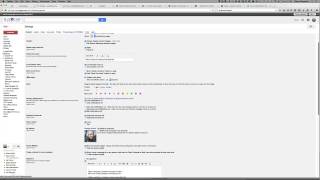
Hi, it's Shaun Whynacht here with Blue Cow Creative. I want to talk to you about a new feature that Gmail has rolled out that I think can come in really handy for anyone, especially small business owners. Now we, we tend to send emails and we get a lot of emails coming into our inbox and we're replying and sometimes we either hit send by accident or we, we write an email, we send it and immediately think, hey, you know what, I shouldn't have said that or I should have added something to it. Now Gmail has done a great thing is they have enabled us to turn on an undo on-send feature where we can up to 30 seconds after we hit send be able to undo that message and not have it actually send through to the recipient. So how do you exactly do that? Well, if you've got a Gmail account, as you see here on the screen here, this is my Gmail account, but I want to go through and show you where in your settings you need to go to enable this feature because it's not turned on automatically by default. So when you're logged in, you're going to go to the settings gearbox here on the top right-hand corner. When you go to that, you're going to go down to settings. Now in the settings, there is a lot going on. There's lots of options. There's lots of tabs, but the first thing you need to do is you need to go and find the Labs tab here at the top. It's right here. The very last tab across the top. We're going to click on this. We're going to scroll all the way down to the bottom. And we're going to look for this one, third from the bottom, Undo Send. Okay. So we're going to enable this. Now that's step one. We're going to click that and then we're going to click save. Now, once we do that, it's gonna take us back to our inbox. We're gonna go back into the settings again, right here. This is where we can choose the delay. Now, because they are giving us the option to undo those messages, obviously by setting a delay, that's gonna indicate how long the message sits there before it actually does get sent. So the option that we're looking for in here is this one here that says undo send. Now, it would not have been here until you enabled that. So it is enabled and allows us to choose anywhere from 5 seconds all the way up to 30 seconds. So if you don't mind your emails being delayed by 30 seconds, I would strongly suggest you do that. So I'm going to go ahead down to the bottom. We're going to hit save because it's already saved anyway. Now I'm going to send an email to one of my other accounts. I'll show you exactly how you want to do this. So I'm going to compose a message and then I'm going to go through here and I'm going to just put in, it's going to use my Radia Consulting email. And we're going to go test 2, and let's just say we put in some content here, blah blah blah blah blah, and we're going to click send. Now it's sitting. Now you notice at the top here, your message has been sent, undo. If we click undo within 30 seconds, it's undoing, it's bringing back that message that was here and any messages you had deleted prior to that. But I notice if I jump over here to my Radiant Consulting account there's no email being sent through. So that is a great feature. And if you've got Gmail, and I strongly suggest that people consider Gmail for their company email for that simple reason that for one, it's got great spam filter features built in, but the other reason is now because of this, we're able to then undo sending those messages. So if you liked this video and what we're putting out there, please Go to our YouTube channel, like us on YouTube, and we've got more great videos coming your way.