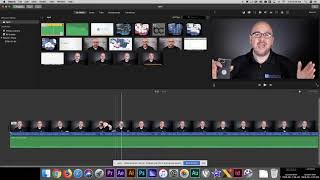
In this tutorial Shaun Whynacht demonstrates a practical workflow for creating custom thumbnails that make embedded videos stand out on a website. He starts by explaining why the default thumbnail can look bland and why a tailored image is beneficial. Using iMovie, he captures a specific frame from a video, exports it as an image, and then imports it into Photoshop (or any image editor) to add descriptive text. The edited JPEG is then uploaded as the video’s thumbnail in Vimeo’s video settings, replacing the default still. Shaun emphasizes that this method works for any video, even allowing the use of stock images instead of a video frame. He also briefly promotes his video‑production services and encourages viewers to engage on social platforms.
Chapters
Hey, I want to share with you a tip regarding your videos and more importantly those pesky thumbnails that you get. Now you see a video here, I just recorded this this morning putting it on my website, and it's a video talking about the difference between good and great speakers. Now when I uploaded it, obviously I could pick the thumbnail that's there, but it just kind of stands bland, uh, here on the website. So here's what I strongly suggest that everybody does. Now obviously we've got the ability to do this. I use Vimeo whenever I'm embedding video into my website. I just like the video player. It's cleaner. It doesn't have the suggested videos at the end and all that kind of garbage. So what I ended up doing was I went through and I found the ideal thumbnail that I wanted to keep. Okay, so, right, so, um, whatever it was. So what I did is I, I did it in iMovie. Um, so here's iMovie. I went through and I found that exact thumbnail, right? What— whatever one it was. I think it was this one here. Then I exported it as a file. Okay, now you may saying why am I using iMovie. Doing quick videos, iMovie is a great platform for that. I don't need to use Premiere for that. There's another little sidebar with that. So I export it as an image. Then I slammed it here into Photoshop, and you can use any other video editor you have, and I just throw on some text just like this, the difference between good and great. And now I save this as a JPEG. Now what I'm going to do is I'm gonna hop back into my Vimeo account, going to edit the video, And then down below, I'm going to actually, not that one there, I'm gonna choose upload. And then I'm gonna find that thumbnail, which is that one right there. I'm gonna upload that, which is obviously a still of the video, but also has that text on there. So now I can save it. And now hopefully if all things work and I reset this here, there we go. Just stands out a bit better. It tells you exactly what this video topic is without actually having to label it above or below. So that's my tip for you. You today when it comes to video is you can control the thumbnails of any video that's on there. Take a still, throw it in there. Heck, if you don't even want a still, you want to put a stock image and some text, you have the ability to do so. So hopefully that changes your outlook on videos that you embed on your website. If you want to find out more or talk to us about video production and your business, whether it's for speakers, trainers, or coaches, you can come over to our website at bluecowmarketing.ca. And wherever you found this video, if it's on YouTube, LinkedIn, Facebook, like, comment, and share. We'd love to hear from you. Thanks and have a great day.