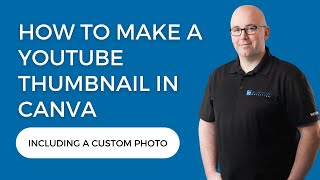
Shaun Whynacht shows how to design a YouTube thumbnail on iPhone using Canva. He takes a selfie with a 3-second timer, removes the background in Canva, adds text and brand colors, then exports as PNG with a searchable filename because YouTube indexes them.
Chapters
Hey guys, this morning I was creating a couple of YouTube videos and I was starting to upload them and I thought, hey, you know what, this is the point where I'm creating the YouTube thumbnail and you guys may want to watch how I do it because it's very easy using Canva and my cell phone. Now I love having the thumbnail images that have a photo of myself on them. I'm going to show you exactly how I do this. So just what you see here on the screen is we're in that thumbnail section and that's where I need to upload one. So we're going to hop over to Canva, one of the most amazing tools that I love in my business. So we're gonna go ahead and we're gonna search for YouTube thumb. You can put thumbnails or whatever you want in there. And I am a big believer in working smarter, not harder. So there is already a lot of different templates that are in here, okay? So I'm just gonna pick any one. I kinda like the ones that kinda are standing out to me. So I'm gonna check this one here and we're gonna say customize this template. Now when they come in here, you do get that stock image of the person. I highly recommend you get rid of that one. So what I like to try to do is I like to mimic what they're doing in the video. I am going to take my phone, very easy right here, and I'm going to go into my camera app and I'm going to go ahead and turn on the timer because I want to go ahead and take a photo of myself. I'm going to use 3-second timer. Now I'm going to lay this phone in front of my computer and I'm going to mimic that pose that's there on the screen. You're probably going to see me do this here. I'm just going to move the microphone back and I'm going to hit go here. Just hold on a second and I'm going to do this whole like— double guns pose that this guy is doing. All right, so hold on. All right, I'm going to do another one just because my lower hand was a little low. Perfect. Okay, so if you're on an Apple computer, you know you can AirDrop. So I'm going to go ahead and AirDrop this, and, you know, completely comfortable with looking like a fool in these videos for you guys. Okay, so I heard it come in, so I'm going to go ahead and— there it is at the top. We're going to go ahead and delete that image, and we're going to hop over here. We're going to go upload, upload files, and I think it comes into my downloads. So there it is right there, and you can use this HEIC files. They do come in to Canva, and Canva does recognize them. So it's going to quickly upload. Now, before Canva, if you ever had to use Photoshop, you sat there and you go pixel by pixel trying to cut out the background of somebody. Very annoying to do, very hard to do. So there it is, there's my background, but watch this. We're going to click Edit Image, Background Remover, let the magic wizards do their thing, and you will see in a second here that it's going to remove my background. And I've only had a couple times where it had a hard time with an image, and that was because the background was very dark. Okay, so look at that. There's the image there, just like they had. Let's go up a little higher. Now, one of the things that I noticed is you can see my elbow to here, and this is cut off, so I'm going to actually flip this horizontally like that. Look at that. Don't I look like a complete idiot? Yes, I do, but I'm okay with that because it's you guys, and I'm doing this content for you. All right, so how to— what's this? What's the, um, video that I'm doing here. It is— if I find the right tab— uh, how to create a carousel post on LinkedIn. Okay, so we're going to go ahead and— how to create a post. We're going to drag that out a little bit like that and Move my big old head over here. Now I'm going to do Command and I'm going to bring it in behind, put me over front. Crystal Post on LinkedIn. There we go. I'll throw in my name just like that. All right, perfect. Now this little— I want this little graphic thing to be over here a little bit. We're going to pop that back up just like that. There we go. What's the background going on here? So the background has, um, it's got this little funky color thing. If I did this, I think it's going to take it all blue and I don't like that. Let's take another one of the brand colors. That's pretty, that's not too bad. Uh, it's still going to stay on brand for me. So we'll pull that back over here. I can put me over here a little bit. Look at that. Perfect. All right. Um, We're going to go and download this. Another tip is YouTube does index the— oh, that's not what I want. It does index the names of the files for the thumbnails, so we want to make that match. We're going to go download. Download PNG is fine, keeps the quality of the photo. JPEG will compress the image, so we don't really want that. Actually, knowing this, I don't like how that looked. So these are touching, so let's make these touch here. Look at that, that's getting a little more sassy. I find myself doing this a couple times just to get that to the way I want it. There we go, all right, let's re-download that again. And what I'm actually going to do is I'm going to delete that previous one because I don't want it to have that 1 at the end of the file. There we go. Okay, so now I can go over to LinkedIn— or LinkedIn, too many, too many programs— uh, YouTube, upload it. It's going to show us here selecting that, and then we're going to go and finish this. So this is going to be in my How To section. Done. No. And one of the things that I like to do is use the end screens. I know that wasn't what this video is about, but I thought, hey, we'll show you this too. So an end screen is just an image. So here, let's see here. Let me open up the program I record this in, ScreenFlow. So at the end of my videos, so here's a video I did, and then I put in this little logo bump, which is a couple seconds of the logo. And then I have about 10 seconds of this, thanks for watching circle and 2 videos that are here. So those are at the end of each one of my videos. And because I use the exact same file, the same length, I don't have to recreate these each time. I can just go import from video when I get to the step, go import from video, choose the last video that I did. The only thing is I might need to kind of just see where it comes up. So it comes, do do do do do, so it comes up to about there. There are a few seconds where it's off. But the placements are exactly the same because they were pulled from the last video and that video did not shift. So we're going to click Save and we'll hit Next and we're going to make that video public. So there's that thumbnail we just created and we're publishing the video. It's as easy as that. If you like this video, please like, subscribe, comment, do whatever, you know, dance around, I don't care. Comment on it, ask a question, I will reply to your comments. Thanks for watching this video. I love creating this content, and if you would like any help with your marketing, go to bluecowmarketing.ca.