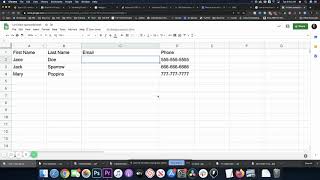
Shaun Whynacht shows how to create placeholder emails in Google Sheets using CONCATENATE to combine first name, last name, and a domain like @noemail.com. Drag the formula down to generate emails for hundreds of rows, then export and import into your CRM without errors.
Chapters
Today we're going to have a quick tutorial. You know those times where you have a list that you are going to be importing into a CRM or a database or whatever it is, and for some reason, very similar to ActiveCampaign— and this is one of the systems where this comes into play— you cannot import a contact unless there is an email address. Now we all know that we have a list that contains certain people that we don't have an email list for. Now, if there's only a few, you could easily go through and type in, um, just a placeholder. So it could be, you know, no email at, you know, your domain or whatever the case is. But if you're getting into the instance where you have, you know, several hundred, several thousand, you don't really want to take that time to type them in one at a time. So I'm going to show you this formula. Now I'm using Google Sheets and I obviously just made this up, right here just for this example. So what I'm going to do, I'm going to paste it in here. I'm going to show you this. So CONCATENATE is the function here. And what it's saying to do is take the value of A2, which is first name, comma, add a dot, add in the value of B2, comma, and then add in @nomeil.com. Now I use @nomeil.com. You could use whatever you want. The idea behind this is so that you can pick a search criteria. So if you want to pull up everybody with @noemail.com, you could do that within your database. So when I go ahead and I put that in there, that's what happens. So if you got a list of, let's say, 1,000 people, it's easy because you're just going to drag that formula down and watch. It's going to generate those email addresses for that person. Okay, so now you can export it and import it into your system with absolutely no problem. So if you want to copy that formula, I'm going to paste it below this YouTube video in the comments so that you have the exact formula to copy and paste into your system. I hope that was helpful to you. If you like this video and you want to see more, go ahead and click on the subscribe button and then hit that bell to ring it, and you'll see all future videos that I put out. Thanks for watching.