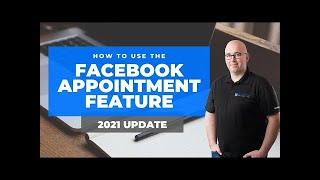
Shaun Whynacht shows page owners how to set up Facebook Appointments, from enabling the feature and syncing a Google Calendar to creating services with pricing options and configurable booking windows. You can set reminder messages, define time blocks, and generate a booking link for customers.
Chapters
Hey, what's up everyone? I wanted to do an update to a video that I did a couple years ago where we talked about how to use the Facebook appointments setting. And I know there's been several comments that have come in about things that I was referencing in the video that you no longer see, and that is common because, you know, Facebook's always updating things. So it is time for an update. And if you don't know what I'm talking about, it's the ability to use your Facebook page to actually book appointments and connect it with your calendar with availability. So How do you go about doing that? Well, first of all, you need to be an owner or an admin of the Facebook page in which you want to set that up in. You're going to come to the left-hand side and you're going to find this option that says Appointments right here. So we're going to click on that. And this is going to take us into the settings for the appointments calendar. Now they, they've obviously increased the function of this since the last video. You can see your entire appointment calendar here. And there's obviously all the stuff that, that is connected. Now I have connected my Google Calendar. And how do you do that? Let's take a look on the left side. So we're going to go to appointment settings. This is where all the magic happens with setting up the different features and functions that are there. So you might see this thing about get more appointments at the top. That is about changing the page button to schedule an appointment versus maybe contact us or call us or whatever, whatever you have it set to. So as we scroll down, first of all is your timezone. You want to set the timezone for the area that you're at. We're in Nova Scotia, Canada. So I have that set for Atlantic time. Now, available appointments. Right now I have it turned off. I'm not using that. No, I'm going to turn it on in this video once we have all the settings set up. So your calendar, your personal calendar, is your Google Calendar where you want to connect it to. And you can click either add or change here if it's not the one that you want. The reason that this is important is it needs to look at your availability. So if you're adding things into your Google Calendar, you don't want people to have the, I guess, ability to schedule something on a date or a time on a certain day that you already are doing something. So that is why this is extremely important. Then we've got our service list down here. Now we had a 30-minute marketing consultation that people can book for. So we have that in there. And then we had, you know, one for CRM, and you can actually add more services in here by clicking this button and filling out all these details. It does have the option to, Set it at free, no price, ask for a price, variable price starting at, or a fixed price for that service. So let's say you are doing consulting or coaching, you could go ahead here and have the fee and price in there for people when they book it. And then you got all the different functions. Your appointment duration shows up here, and then you can block extra time. This is considered like a buffer, and it does add extra time to the appointment. So if you do a 15-minute consult, it's always probably good to add about another 15 on there, it will look for 30-minute blocks because you may run over in that time. So that's how you add those in there. And then down here you got your appointment messaging, uh, and these are reminders. So sending people reminder messages via Facebook Messenger on the day before the appointment, you can have that turned on. And then right now here it says unavailable is follow-up options. So that is pretty much the settings that are in there. Now the online booking, when we go here and turn this on, let's see what happens when we turn this on. This is where you check the kind of the windowed parameters for those appointments. So if it was a certain appointment where you didn't want to do them on Mondays or Fridays, you would simply just turn those off. And in this case, it's going to look for availability from Tuesday through Thursday from 9 AM to 5 PM in this case for my time zone. The other thing you can also do here is you can add a plus in here. You can add other times. So let's say you do take a lunch, right? I mean, if you're like a normal person, you take a lunch. Maybe you want to have from 9 AM to, you know, let's say 12 PM. That's the window. And then you're taking your lunch and you want to come back from like 1 PM to 5 PM. Then you would do that for each of those days and they won't see that. Now in my case, I actually have an appointment booked off in the calendar that says lunch, so I could keep it as 9 to 5 as one item and it will not show that availability because I'm controlling that on the calendar end of things. So I'm going to get rid of that, and we're just going to go here and put it back to 5 PM, and we'll do Monday, and I'll leave Fridays off for that. We're going to click Save, and now that's the availability in which it's looking for those times. Okay, so that is how that is set up. And if we go back to the page here, and we can go to edit this button We can say get bookings. Is that the one we want? Uh, nope, that is for running ads. Let's just close that and let's change this to edit the button. That's what we want to do. And we are going to see if there is a schedule in here. So let's just see, book now, choose people, book with you. And then we can do appointments on Facebook, or if you do have another calendar system, you don't want to use this, you could actually change it and put in the URL for that other calendar system.. But in this case, you want to do the Facebook one, you can go and do that, do this, and it can walk you actually through these steps this way. But if you've already got it, you can set it up here. Now, one thing that I didn't see in the last setting is this double booking here. So clients can request appointment times that already have been booked. Okay, so if you turn that on, which means that it would show double availability that's in there, and you can sync to your calendars and/or multiple different calendars if you have that's set up. And then your services list, we can do next. And you could actually go through and do all this kind of stuff right here. And then once it's done, this is almost done. Let's add an appointment. So we're going to go in here and we're going to just test it out. So marketing consultation, let's pick for tomorrow. And let's pick that time. There we go. Put in my number. Actually, we'll leave the number out., and we're going to say repeat. Oh, I see what this is. We're just adding this into the calendar. That's what this is. So it would allow you to manually put in appointments in here if you weren't using your Google Calendar. So if you don't have an actual Google Calendar, you could leverage this calendar on Facebook and simply manage all your appointments in here. That's what this is. So that's— we're not going to complete that part of it. So excellent. So that is how you go about that. And then if you want your booking link, you can copy it here. And we'll just open up another tab. We'll show you what this looks like. And this is what it would look like to drive people to the page, and they could actually go here and click. Now I'm also the admin, so let me open up another incognito window and see what that looks like if you don't actually have the admin access. Ah, there we go. So select service, hit continue, and then you can flip through here and pick the dates and times. So it's not going to find any times on Friday because I have Friday turned off, but we would say here, put in your information, hit request appointment, and you will get a message and notification and people can actually book from there. So that is how you set up those appointment calendar options in Facebook for your page. If you have any questions, comments, concerns, or misunderstandings, please leave a comment in the bottom of the video here and I will answer those questions for you. For you. So thanks for watching. And if you don't forget, or if you haven't done so, please subscribe to our channel. We love doing these videos and we love that you are a part of them. So thanks and have a great evening.