How to use ActiveCampaign - Campaigns
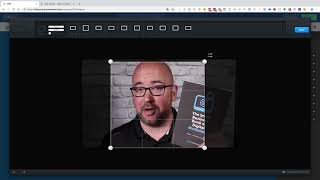
Shaun Whynacht walks through ActiveCampaign's Campaigns feature, which sends broadcast emails to contact lists. The six campaign types are Standard, Automated, Autoresponder, Split Testing, RSS-triggered, and Date-based. He demonstrates building a Standard campaign with the drag-and-drop editor, setting subject lines, scheduling sends, and reading reports that show open rates and bounce rates.
Chapters
Welcome back to the second lesson here on ActiveCampaign. Now in the first lesson, as you're aware, we talked about contacts. Now we're going to move down to campaigns. Now if you are a person who has previously used Infusionsoft, then when you look at the word campaigns, you may think that this is similar to what we would call the campaign builder, where we're building out all the different automation. Now in ActiveCampaign speak, campaigns are similar to broadcasts, or if you're coming from something like Constant Contact or MailChimp, this will be the familiarity part of that system that's carried over here. So if we go in, we look at campaigns. What a campaign is, is essentially a broadcast. So we pull up a group of contacts and we send an email out to them. That is exactly what a campaign is. Now we look here in our account and we have, you know, really 2 campaigns that we've sent out since we set up this, this account. And then we've got 1 here in draft mode. So we're gonna go into those in just a moment because I wanna show you how you can actually make a new campaign. So in the top right-hand corner, you see the button that says New Campaign. We're gonna click on this and then we're gonna give it a name. So we're gonna call this Test Campaign. Now we're gonna look at the 6 different campaign types. You've got Standard, so you can send a regular one-time email campaign. You've got automated, so create custom sequences of email actions and conditions. An autoresponder, so this is an automated campaign that will send after someone subscribes, uh, to a list. You've got split testing, you've got RSS triggered, and you got date-based, right? So sending on birthdays and things like that. Now let's just explain each of these a little more in depth. We're not going to go in and set up one for each one. So the standard one, very simple. You know what, you have a message that you want to broadcast out to a group of contacts, this is what you would use, a standard one. And we're going to create a standard one here in a moment. Automated would be a custom sequence of email or actions based on different things that people do. So if you've got a link within an email that somebody clicks on, or a video, maybe you want an automated sequence or an email to go out, you would use this one. I would almost tend to have it so that it's built within one of the automation sides, but this is another way to do it. Autoresponder would be— let's say you have a newsletter list that somebody signs up for, um, it's on your website, they fill out their information and they get subscribed to that list. You can use this to then automatically send out an email to them. Again, you can also use the automation side, which is what I would tend to lend you towards. The same thing as this here. Now split testing is a bit of a different beast here. Split testing is where when you get into marketing, you're really going to see what works and what doesn't work. And the purpose behind split testing is essentially what it says in its name. We are testing by splitting the message. So we're going to see by sending an email out to a group of contacts. So here's an example. Let's say you're promoting a new product or service that you have and You're going to send it out to a list of 100 contacts in your database. Now, if you use this split testing option, it's going to give you the option to create one email that maybe it's just text-based. You know, it's got your logo and then you're just explaining that service with a link to it. And the second email would have more images, maybe some more graphic elements, some video, different size fonts and things like that. And you want to see what does your audience respond to the most, which one has more open rates, which one has more clicks. What it will do is it will evenly split that list of contacts, that 100, and 50 will get the text-based and 50 will get the one with more graphics. And then you're going to see under the results which one worked better. And over time you're going to be able to determine, okay, my clients are more interested in getting the graphic pretty looking ones than the text-based, or even vice versa. They want to just get straight to the point, send them a text-based email. This is how marketing automation will help you develop the right message so that you're getting the best leverage of your system. Now RSS triggered— RSS means really simple syndication. So if you have a blog, your website or that blog site is generating what is called an RSS feed, as well as if you're doing a podcast, the same type of thing. So the benefit behind this is, let's say you're going to do a blog post on your website and you do it frequently, but you also want to have it emailed out to the list of people who have subscribed to your blog. Well, to eliminate a lot of that time by going in every time you create that blog post and then coming in here and creating the email, you can create an RSS-triggered email broadcast or campaign. What it will do is it will monitor that website, and every time you create a new blog post, it will fire out an email based on the template with that data in it. And that becomes really handy for people who are creating content on a frequent basis. Now date-based, this is for contact anniversaries, birthdays, even dates, specific dates that you've set up within your clients. So maybe it's on the, the year anniversary of them becoming a client of yours and so forth. So it's all based on a certain date within that contact record. So now let's just dive into creating a standard campaign. So we're gonna click on standard and then we're gonna click next. And now it's gonna ask you, what list do you wanna send it to? Now this is a key indicator for what we're gonna talk about next. Anytime you're sending to a list using the campaigns, you need to have these contacts in a list. So let's just say we're gonna go and send it to our current clients. We're gonna check that off. And you can see you can check more than one. Right, so we're just gonna check that one. And we're gonna click next. And now we get into building the email. Now ActiveCampaign has done a great job of putting in some pre-built templates that you can go through and pick out what you want to start with, and there's multiple pages in here of those. But as you start to, to build emails, you're going to notice that on the top left-hand side under campaigns, you can go and click on past campaigns and you can pull up all the different emails that you had built in the past. So I'm going to go ahead and just click on this one. We're going to go use this design, and now it's going to ask me what do I want to put for the subject line. So this is just going to be test email, or if you want to say how are you doing, and you see these little people icons, this is where you can start to personalize this. So we click on this, we can say what do we want to pull in. So first name, save, close, and now it's going to say how are you Joe, how are you Sally, how are you Shaun, whoever that contact is, it'll merge in in their first name. You also have the option to change this. If you don't want to send it from yourself, you can put in your company name, or you can change the email that you're sending it from. We're gonna click Continue, and now we get into the email builder. And like I said, it's gonna pull in the contact information or the, the template information from the one you chose, but you're not locked down to that. If you want to move something around, let's say you don't want an image, you can click on the little gearbox here and and you can say Delete, are you sure, and it will get rid of it. You want to bring an image back, on the right-hand side under Insert, you can pull over an image, wherever it says it's going to go, let go, and now we click on it. It gives us the option to use one of the saved images that we already have. Let's just say we put this picture here of me. It's going to put that image in. And we can also put a link on that image. So you click on it and then on the right-hand side it gives us all the options for that. So maybe you want to make it going to our website. Site. So we're gonna put in www.bluecowmarketing.ca. And let's say we don't want it to go full width, we want to make it a little smaller, so we're gonna go 400. And now it's gonna come down in size. And now here we can go ahead and line it to the center, the right, or the left. We've got other options for the background, so if we want to have a different color in the background of the email, it's gives you a lot of functionality in here. You want to put a border, go ahead and put a border on that block and go that route. So there's a lot of options to play around with. But under the Insert, here are some of the things you can put in here: text blocks, images, buttons— so similar to this— a video, a line break, a spacer, an RSS feed, social links, or an HTML block as you go forward. Now when we go over here, we've got other options for editing this image. So we click on it, we can click on cropping the image. So maybe we want to click on this. It's going to open up the editor and we can say, okay, let's make this a little smaller, right? We don't want it to have it as wide, right? Maybe we want to just look at my ugly mug and we can say apply. And we're going to say save. And now you don't have to have the need to use something like Photoshop. To edit a lot of your images. So now we're gonna make that a little smaller. Okay, so there we go. One of the other options you're gonna see here is under Edit Image, which is gonna open up the same editor, but it gives you some more functionality at the top. You've got your resizing, your crops, your orientation. So if you upload a photo from your phone and every now and then it happens where the photo is rotated, you don't have to worry about that. You can put it in here and rotate it back. You can enhance, you can add different effects, lighting, color, sharpness. You can draw, put text on it. If you want to go ahead and put some text over the image, we can go in here and say, and we can change the color of that text. We can change the font of that text. You've got a lot of different options within here to play with that and make really the image what you want it to be. If you want to really get kind of goofy, you can add these silly little stickers. You wanna put a fez hat on me? Right, you can do that kind of stuff. Alright. So we're just gonna go back, we're not gonna leave that on there, cancel and save. So as you can see, built within your ActiveCampaign, you've got a lot of functionality to really play with the different images that you have. If you want to justify the email to the left side, you can put it over this way, put over this way, you can put it in the center just like you saw there. You want to get rid of the blue background, make it a white, right? You've got a lot of functionality to really make it what you want it to be. Once you're done with that, you can hit next. But let's just say you, you get to a certain point, you need to walk away. You can go ahead and hit save and exit, and we'll just save it in there. Uh, and you can always come back, uh, and work with it. So we're going to click next. Now we're really getting into the campaign summary. You get to see everything that's in here. You've got your subject line, your preheader text if you wanted to put some other text in here. A lot of times when you have people sending emails and you're using something like Outlook, you've got your subject line and then there's a line or two below. This is the preheader text. It helps you kind of warm up that email a bit more and put it in there. You can edit your list at this point. You can go through and you can send yourself a test email. If you're doing one that has a lot of links in it, I strongly suggest you send yourself a test. Try it, all those links, and go forward. And then you got your spam check, so you can see if it's passed the spam. And then on the right-hand side, you've got the option to send now. Now you might say, okay, well, what if I don't want to send it right now? Well, that's over here under schedule. So we can go deliver to schedule, we can pick a different date. So we click on this, we can say tomorrow or specific date or next month. Pick the date you want it to go, the certain time, and then click Finish, and it will schedule that to go. Now I'm not gonna go and do this. I'm gonna actually go back and exit right out of this, 'cause I wanna show you what you get for results when you send a broadcast. All right, so here's our test campaign that we had just done. So if you don't need it, you can click on this and you can delete that test campaign, which I'm going to do. But here's one that I sent out to my chamber list. Asking if they need a speaker for an upcoming event. So when it's sent, it's going to say, okay, it's sent to 22, and we can view the report. So in here, it's going to show us, you know, when it was sent, when the opens were, and, you know, the next day it opened. It's given us a result here of, um, we've got 9 that didn't open, we've got, um, 50% open rate, which is really good, and then we got a 2% bounce rate, or 9%, 2 of them bounced. In here. So it really gives you some statistics. So you want to look at hourly open trends. You know, what time are people opening the emails? And as you can see, over time, if you send it to a newsletter list, you're going to start to see, okay, if it's sent out and you got a big spike always at like 9 o'clock at night, you can schedule it to go in at 9 o'clock at night so that you're seeing if you get more open rates because you know that most of the people are opening it then. And this is where you can really get a lot of intel into marketing. So that right there is the campaign side of ActiveCampaign. I strongly suggest that you try it out, test it out and see what's happening. You can check out some of the other options in here like your archives and different templates. And there's some more advanced training that we'll be offering in the future, but this is the basics to get you up and running using your ActiveCampaign CRM.
More from Shaun


Julie Vanexan recognizes Shaun Whynacht from Blue Cow Marketing at the Nova Scotia House of Assembly








