Shaun Whynacht shows how to build forms in ActiveCampaign's Lite version to collect contact data. You can customize appearance, set actions like subscribing to lists or adding tags, and embed forms via HTML, WordPress, or Facebook. The Lite plan doesn't include the deals module for sales pipelines.
Chapters
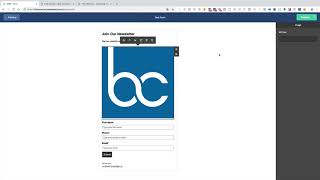
Okay, so now we're over halfway through this mini intro course to ActiveCampaign. We're going to go and look at forms. Now, forms are essentially, uh, an entry point to getting data. Uh, so if you're building a website or you want to send somebody to a link to opt into something, you're going to need to build a form. Now, if you're using something like Thrive Themes or you built your website with us and we're using Thrive Themes or You know, even if you're using WordPress and you've got an integrated plugin that will actually use the API of ActiveCampaign, then you don't always need a web form. You can use it where it will actually apply a tag. Now our ThriveThemes will actually apply a tag or subscribe them to a list. It doesn't always have to use a form, but let's just get used to building a form. So we're going to go ahead and click a new form and we're going to call this test form and it's going to be an inline form. Now what do you want to have happen when somebody fills out that form? So you want to subscribe them to the list, add a tag, or just email you the results. So we're going to say in this case we're going to subscribe them to a list. So we're going to subscribe them to our marketing, or actually to our email notification list. And you can do multiples, right? You can say okay, and also add a tag. So we can say also put that test tag on here. And we can say create. Now here's the form. And I'll warn you, it's not pretty, it's not sexy, it's not something super fancy, but it really just serves a purpose. So we click on the top, you can see here what do we want it to say. So it could be join our newsletter, and you don't have any formatting for centering or whatever the case is. A description— now here you can do a bit more if you know some HTML, you can adjust some of this stuff, but you can say here get our monthly newsletter directly to your inbox, right? Pretty straightforward. And then what do we want to receive here? So under full name, we can go in here and say, okay, we're gonna get the full name, we're gonna get the email address. It really— that's the basics of a form, okay? Most of the forms that are in here will allow us to do that. We can also put in other things like, hey, let's just say we want to pull in some of the custom fields, or we want to use some of the standard fields. If you don't want them to pull in their full name, you want just their first name, you can Drop this over here, it'll actually change it out. If you want them to put in the phone number, you can do that. You can make it required by checking this box. You've got other options. You want to put in an image, you can do that. You can upload an image. So let's just say we want to put— there's an icon that shows up here. Just takes a moment for it to show up. Or you can delete it and go that way. One of the other things that you can also do under Options here, uh, no, Options, sorry, Style, is you can turn off the ActiveCampaign branding at the bottom. Get rid of that. The button, you want to change that to Get On The List. So you got some options that way. Styling, you want to change some, you know, some colors of some things, you can do that for the button, for the whole, um, sorry, for the form. You can change some of that stuff to All right, so you just play around with a lot of this different functionality for that. But in essence, this is the form. Next, we're going to go integrate. Now you've got some different options. You can integrate by embedding it on your website using the simple embed or the full HTML embed. If you want to link to it, you can just take this link, copy it, throw it into a browser, uh, and it's going to actually pull up that form. So you can actually use this and send it out in an email and people can go right here and opt right into that list, right? It's very basic, but again, like I mentioned, it serves the purpose. Next, if you're using WordPress plugin, you can download the plugin here, install it, and then integrate it with your ActiveCampaign. Or you want to go Facebook, you can go ahead and get started to add that subscription form right to your Facebook page. And it's fairly intuitive using this step-by-step tutorial that's in here. But once you've got that, you can go ahead and hit Save and Exit. And now the form is here, and you can see people that will start to get added to that form within your system. So that's your form side. Now remember when we talked about custom fields? The custom fields are managed under the form section, under Manage Fields. So if you wanted to go add a new custom field to a contact record, you go ahead here and you go add a new custom field, and you've got options for text inputs, text areas like a text box, date, dropdown list, multiple selection list, radio buttons, checkboxes, or even a hidden field that you want to put in here. But this is where you can go ahead and add those in. And again, you can add them to forms or you can just have them on your contact form. Now this basic version here of ActiveCampaign that we're using is the Lite version, which when you look at the product offerings from ActiveCampaign, it doesn't— or it says that it doesn't include a CRM from a CRM standpoint, where in most cases storing the custom field data, being able to do the email automation is as much of a CRM that most people need. What it means by CRM is there's a deals module that allows you to put in different deals, have sales pipelines, and all that kind of stuff. So it may be something you'd upgrade to later on, but out of the gate, if it's something that you're using now, then you will see that option on the left side that would say deals. So that's the forms. In the next lesson, we're going to get into showing you briefly what are in the report section.