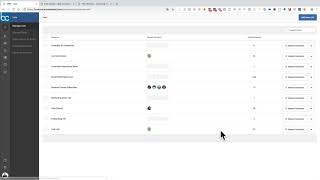
Shaun Whynacht shows how to create and manage lists in ActiveCampaign CRM to segment contacts and trigger automations. You can add contacts individually or in bulk, set compliance fields, configure auto-posting to social media, and delete lists. List membership immediately fires automations.
Chapters
So we looked at contacts, we looked at campaigns, we looked at automation. Now on the list, we're gonna look at— all right, so here we are in number 4. We're gonna look at lists. Now lists are an important part of your CRM. Just like tagging will help segment different action, your lists are really like rooms, like groups of contacts where people can be subscribed to that list or unsubscribe to that list. And as you saw within the automation, you can run different different sequences based on people getting subscribed to that list as well. And when you go ahead and send out a broadcast like a newsletter, you're gonna be pulling that from a list. So it's very important. So think about it, your business doesn't necessarily just have to have one list. As you can see in our business, we've got multiple lists here within our CRM. So we're gonna go ahead and we're gonna click a new list on the very top, and we have to name it a list. So we're gonna call this test list. We're just gonna follow the whole testing idea. Wants to know the website that it's, you know, from, right? And this is more of a compliance thing. So usually what I say is just use your website, or even if you have a subscription option on your website— maybe I'm using the CRM Guy one to drive people in here— then I could use that website here. And then reason to remind your contacts why they're on the list, because they could get an email notification if you've got that setting turned on that will tell them, hey, this is the list you're on, this is how you got on this. Okay, so you subscribe— let's go here— you subscribed to our newsletter. Okay, and we'll say create list. So now we've got this test list right here, and we can import contacts from an outside list. We can go ahead and subscribe by email. We can do some advanced settings in here, but really what it comes down to is you don't add people to the list, from here you do that from the contact side. But under advanced settings, here is where we can go ahead and see what is really turned on. Okay, so resend last campaign to new contacts, auto-post campaigns to Twitter, um, auto-post campaigns to Facebook, right? You've got some of this built-in options that are here. Send copies of the campaigns to an email address, send subscription notifications to an email address. A lot of this is in here. Who owns that list? Subscribe, unsubscribe. So, you know, what do you want to have happen when people unsubscribe? When they forward to a friend, what do you want them to do? You've got a lot of options in here to change this. So when they say forward, here's the form, right? What do you want to look like when they go ahead and do that? But that really, in essence, is the list. Now let's just say we want to go ahead and we want to add people to that list. So let's just take for instance, I have, I want to combine two lists here into one, right? So I want to put the Chamber of Commerce and my current clients into a new list. So what I'm going to do is I'm going to go here, I'm going to say current clients, I'm going to click on this 34. And when it comes up, I'm going to click edit all, I don't have to check them all. And I'm gonna say add to list, I'm going to add them to that test list. And we're going to say boom, add them to that list. There we go. Apply changes. 34 contacts. Okay. Now they're going to add to that list. So we're going to go back to the list here. We're going to see, right, there's 25 that are in there. Uh, more will come in a second. And now we're going to go to their Chamber of Commerce. Check that one. Same type of thing. Edit, add to list, test list, add to list, apply changes, apply changes, click okay. A lot of clicking, but there's a chance that you're, you're not going to screw it up and put somebody in a list without clicking at least 4 or 5 times, right? If you made it that far, then good on you. Really, there's no, no reason why you should be upset over that, okay? And then they'll be put into that list. So we go ahead and we can hit that test list here. Let's just click on it right now. We see 55, and now they're all within this list, okay? If you want to take them out, you can even go through and check on certain ones and take those people out. So you want to say, okay, I want to remove these these 3 people, check those boxes, click Edit, and we can say Remove from List. So we're gonna remove them from the test list. Same type of process— apply, apply changes, click OK. And next time you come in and refresh this, those people will be gone from that list. Let's just go and say we're gonna put somebody in a list that's a single person here. So we're gonna go test, look at my test contact, and So there he is. Click on it, and we can go within here and we can say, oh, I'm going to add them to that list. Now keep in mind, when you start to build out a lot of this, if you've got triggers that are based on starting an automation when somebody's added to a list, if you just go in— if I had one set up to send an email out and I add all those people to it, it'll immediately put them into that automation. So keeping in mind what lists have automation connected to them, and it may come down to as simple as when you create the names for the list. Let's just say we're going to go in here and we're going to go edit. Um, I've, I've done it before where I put an asterisk by it, uh, or I can say actions next to the list. Uh, the public don't see or doesn't see the list, um, but internally this would tell you that, oh, if I did that, there is some kind of automation tied to it. So you want to delete that list? No problem. We're just going to delete that and we're going to say understand the context. That all contacts for this list will be deleted. Okay, we don't want to do that. Right, what we want to do is we want to go into the list, right? So we'll pull up the list here. And we're gonna actually, we'll just, oh shoot, we won't do that. If, here's another little trick too. If you've got, you know, 2 or 3 pages, in this case there's only 1, but if you've got like 2, 3, 4 down across the bottom and you check this box, it's not gonna check all of the contacts, it's only gonna check the contacts on that page. So always go ahead and click Edit All if you want to do it to everybody. Let's say Remove from List, and we're going to say Test List, Remove, Apply, Apply, Apply. It's going to remove them from the list, and then we come back here. My internet's just slowing down for a second here. Still spinning. Just wait for it to catch up. Here we go. And then the list here, as we go and look at it, there should be nobody in there, which there isn't. We can go back. And we can check this and we can say delete. And yes, yes, yes, yes, yes, gone forever. Yes, goodbye list, gone. So that is your list. It's really quite simple how to create them and add people to them, but that's the power of lists is segmenting, putting people into silos, putting people into rooms. The lists are the way to do it within ActiveCampaign.