My Full Look at CASTMAGIC.IO
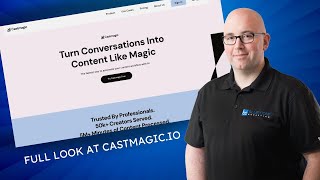
Shaun Whynacht tests Castmagic, an AI tool that turns podcasts and videos into clips, blog posts, social media content, and more. He uploads a 7-minute video and gets transcription in under 60 seconds, plus title suggestions, keywords, timestamps, and custom outputs. He rates it 7.5/10, saying it's strong for text content but lacks native video clip export.
Chapters
Hey guys, so in this video I'm going to walk through what is Castmagic. Now this is a platform that they've reached out to me to try it out and see what I think about it. So I'm going to take you guys on this journey with me today as we go ahead and do this. They offer me a 30-day trial of their, um, base plan. There are 3 different plans or tier plans, and we'll just go and look at this right now. There's Hobby, there's Starter, and there's Rising Star. So they offered me this Hobby plan for 30 days to try it out and see what I think about it. So what we're going to do today is go through the account and upload a recording and see what it generates and everything. So I'm going to be recording another video when I pause this one to use in this. So that's what we're going to do and see what it comes up with. So Castmagic is the URL. I also signed up as a referral partner of them, which means there's an affiliate link that I have with this video. So if you want to check it out and you want to do the trial, you know, please show some love, use that link to go through and, you know, sign up with them and, you know, use their service if you choose that it is the right fit for you. So what is Castmagic? So let's look at really the front end side of this., when you look it up. So they claim 10x audio content with AI. So a lot of AI tools that are out there splintering content and things like this. Uh, so they're going to turn that long-form audio into ready-to-use content assets instantly, 10xing your content. Upload your MP3, download your transcripts, notes, summarize highlights, and all that fun stuff, um, as well. So that is what they claim in there. And again, coming back to the price point, um, let's go monthly. I like to use monthly instead of annually here, but you do save a 40% savings if you go annual with that. So, uh, $39.99 and $299. And really what it's coming down to is the amount of minutes in which you want to transcribe and use. And this one here for the Starter and the Rising Star really give you the agency support, uh, and the Rising Star gives you unlimited prompts. So if you're a business that is doing a lot of client-based stuff, um, you know, repurposing content or your product, uh, podcast production studio and you're doing it for clients, then this would be a great plan for you. All right, so I am going to pause the video right now and I'm going to go over and I'm going to record a piece of content that we're going to use in this tutorial. Okay, so we just recorded a video. You probably saw a little blip of it in this recording as I hit the wrong button and it caught a capture of me doing it. So, um, Now what we're gonna do is we're gonna go into the account. So here we are in Castmagic with the hobby account, sorry, I forgot there, that we set up. Now they did mention in the account here, and you see right here is that audio and video files. So I recorded a video file because I wanna repurpose this for other uses. So that's the one that I'm gonna use. So we're gonna import that audio or video. So we're gonna come up here and we're gonna say okay. So go to media library. So obviously we can upload some media. We can import from YouTube, Vimeo, Reels, or TikTok, which is interesting, uh, that we can import that stuff. Uh, we can upload the audio, we can pull from RSS feed, or we can integrate it with Zapier. So we're gonna go ahead and go to media library. So we're gonna come over here. Um, and this must, oh, this is the media, media library. So we upload. Okay. So this is interesting. Um, upload audio. So right here. There we go. That made me think that I had to go somewhere else. So here it is, 5 Simple Steps to Organize Your Leads and Prospects, uh, and it's going to upload that file. So I'm going to pause the video again and wait for this because you don't need to watch that progress bar. Okay, so it uploaded and then this pop-up came up here and it said, tell us about your recording number 1. Okay, it is recording number 1, gave me the title of the video that I put there. I'm going to go to the MP4, and then my space. So when you sign up your account, it asks you what's the name of your space. So that's where we're going to save it to right there. All right, there it is. So now it's going into this processing status. So I'm assuming it's just obviously going to transcribe it for us. Now I'm curious at this point whether we're able to export video or not, or it's just only going to be text-based content or audio from it. So allowing to upload the video I'm hopeful that maybe that will allow us to do that. So let's wait for this to process and then we'll see what happens next. Okay, so it finished. I'll give you a kind of a reference point. The video I uploaded was 7 minutes long. This took less than 60 seconds to transcribe. So let's go ahead and click on it here and see what we got. Here we are. So click to match a speaker. I'm the only one in that, so I'm going to go ahead and click on that and I'm going to give hit my name in here. Obviously, if there's multiples, it will pick up on that. So I'm not going to create a new speaker. I don't think that's what I want to do. Maybe I do. Yeah, there we go. All right, so here it is broken up with the transcript. Now what can we do? So this is the transcript, the full one. There's AI content here, so let's go click on that and see what comes up. So it's generating some AI content. We've got Blaine here from Cast Magic popping up. So it's generating some stuff for us. So we got some title suggestions for the video to use. Um, perfect. Uh, they got YouTube keywords, which is great. Now when I set up the account, it asked me what's the primary content. I chose YouTube videos because that's the primary content that I create, but you can choose podcasts as well, uh, if you want to do those, uh, those different types of formats. So I'm thinking by default it is actually picking for what I chose when I set up the account. So this is good to have the YouTube keywords because prior to this I would have, you know, sent the video with Descript, which is what I recorded it in, and then had it give me the transcript and I threw it into, you know, ChatGPT or Meta or wherever and asked for these keywords. Then we've got the YouTube description that's here. Now I know this is obviously pulling from GPT-4 just because of the way that it's formatting with these stars that are in here. I personally wish that it was rich text. It doesn't have stars in it because I always have to strip these out when doing it. Now we've got the timestamp overview in here of the two different topics. Um, now, um, I talked about more than those two topics in there. I chose five different things. So, um, that right there, uh, I think— hold on, we got one of two. No, that's all that's there. Um, so I think you could do a better job at the timestamping that's in there. Now we got Clip Finder, create hooks and timestamps. So now we've got the timestamps in here. So CRM strategies, tracking customer sources. So it pulled these ones out here. These are the different topics, but it didn't put them up here. Now I'm curious if I can click on this and go to those topics. Let's see what happens when I click on that. Oh, take us to the transcript at the top. Okay, so that's it. So it doesn't look like I can actually export the video files in this. It's just giving me a reference point for that. Um, what's preset prompts here? Okay, so this is the different stuff that you can add in here. You can do new custom prompts apparently. So we can do this and say name it, prompt, refine the prompt, content sample of what it would look for. So maybe I'm going to do quotes because I like to do this a lot with ChatGPT. Um, pull out 5 Quotes from the transcript to use as a social post and provide a sample for the AI to better match the tone and style. I'm just going to leave that. See if it'll let me leave that blank. Okay, it will. Perfect. All right, so now we've got a lot of these in here that we can remove or disable, but they're all here. Okay, so let's go about— we got some community prompts. What's this? All right, so we've got some different things in here that we can add to the space. Uh, social carousel. What's this? LinkedIn carousel featuring specific maxims learned from the episode, 10 slides. That's pretty cool. We can add that to the space, see what happens there. Let's see how we can use all these. Custom newsletter using the custom text of the episode, write an email newsletter for the podcast release on the outline. Okay, that's if you're using a podcast. A lead magnet. Given the text of the recording, create professional post and corresponding lead magnet with a purpose of inbound conversation starters. Um, recording conversation list. Okay, so this is cool, um, that people can go ahead and create these and then you can share them and find them in here, uh, cold through email touch sequence. So that's really cool. I'm going to throw that in there because we do a lot of email marketing. Okay, so those are there. Now let's go back to the recordings. This one here, AI content. So we've got that, we got the— oh, so it pulled in the newsletter that was here. Key topics and bullets. All right, so it pulled in those, just the timestamps. Wrote YouTube to tweets. All right, so we've got some tweets here to speak to the YouTube video, uh, that I'll be creating with that video. Uh, questions: what are some of the key benefits Shaun mentioned about having centralized? Okay, so this would be cool if you were, let's say you are, um, taking, um, and doing an interview and you want to take some video footage and go in here and then see what kind of questions we pulled from that. We got Instagram threads. This is the quotes. So there's what it did, uh, based off my custom prompt. They get social carousel, which is great. Slide 1 gives the titles that are here. Uh, and here's the email touchpoints that are there. Um, this is pretty good. A lot of time saving, especially the fact that it gives you the ability to make those custom prompts and build out all your content based off of that. Allows you to, you know, let's say you receive a podcast episode or whatever and be able to pull all that to be able to service yourself as well as your clients. Okay, so we're going to go to the top. Now there's this Magic Chat feature. I don't know what it is, but we're going to click on it and see what happens here. Welcome to Cast Magic Chat. Use the prompt input below so you can ask anything you want about the recording. I know, important. Concepts of recording. Okay, so lessons learned, 3 fun facts, key themes, blog posts. So it's like a ChatGPT version of, um, or to be able to do it within this to pull out stuff. So in this case, blog post, 600-word post. Let me click on that and see what if it actually does something. All right, so using the context of the recording, write a comprehensive 600-word blog post expanding on the topics discussed. Includes a title, subheader, as well as the sections header each section. All right. So it's doing it, it's running a timer here. I think it's creating it by the look of this, otherwise I don't know what the timer would be running for. So how long is it going to actually take to write this 600-word blog post? As we wait, I think we need some really cool music in there, maybe some Jeopardy music. Doo doo doo. No, I'm not gonna circumvent you to that. So let us do its thing. I think we should be able to click away from this. I think it's going to add it back to that page of content on the recording. So I'm actually going to not click away from it. I'm just going to pause the video and see how long this takes when that timer stops, and I'll come back. Okay, so it took probably just under 2 minutes for it to generate, and this is what it gave me. So using the context of recording, comprehensive. Okay, so it puts all this in here. It's good. I like the way it breaks it up. Excellent. So we can save it as a prompt if we want. We can copy the content or we can modify it. So I'm going to save it as a prompt because I like it. Uh, 600-word blog post. Um, kudos to these guys for being able to, um, allow us to create this customization that's in here. I think this is a real, um, benefit to this type of platform. I've used other ones where it just generated some standard content, um, but it didn't allow you to really modify what it was doing. It was Hey, it's going to give you these things for each of your audios. So this is good. Hoping that eventually they're able to do, you know, some AI, let's say real content, to be able to upload a video and have it find the clips and edit them and export them as well. I think that would bring this all together. Let's look at the last tab in here under Studio and see what this is. Welcome to Studio. Create visual assets right from your transcript without having to leave Cast Magic. Okay, so what is that? So get started, it sounds. Improve Studio quote card. All right, what's this? Um, so we got some real stuff here. Custom color, so we can put in a hex code if we want. We can go black. Okay, for that, let's go white on the text. It's very primitive, it looks like. We can get rid of their watermark. So text, text shadow. Let's go up bigger in the font. Okay, what does it do? Generate with AI. All right, so let's see what this is going to do when we hit this button. So no generating, submit the prompt below to generate images. Describe what you want to generate. Okay, generate, let's do 7 story images based off of the key content from the recording. Let's see, because this would be cool, especially if you struggle with making some content for your stories that's more in a visual format. Obviously these aren't going to be video, but they may be, um, you know, text-based, which is— I think that's what it's going to be. So let's just see if we go back here. Okay, so that didn't— all right, so it didn't do that. Wonder if it's going to show up under the recording. Let's go and see here. Go to the very bottom. That's a 600-word blog post that's in here. I don't know where those images went that it was creating there from the Studio. Magic Chat doesn't show up there. I don't know what happened there, where that comes, where that ends up. So I don't see it anywhere. We got prompts over here, speakers, settings, um, quote card. It's the same thing. Generate from AI, export. Oh, okay. Um, let's try this again. Maybe that's just exporting that. I don't know why it disappeared. Black, white, 48. Disappeared again. A little buggy. Um, so anyway, we're gonna— that's always gonna come, uh, as they go through and improve this. So, uh, edit recording. What do we do here? Number. Okay, so that's just where we put in here. Magic words. We can include spelling suggestions for AI. Okay, so we can put some stuff in here as well. We can move the recordings around. Left-hand side, you got recordings, you got pages. So cast pages have arrived. Starting now, use up to 5 recordings to draft long-form editable content. Okay, so that's cool. So maybe you have multiple recordings in there and you want to create longer-form content. You can pull them together in these different pages. Now we only have one in this sample, so we're not able to show that in this video. You got your speakers as you put them in here so you can reuse them. What are some of the settings here? Your title, your labeling, your magic words, your context prompt. Affiliate settings, putting your affiliate link in here, and your billing settings. So pretty standard. All right, so what is my overall kind of feel for what they've put together here? Um, on a scale of 1 to 10, I'm going to put this at a 7.5. And the reason for that is I really like what it can do for the audio format that's there. Now, I utilize YouTube, uh, for me. Now, if you're doing just an audio podcast, you'll get everything you need out of this. Now, if you're doing video content, you'll get a lot of the content that you'll be able to great for the text, the blogs, and all that kind of stuff. But when it comes to actually splintering up your video clips in one platform, I think that is an opportunity where I could see them increasing the value of their offering by having that in there, using the AI to find the clips and then also exporting those, uh, to be able to do that. Now, if they're listening to this and watching this, what I would also like to see is be able to put a trailing brand page or brand screen after those clips. I've used other ones where it creates the video clip, but it doesn't have like a holding slate at the end where you can put your logo or your CTA or whatever it is just to keep the brand consistency. So you have to export it, bring it into something else, and put that on there. So overall, 7.5 right now. I think you would find exceptional value if you are creating content and you do need to put social posts out there, you need to put out YouTube stuff, you need to put out your, your podcast and blogs and everything. This is a really great suite for that, um, from what I can see. Now I'm going to use it a bit more and I may have an updated video down the road, about it. But overall, check it out. At least go get the trial. The trial out of the box is a 7-day trial, which will give you enough experience to see if this is going to be of value for you, uh, for you, what you're doing with your content creation. So as always, you got any questions about what you saw in here, below the video please put a comment. I'll do my best to reply. Show me some love, hit the subscribe button. If you want to check out Castmagic, as I said, I signed up for the referral link, so go ahead, click that link in the description. I put it at the very first line below. So it's easy for you to find. Thanks, and, uh, hope you have a great day growing your business.
More from Shaun


Julie Vanexan recognizes Shaun Whynacht from Blue Cow Marketing at the Nova Scotia House of Assembly








