My Review of ContentAtScale.ai | Is it worth the investment?
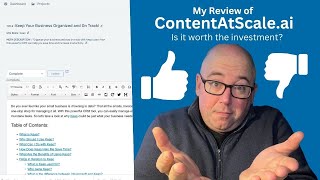
In this video, Shaun Whynacht of Blue Cow Marketing provides a hands‑on review of the AI content generation platform Content at Scale. He walks through gaining early‑access credits, creating a new project, setting target audience, tone, and word count, and entering keywords (including a test with the Keep CRM brand). Shaun demonstrates how the tool generates a detailed content brief, produces a 2,500‑word blog post that bypasses AI detection, and automatically adds SEO elements such as meta description, table of contents, headings, and internal linking. He shows the post‑generation interface, plagiarism checking, and the built‑in optimization step. Shaun then explains how to export the article to WordPress via the platform’s plugin, copy the source code into Thrive Builder, and manage images—highlighting the need to host media externally and using Canva (with his affiliate link) for custom graphics. Collaboration features like team notes and image uploads are covered. He reviews pricing plans (starter $500/month for 20 posts, agency $1,500/month for 100 posts) and compares cost per post to hiring writers, noting the speed advantage over tools like Jasper or ChatGPT. Finally, Shaun shares his overall impression: the interface is user‑friendly, content quality is solid, and the tool is a strong starting point for marketers willing to edit and add affiliate links, while acknowledging the steep price for high‑volume users. He ends with a call to action, affiliate link, and invitation for comments.
Chapters
Hey everyone, it's Shaun here with Blue Cow Marketing, and I am going to show you in this video an AI tool. AI is becoming very prevalent in the marketing space, but this one here I got early access to, and I'm going to show you how it works and what I think about it. So the company is called Content at Scale. They're based out of Arizona, and when you go to their website contentatscale.ai, this is the page that you get currently at the time of recording this video. They're taking emails and names for early access to the tool. So not publicly available yet, but it is very soon coming out on the marketplace, and it may be available by the time you're watching this video. So I'm going to be doing this video in a couple different parts because, as you'll see in a few minutes, the steps I have to go through to get the articles written— very easy to use once you understand how it actually functions. So the idea behind this is you upload a couple keywords to the system, and it's going to generate a 2,600-word or up to 2,600-word blog post that will bypass AI content detection. And really quite cool in how it works. So let me show you what it can do. Now, when I got my access, they gave me 3 credits for 3 articles. I already used one just to figure it out, and now we're going to go in here and create a new one. So this is the interface. Fairly, fairly simple in the way that it looks. So the idea is you've got your keyword section down here and you got your post section there. So what we're going to do is I'm going to go back to the dashboard here and it's going to show you that I did one post, generated 2,227 words, saved me approximately 4 hours, and they figured that out, and average cost savings $178.16. So obviously 8 cents a word is what they're basing that on there. So you can kind of see saving your productivity. The article I wrote is in the optimization phase. It looks like it's already been optimized, and I'll show you how that all works in a second. But we're going to create a new article or start one, and then I'm going to hop into the one that already was created and show you what you can do within that. So let's go back here to the dashboard, and we are going to go into projects. And I created one first for my Profitable Content Bootcamp site. We're going to go in here and create a whole new project, and we're going to say Blue Cow Marketing.
I'm going to put the website in here, and then project content strongly recommended.
And it says this hopes to share a couple of keywords. So what we're going to do is, um, helping—
let's see here— helping small businesses market themselves. Better with online tools.
Okay, in essence, that's what it is. We'll go monthly post here, and it says in here that you can say, uh, this is your monthly creation content goal for this project. We're going to say 1. Target audience— so who reads the blog? So small— as you can tell, as I'm typing, I need a content AI as I mistype almost most things that I'm writing here, more so when I'm doing video recording. So let's look for the tone of the voice. This is kind of cool. You got authoritative, bold, casual, dramatic, excited, feminine, grumpy. I would love to generate a grumpy blog post and see what that is all about. I got happy, informative, joking, masculine, persuasive, sarcastic. I did witty on the last one. I kind of like joke around, but I don't think I want to really do joking. Maybe I do. Maybe just have some fun with it. I don't know, let's see, let's do it. What the heck, you know what, uh, it's gonna be in English. And then the word count here, you can pick what you want. Um, so I did a 2 to 3, that was the default here. You got 3,000 plus. Um, 2 to 3 was a good number, so we're going to create that project. Okay, now in here, this is where we go ahead and we set up the keywords that we want to rank for. Now I want to rank for keep. That is my— now Things I can do in here is I can upload a CSV file in here. So a post will be created with each keyword. So a new post is created for each keyword. So the idea behind that is one keyword per post. That's what they're trying to go for here. So then additional context in here. So, um, talk about the benefits of having Keep CRM. Now this is going to be a good test for this because Keep, um, while a lot of times spell check thinks you're trying to say the word like keep, like keep something, uh, Keep is actually the name of CRM that we are certified in. So we're going to see how it does with this article. So talk about the benefits of having Keep in your business, the time-saving The benefits—
wow— of having your data in one, one place, and how Keep can make you more productive as a small business owner.
Okay, so that's pretty straightforward here. We'll put the little hyphens in there, fix that. Grammarly is also awesome, as you can tell. Um, so now we can go in here, we can say customize. Let's see what that one's going to do. So generating content brief here. So what it's going to do is going to look at the information that I put in there. It's doing its little magical AI type of thing, and it's generating a content brief. Now, when I did the first one, I didn't do this. Uh, so let's just see. Content brief: what is Keep? Why should I use Keep? What can I do with Keep? How does Keep help me. So save time, what are the benefits of using Keep, uh, okay, that's pretty good. I like that order. Um, so then I could go add to keyword queue, or I can say create content now. So what we're going to do is we're going to click on create content now, and that's going to go into the list here. So keywords added, check back in a few minutes. Now this doesn't— is this instant? If you use things like Jasper or other kind of AI tools, you can just hit next, you see it typing live. This does not work that way. It is fairly fast when you do this part of it, when you come back, but it's not live typing. Okay, so while that's happening, I'm just going to hop over and show you the other project that I had, the one for Profitable Content Bootcamp. As you see, the status here says in the queue for the one we just did. So let's go in here and we're going to go in and look at the post. So once it's done and it's generated the first time, it's going to show up like this. You can click on it And then you get into this view right here. Now the only thing that wasn't here when I first came in was the image, the feature image. I went and added that on there. So it had the slug, it had the meta description, which is great, it had the title, and then all of the content here, which is a nice article. It's got the table of contents at the top, and then everything here is highlighted. And it's showing us over here what it's been optimized for, gives us the brief. There's the article there. And then in here, when I first went in, it said check for plagiarizes— plagiarization. And it's going to look at the internet and see, did the AI pull it from other places and plagiarize stuff? It doesn't. What it actually does under the brief here is it looks at all these different articles and things that exist on the internet, and it uses that information to formulate its own thoughts and its own content and builds it based off of that. What I like about it is it put in these key takeaways and everything along those lines. Now, um, in here when I went up to my profile, there was a download a WordPress plugin. I did install it on my WordPress site. However, I don't use just the standard WordPress post format. I use Thrive Builder, so I like to have that control, which was not a problem because if we hop over here and look at the website, this is that article that I, that I created. Now I put it up there before I optimized it just so I could do this video, but I'm going to go into the Thrive Builder and show you exactly what I did with this. So within here, I created obviously the title, and then I used a WordPress content block. And I could have just pasted the text here, but what was really great— and I think this is a great feature— is that it allows you to get the source code. So I highlighted this whole thing, Ctrl+A, Ctrl+C, copied it, and then in here when I edited the content, I actually just did it as the text here and put it in there. It's got all the anchor links and everything in here, that's all built into it automatically. So once I went ahead and did the save and preview, the content was there. I just basically click and it will then take us down to those sections in the content.
All right.
So that was a really cool feature. Now I could at this point, by looking at this— and this is me learning obviously the first time I did it— and if you have your team working this, you can have different team members. You've got the ability here to put notes in here for your team members to see about the article, so you can collaborate and build this out as you go. It allows you to also upload images. So if I want to go and put in here, I can go ahead and click and actually upload an image to put in there if I want, and it's going to send it through. Now when I do copy that, paste, and paste it, it's going to host it on obviously their system because that's where it is. If you want to then swap it out, you can do that later and put your own image in there. I'd recommend that especially if you're using a tool that maybe down the road you're not going to use it any longer and you had your account canceled, all those images obviously are going to disappear because they were linked there. So strongly recommending from my experience, you want to host your own media along the way. Okay, so a bunch of, bunch of tools up here, standard editing stuff that you could work with, but it's got all the H1s, H2s, all that, all that content along the way as you go down. Now this little box here, this is ready for optimization. I clicked optimize just before I started this video and it did the optimization that was there. And then we can say complete draft or pending editing. So I'm going to go ahead here and click complete and click update.. And now that is successfully updated. So I'm assuming back on my projects board here, um, it's going to say complete progress, 100%. So this kind of view is really great for your team to see where it's at along the way. This one's complete, this one's in progress here. So let's go ahead and see where this is at. This is post created. All right, drum roll please. So here it is, uh, keep your business organized and on track. So let's go ahead and click on this. So this worked out to 2,493 words here, 37 paragraphs, 12 headings. Now just in the summary here, says here title includes primary keyword, no. And the reason for that is it says keep. And really what I'm gonna actually do here is I'm gonna do this and say key AP. And save that in there. And that's going to appease that kind of checklist. Paragraphs are 3 sentences or less, and they're not— they're, they're a bit longer. Okay, so some of them are, but that's okay. I'm not going to rewrite all that content. Outbound links exist— so there's no outbound links here to the outside. So because I am a Keep Certified Partner, I'm going to want to go through this and actually link this to some of my affiliate links, uh, for Keep along the way. So I'll do that. Feature image and media added. Now I'm going to select feature image here, and it's not going to find anything for Keep because Keep is obviously a CRM system and it's probably not within their graphic library. So we're talking about keeping your business organized and on track. So business organization Let's see what comes up when we search for that. So there we go, we got a bunch of stuff, uh, that's coming up here from their image library and that we can use. Now one thing that I also recommend too is if I did this just like before, we put the images in the actual article, it is being hosted with their service. So what I'm going to suggest is that we go ahead and we hop into Canva if you have a Canva account. If you don't, You should get one. You want to show me some love, hop on to bluecowmarketing.ca/tools, click on the Canva link there. It's my affiliate link and everything will be rocking and rolling for you. All right, so what I like to do in Canva is set an image here, and I'm going to go in here and just go and look for photos.
And we're going to say business organization.
Let's see what we got here for images. You know, I like the images that aren't exactly like the words too much. I mean, this one here was a little bit different, but Um, but this one here, so that kind of screams the type of client that, that would use keep. So we're going to fix that there and we're going to say keep. It's always good to have the file, the name the same as the keyword that you are ranking for. So we're going to go share, download JPEG. Boom, Bob's your uncle. Here we go. We're off to the races. That's downloading. We're going to hop back over to this here and we're going to actually upload the image. Into here. Now this is not— the image is not going to carry through to it when we're posting because I'm going to actually go take it. So it's feature image and media attached. Even though I've attached it, it's still not picking up on it, but that's okay. Click to tweet added, so I know that I can do that within my builder, and I might just go ahead and do that as well. So, but in here we can actually go ahead and pick out different things. So what I'm going to do here is I'm just going to pause the video and I'm going to make these updates, and we're going to come back and I'll show you what it is. You don't need to watch me put about a bazillion affiliate links throughout this article. So just hold on, I'm just gonna pause it, and the magic of video, we're back in a flash. Now I went through and I did add Keep to many of the words that were in there. I didn't do it to all of them, it was a long time. I'm gonna, I'm gonna fix that up later and put it in there before I actually publish it that way. But regardless, I'm gonna go ahead and add in my own content because I do have a page on my website for a Keep demo. So So I'm going to actually put that in there somewhere in the article here. So as we go through down here, let's see what you keep. Let's go to the conclusion here.
Your business bookend market, perfect solution.
Okay, so we're going to go here and we're going to say, um, watch a 5-minute keepdemo@lucaomarketing.ca/keepdemo. And I'm just going to copy that and make sure it works. And it does. There it is right there.
Okay, perfect.
So we're going to keep that in there. We're going to go ahead and link that in there. So again, go ahead and add your own content throughout your article. That's got a lot in there.
So we're gonna go here and say, let's go see what a—
this whole tweet button. So click to tweet. So what could we say about Keep in here? Just say, let's just go to the page here. This is the, the page for Keep.
Number one, I'll just Is there anything facts in here? Yeah, maybe. So we're gonna— I'm gonna copy that. We're gonna go ahead here, we're gonna say watch a 5-minute Keep Demo and See How You Can Grow Your Business.
Slam in the old URL there. Perfect. Okay, there's a click to tweet, and that's happy with that. All right, so we're gonna leave that in there. Now what I'm going to say for optimization is it's ready for optimization, so let's go ahead and have it optimized. And it's going to do its thing just like it was when it was posting. Does take a few minutes for that to happen. Now what we see here is kind of like, um, you know, a range. So this is like 3 of 3, I think this is what this means, 8 of 8. Um, don't really know, uh, if that's what that means. Like I said, I'm getting new to this. So, um, so far, I mean, my, my initial reaction of this, like I said, I went in there and just created that first one. We just did this one with you in this video. Is that I really like the interface. I really like the quality of the content that it's creating here. As you can see, scroll through, there are some little things from Grammarly to show up. Keeps obviously going to always show up because it is Unless I go add to dictionary, then it's going to say you're missing out on Keygram. Okay, they're just trying to sell me Keep. You're going to see if there's any issues like paragraphs and stuff like that, but I'm going to wait until the optimization is done, and then I go through and I use Grammarly to fix those, those little things that are in there. But then it's pretty much off to the races. So when I was talking to the gentleman that reached out to me to do this demo see if it's something that I could recommend. He mentioned to me, um, actually helped me out a lot along the way, and I asked him what was the pricing. He's like, well, the pricing is going to be, you know, in around that $150 to $250 per month range. I haven't seen pricing sheets or anything like that, but still, I mean, for that much, and it's in there for what it can do, it's obviously going to be based on credits, and you can buy more credits. Let's just click here and see what it does. Oh, here we go. Actually not $150. Okay, let's see here. So starter plan is $500 a month. So Content at Scale performs access to 20 posts per month for $500. Okay, so just think about that. Okay, you might be like, $500, that is steep. That's about $25 per post. Um, if you were to go ahead and hire somebody, um, you wouldn't get that speed of what it is, uh, that quick. Okay, uh, $1,000, you go everything from starter. So just compounding up, and then agency's $1,500 a month, 100 posts. Well, $15 per post is what it's at. Now I think the $250 to $150 range there, he said, was if you're doing smaller amounts, maybe like a 5 posts per month kind of thing, it will get down to cheaper, and they do have that option, but this is kind of the main, main focus of the pricing that's there when you're doing this. So, I mean, if you're creating any amount of content and you want to write content or have content in there, You know, you may be totally against fully AI content. That is completely up to you. But what I say to you is it is a really good starting point to be able to put in those keywords and have content created. And then you can go in and just riff off it and do your own kind of, you know, additions and edits and just have some fun with it. But you saw how fast this actually works. I mean, I have not used ChatGPT. I don't know what that experience is like. You may have. I've used Jasper right now. That's the name of it, Jasper. I've used that one before. I've used a couple other ones just briefly testing them out, but nothing gave you that full post that quick. Not only did it make the post, but it also did all the hyperlinking. It did the table of contents. It did all that, and now it's optimizing. So check it out. Check the link in the video. I'm going to post it down there. They're giving me the link as my tracking affiliate link. With them. So you know what, hey, if you like it, you check it out, gives me a couple points, helps me keep the lights on. I love doing this for you guys. And again, with every video, leave a comment. If you got a question about this, let me know. I'll answer as best as I can for you. And you know what, maybe I'm going to save you some time, going to grow your business, have fun doing it. So again, thank you very much, and like and subscribe.
More from Shaun


Julie Vanexan recognizes Shaun Whynacht from Blue Cow Marketing at the Nova Scotia House of Assembly








