Social Media Webinar - April 10th, 2017
In this hour‑long recorded webinar, Shaun Whynacht walks participants through the fundamentals of using Facebook for business, covering the distinction between personal and business pages, page roles and permissions, notification settings, messaging automation, content creation, scheduling, and post promotion. He demonstrates how to set up and use the Facebook Pixel, create custom and look‑alike audiences, and run ads via the Boost feature, emphasizing budgeting and ad objectives. The session also touches on Twitter list management, Instagram posting constraints, hashtag strategy, and the value of Facebook Live and Groups for community building. Throughout, Shaun stresses the ever‑changing nature of social platforms and offers practical, step‑by‑step guidance for small‑business owners to establish and grow their online presence.
Chapters
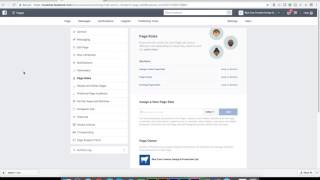
Good evening, everyone. Hopefully, let's see if you guys can hear me. I'm just gonna check and do a quick audio test here. Let's see if everybody can hear me. Looks like my audio is going through just fine. So if you can't hear me, there's a little chat window that you can open up on the top right-hand corner. I'm just gonna write a hello in there for everyone. Just do an audio check. Just reply back that you can hear me. I have muted everyone's microphone so that your audio is not being picked up by everyone else. So hopefully my audio is coming through, and I'm just waiting to hear back. Yep, perfect, excellent, sounds great. So thank you for everyone who decided to attend here this evening. I did open this up to other contacts to enroll in. We had 9 people register for this. It is being recorded, so it will be accessible to anyone outside of this live session. So for those who weren't part of the original workshop who are wondering, whether watching either the recording or they're on this call live, what we're doing here, this is strictly educational, informational. This is not a sales presentation in any way. This was gathering some of the most common questions about social media that were posed to me and putting putting together an actual presentation or webinar, so to speak. Now, the system we're using, Zoom Meetings, isn't a webinar system. So if people come along the way and they come on, I will go in and mute their audio. So there may be a pause along the way with that. Before we get started, I'm going to cover probably the most common questions, obviously the ones that were given to me,, but some of the other most common things about Facebook and social media marketing. This is a huge topic. This is a topic in which 1 hour, 2 hours, you know, 10 hours would not cover everything that's in there. What you need to understand about social media is that it's always changing, and there's so many different platforms out there. So what we're going to talk about here this evening is the, the 3 most common ones. Facebook being the most common. We're going to look a little bit about Twitter, and then we're going to talk about Instagram and how that plays into the picture. But Facebook is the majority of the work that we're going to be looking at here this evening. During this, I am using my live Facebook account, my personal account, and then going into my business account. So my disclaimer is I'm not responsible for what you may see posting up here by some of my friends, as some of them have bad taste every now and then. So going into this, the difference between a personal account and a business account is probably the most common question that I get. Now I'm just gonna try to move this little window out of the way so I can actually see my menu bar at the top. There we go. So what you're seeing here is my personal Facebook page. So when I log into Facebook, this is what comes up. This middle section is referred to as the newsfeed. So this is a culmination of content that I have either liked, whether it's personal friends, pages I've liked, and also some injected content from advertisers who have paid to have their posts show up in front of me. And we're going to be talking about how do you do that and how do you leverage the Facebook pixel a bit later on in this. We should run about an hour, wrapping up around 9 o'clock. Now, if you are a business owner, you have a Facebook business page, as soon as you go ahead and search for that page in the top, it's going to take you to that page. The other spot that you can find it is usually if you add shortcuts on the left-hand side, it'll show up here. When you create your page, one of the options is create a shortcut. What I do all the time is I just search for my page. So I go up to the top and I'm going to go to Blue Cow Creative, and it's going to take me now there. Now when you see mine, you're going to see a bit of a different look because I've registered for Facebook Business Manager because I manage a bunch of other accounts. So when I go to the page, I have to click on this link at the top to go into Business Manager to actually manage my page. If you don't have that, and you probably don't, when you go to your page the first time, you're going to see what I see next. So click in here. The internet will be a little slow because I am obviously streaming this video out to everyone. So this is what you see as an administrator of your Facebook business page. Now, how you know that you are in administrator mode is because across the top you're gonna see Page, Messages, Notifications, Insights, Publishing Tools, and so forth. Once you get to your page and you see this across the top, no matter what you post in here as a status post, it's gonna come from your business. It's not gonna come from you personally, and that's one of the big hangups a lot of people have is they don't want to have a page because they don't want their name associated with it. And for whatever reason, I'm not here to judge why that would be the case or not. But if you're posting and you are an administrator or an editor of the page and you're able to post content on there and you have those links across the top, it will go out. Some of the things I see is somebody will like the page, maybe, you know, it's a, an employee who will like your business page, and they'll come to the page and they'll start posting. And they're wondering why it's not showing up in the newsfeed. It's because they're not an administrator or they're not an authorized user of that page. So they're posting as a visitor. And how you know that is when somebody posts as a visitor, I'm just gonna see where those show up now. In this view here, it's not gonna show me, but it will show up on the right-hand side. It'll say visitor posts that are there., but it doesn't get pushed out. You need to actually be an administrator or an editor of the page. How do you add people to that? Well, you do a lot of control within your page within the settings. So as the administrator, as the owner of the page, you can come in and you can go to the Settings section. I'm going to show you and pinpoint in here some key settings that you need to be aware of, things that are going to add increased functionality to your Facebook page. And to your business exposure, and also make your page a great utility for those that visit there. When I did the live workshop, I mentioned your page cannot be viewed as just a selling tool. Nobody is going to openly like a page just to be sold to. They want to be educated, they want to be informed, and there needs to be a purpose behind it. So if you sell a multitude of different products and/or services, there needs to be a reason why you would want somebody to to come to that page and like that page. And you can make it as extremely unique as possible. You know, maybe you are a, and I'm gonna use this example, you're a hardware store and you have a page. Well, you could maybe say that you're gonna have home renovation tips on there, and that's the only thing you put on there, whether it's content you've created or content that you find online. That's the purpose behind it, is you are curating and/or collecting the best content around that topic and posting it out there on the page. Now you're becoming utility. There's a reason for somebody to like that page. Sorry to get off on a tangent with that. Some of the things that you need to be aware of is on the left-hand side, page roles. That's the number one thing when I said you're either an administrator or an editor of the page. When you click on this, it's going to bring up a list of the different page roles that exist. So in my case, my company owns the page and I own the page, so I don't have any other administrators. But I can have different people have different roles. Admin, unless you completely trust the person that's there, they're equal owners in the company, I wouldn't make anybody administrator for one reason only is they can remove you and then they solely own control of that page. The editor is the next level in charge here, which means that that person can create content, they can edit content, they can remove content. They basically can do anything with the content on your page except add and remove administrators. So that's probably the highest level of office, so to speak, that you would give somebody. Whether it's a manager, I would give them this. A moderator is somebody who can then go in and comment on pages, on posts, sorry. They can also remove stuff. So if there's things in there that are out of context, they can remove comments and they technically are just moderating. They cannot create new posts. And this becomes really key because what I say is a lot of people who really want to get involved in using Facebook and/or social media are also people who are running a business. And for myself, being involved in social media day in and day out, I find it difficult at times to stay up to speed on what's happening and all the different changes. And we'll talk about how frequently those things change in just a moment.. But if you've got a team, if you've got 2 or 3 people or maybe even a staff of 10, empower people to do different things. For example, maybe one person is in charge of creating and doing the posts, and another person is in charge of monitoring the comments and the feedback and engaging with people on the page. In that case, the person that's doing the engagement should be the moderator. You're not gonna really want to give them opportunities to create new posts for the reason is you open up too many doors and too many gates, things can accidentally get posted. The next one in the list here is an advertiser. So we will be talking about Facebook advertising very shortly, and you may have somebody who is going to be doing your marketing. There are several of my clients where I I do the ad creation for them and I post it on their account. Now they've set me up as an advertiser on the page. I can't post content on the page, but I can run their ads. That's what the advertiser means. The analyst is somebody who has access to what's called the insights. So this is all the statistics around the traffic to the site, who's viewing it, who's engaged in the post. That's the only thing that person has access to see. Other than the content that's posted on the page that the general public can see, but they can't interact with anybody, they can't post any content. The newest one here is a live contributor, because one of the newest features, and we're gonna be doing a whole different webinar on this, we won't cover this today 'cause it's such a big beast to carry, is you can now go live, Facebook Live from your desktop computer, and every Facebook page has that ability, as of last week. And one of the features is you can have live contributors. So you don't have to actually just be the sole person. You can have somebody out on another desktop or a mobile device and have them be part of the live broadcast. They would have to be a live contributor. So that's where that comes into play. What you'll need to do is you need to make sure now if you are a personal friend of this person, whenever you go in here, you can start to type and their names will come up in the list. Now you have to be friends with these people for this to show up. Now if you don't want to be a friend with the person, one of the things you need to keep into mind is the email address you enter in here needs to be the email address that is associated with their Facebook account. If they have their personal account signed up for Facebook and you use their company email, they won't be able to be linked properly. So ask them in advance what's the email address associated with their personal Facebook account, because then it will link the right person to that role. One of the other things here we want to look at that is really unknown, um, but becomes a great asset is under the messaging side of things. One of the biggest changes you're going to see in a big shift online is people going away from obviously using phones. So I'm just gonna move my microphone here, I seem to be breathing into it. But moving away from calling and using Facebook more so, and you know that people can message your page, but being able to use Facebook Messenger as a real messaging platform, and people are using it like email, they're having full conversations. Now I mentioned this in the workshop, is that if somebody sends a message to that page and they don't get a reply in a set amount of time, that's basically within their own guidelines. So each person could be different. You know, for me, if I don't get a reply within 2 hours, then obviously I think the person is not receiving it unless there is some kind of messaging that pops up that tells me and sets my expectation for a response time, and that is where this response assistant comes into play. And there are different response assistants that are in here. The first one is to stay responsive when you can't get to your computer or phone. So anytime that I'm away, for example, when you set up your page, you set your business hours. That are in there. And when that time passes that you have said that your business is closed, it knows that you're away. If you're signed out of every device to Facebook, it will consider you being away even if it's within those operating hours. So here is where I can set the message that'll automatically come up as soon as somebody messages me. So basically, as soon as somebody says, hello, I have a question, it writes in this message here. So thanks for messaging me. The office is officially closed for the day, so my response time may be a bit longer. If you need to reach me ASAP, please call or text, and then it puts in my phone number. So that becomes a real great asset because they know I'm not monitoring that after hours. The other part that you can do in here is instant replies to anyone who messages the page. Now this is outside of when we're closed. This is when we're open. Open, sorry. So somebody says, "Hello, I have a question." It will say, "Hello there," and it puts in their name. Now because I'm logged in, it uses my name. So, "Hello there, Shaun, Sally, Joe. Thanks for messaging me through Facebook. I usually have my phone on me wherever I go, so give me a few minutes to reply. If you don't hear back, call or text me at 902-300-3030. Cheers, Shaun." So it's a personal reply that comes back. The last one that's in here, and you don't have to have these all on, I just have them all on right now, and then show a message and greeting. So in this case, as soon as somebody clicks the message button, the message greeting will come up, and it will basically allow you to put in there anything about how you want them to message you. So in this case, I could have something like, "Please ask me a question about your business," or whatever the case may be.. Now I don't have anything filled in there and I'm not really using it, so it's not going to show up properly for me. The two that are really key are the instant reply and the, the one when you're away here. So the response assistant for when you're away, these are key because you need to set that expectation. What I strongly suggest is if you check your Facebook messages at lunchtime and at the end of the day, put that in there. You know, thanks for messaging me. We normally check our messages at noon and at 5 o'clock.. If you don't hear from us between those times, we will get back to you as soon as we check the messages. It's just like having a voicemail message on your Facebook page. I'm just going to take a drink of water here. Okay, another question that comes up is either, it's either one end or the other. I don't ever hear somebody come up to me and openly say, "you know what, I get the right amount of notifications from my page," because normally if you're getting them, it's not a problem. But I usually hear, "I get so many notifications, it's just driving me crazy," or "I don't ever get notified when something happens on my page." So this is where you go and you manage that part of your Facebook page. It's under Notifications, and you've really got 3 different options. So the first step is how frequently do you want to be notified that something's happening? The first option is to get a notification each time there's activity on the page or an important page update. And then down below, you can choose to turn on or off which ones they are, like if somebody checks in, mentions your page, there's a new review, and so forth. So you choose which ones you want to get, if you want to turn them on or off. The next one down here is to get one notification every 12 to 24 hours with all notifications and updates on your page during that time. And then how do you want to receive it? So messages, do you get a notification each time the page receives a message? Because you still want to be notified of that. You don't want it to wait 12 or 24 hours. And then do you want to receive the notification every time by email and/or text message? If you turn on your text messaging, you're going to go ahead— need to go ahead and verify your number by putting that information in. It'll send you a text message code, and then you can be notified right away. So it's up to you how you'd like to be notified. Or you can turn it off. I personally like to be notified as things happen. I haven't turned off any of these options. I just like to keep them all on. There's not a lot of things that annoy me. I'd like to know about it. And one thing that I actually did was I created a whole separate email account for my Facebook, and any of my notifications go to that. So I wasn't using my personal business email as my Facebook account. I have another one called social. At Blue Cow Creative, and my Facebook account is signed up through that so that all my notifications go to that email, and I have a choice to either receive them, check them, or not, and it doesn't kind of clutter my inbox. The newest one in here is reminders. So this is where you can go ahead and set reminders for yourself about certain things. So in here you can say remind me to update my page, but you know, before local holidays, for example, St. George's Day, this is US, so you can turn that on. Or remind me to update my page regularly. One of the biggest issues people have is they have the best intentions to update content on their page, and being able to schedule content, which I'll show you briefly here, it's a great feature, but we get busy., and we need to be notified to do certain things. So now we can go in here and say, you know what, let's create customer reminders. So if we turn this on, in this case on Saturday and Sunday, so this is like 7 AM, I get a notification from Facebook to update stuff on my page. I can turn those off and I can say, okay, let's do it at 8 AM, and then also I've got 9 PM Monday, Tuesday, Wednesday, Thursday, Friday. Now I'm gonna turn these off because normally I'm in the work, doing work between 8:00 and 8:30. So I'm gonna say at 8 o'clock right through the week. Weekends I'm gonna take off. Maybe I want to be notified at that time. So that's the time I'm gonna be notified. You can obviously choose more than you want, or than one specific hour. You can have multiples. You can have the whole thing highlighted if you want, but I don't think it's gonna cause you any benefit to do that. That. So that's another area of using Facebook for that reason. Let's now take a look, let's get out of the settings. Actually, one more thing I want to show you here under the General tab is having your page verified. Now mine's verified, I've done this, but if you go in here and it says your page is not verified, What it's going to do is it's going to call the number that's on your Facebook page, the phone number, it's going to read out a number code that you're going to have to enter in here to verify that you are legit. If that doesn't work, and from time to time it doesn't work, they're going to ask you to actually upload an image of like a bill that shows your address that matches the page that's on here. And I had a couple clients we had to do that for, and it worked really well. But verifying your page is going to give you more exposure And you're going to be found a lot more on the search network when people are looking for your information. So going back and looking at the page. Also, one of the coolest things you get is this nice little checkmark when you get verified. Everybody likes a checkmark on their page, so that becomes handy as well. Now you may be noticing when you're going to your page, you're going to see these nice little colored icons now, and this is Facebook's way of making sure you know how to create different types of posts on your page. So you can share a photo and a video, you can advertise your business, get more phone calls. So if you click on this, it's going to create a phone post here. It's going to pull your header, and you can actually change this out. Now mine's a little big for this ad space is in here. So I can click to select different image from my computer and upload it to that, and I can change this content. Anything you can highlight in yellow, you can change, and you can do a post. Now, because this is Call Now, when this is seen on a mobile device and they click on it, it's actually going to bring up their, their dialing feature in their phone so they can call you. So that's why that makes it a lot easier, is you can just use this for that. So if you have a business where you need to call, we want somebody to call, whether it's to buy tickets to an event or what have you, you could use that instead of just having a regular post about it because it allows people to do that. The Get Messages, same thing except it gives you a Send Message button. So when they click this, it runs through Facebook Messenger. Obviously, you can go through and look at all this different stuff that's in here. Excuse me. You can publish a job post. So now it goes in here and you can actually run an ad about hiring somebody and they can actually click and hire, hire you. So be aware that a lot of these different things are in here. Now, with being able to go live with Facebook, you'd think that it would be number 1 up here, but it's not. It's down here under See All. It's Start a Live Video. It's quite hidden, so a lot of people are wondering how to do that. You go in here and do this, this live video. And like I said, I'm going to be doing a whole new video series on this. So like our Facebook page at Blue Cow Creative, and you will see that information come out there on how to do those and leverage that content a lot more. When it comes to doing posts, there's a lot of different thoughts and methodologies around it. I've done posts for myself, I've done posts for clients, and in reality, if you go, if you do a lot of posting, a lot of different stuff, you're going to start to notice some different trends and things that work really well in your industry, in your business. Keep in mind, you're talking to people, and you're talking to one person at a time. Whether your post is seen by hundreds of thousands, of people, it's one person reading it at a time. So doing things like, like, "Hey everyone," and things like that, it's going to resonate more if you speak in the single person to somebody. The other thing that works really well is having pictures of people, pictures of people who are recognizable. So people in the community, yourself, your team members, Try to stay away heavily from stock images of people they don't recognize. People can sniff out stock images like dirty socks. Use real photos, take photos. It doesn't need to always be professional photos. It's those real images that people really like, and that's why Facebook Live is so popular. People like the raw, the unedited, the behind-the-scenes kind of look. In the content that they post. So when you're posting content in here, especially if it's a link to another page— so what I'm going to do here is I'll just go up here and I'll put in our website, pull up the website address here. I'm just going to copy the URL. So actually what I'll do here is I'm going to scroll down and find a post for something that's in here. So here's a post we did about 100— oh, disappeared. 119 facts you didn't know about email marketing. Okay, so let's say you've got a blog, and I'm going to copy this. Just copied it to my clipboard. I'm going to come back to my page, and I'm going to paste it in here. Now what Facebook's going to do is it's going to go and it's going to look for that post, and it's going to pull in that content. It's going to show it down below. Once this appears, you don't need this URL anymore. You can get rid of this. That content's going to stay there. Why clutter up the message portion of your post with a URL address? Because when they see the post, they can click on this information down here and go right to it. It doesn't really matter. And one of the great things about a business page, unlike a personal page when you post it, is now you can control the images that's in here, even if it's not your content. You know, if it's a TED Talk about a certain topic, you can generate your and build your own graphic to use in there with your own branding on it and upload it down below here and replace this image. You don't need to use the one that's pulled over. Or if you don't like the text, for example, I always usually remove the Blue Cow creative from the end of my posts here. Just click on it, it goes away. Now it's more generic. It doesn't look like it's coming from a business. Down here, this was obviously content that was written by another provider to my page. So written by emailbuilder.org, which they provided to us. I can remove that. It'll clean up that post and so forth. Now I'd write something catchy on here to kind of get some interest out. About it. So, curious about— oh, if I can spell— marketing. Here are 119 facts you didn't know. Gonna get rid of the F, lowercase. And now I could go ahead and I could click publish. Or if we're talking about scheduling, I can go down here and I can click schedule, and I can choose a date and time in the future. So I'm going to want this to come out. What we'll do is we're going to change this to 8:50. We'll have this come out, and that's 8:50 tonight. I'm going to click schedule. And now it's gonna go— oh, hold on here, maybe it didn't. What was the message I got there? Too soon? If you want to share something, just press— okay, so it needs to be more than 10 minutes. And because it's 8:40— see, Facebook changes so much. So it's 8— let's do 8:30. 59. Now one of the things that showed up here is distribution schedule. This here is stop news feed distribution. So let's say you're doing an event and you're doing a post. Just because you post it doesn't mean it's gonna show up on a news feed right now or whenever you schedule it. It may show up a day later from that time, just all depends on when Facebook is showing that content to the people who are interested in receiving it. So if you have a post that is time sensitive about an event that maybe is tomorrow night, you can go and you can say stop this tomorrow night at 10 o'clock, which would be at the time the event is over, and there's no chance it's ever gonna be shown to anybody after the fact. So that's what that means. I'm gonna click Schedule here. Why does this not wanna let me do this? Share between 10 minutes and 6 months from when you created them. All right, you're being a pain. Thank you, Facebook. So let's pick tomorrow. Let's try this. Oy oy oy oy oy. Scheduled posts need to be shared between 10 minutes and 6 months from when you create them. Am I doing something really weird? Ah, April 10th, that is tonight, 10 PM. Schedule. For some reason it does not want to work. It never normally does that. I've never seen that error. So it does work and it will work for you. For some reason it's just being a pain in my butt tonight. Uh, you haven't finished creating a post. No, I'm going to exit. One of Murphy's laws, every time you need to do a demonstration that is live, things will never work as they are supposed to. So let's go down and let's look at some of the posts that could be on your page. And some of the other key features here. So here's a post that I did on the 6th at 7:20 PM about the top 8 most used marketing email techniques. It's here. I have the ability to now go in here and do some additional stuff with this if it's extremely relevant, and I want to make sure that anybody comes to my page is going to see it. And this stuff does not get pushed down my page with new content being posted by me, I can drop down this little arrow and I can say pin to top of page. This now means this content will stay at the top of the page once it refreshes. There'll be a little pin there, so my next new post will go below it. Anybody who comes to the page will obviously see this one first. I can unpin it at any time. Okay, let's here take a look at some of the ways to promote your posts and get them out there to a greater audience. One of the questions that was posed to me, I've got a bunch of Post-it notes in front of me here. That's all advertising there. Is how to get more traffic, how to get more interest in your page. Now, when you start out, you obviously have very little likes because it's a new page. And one of the things that I suggest is you get your friends and your family to like your page and get them to come and generate those initial likes that are on there. If you've got staff, get them to do it as well. To build your page, what we call organically, which is without putting any money towards it by paying Facebook to expand the post reach, it's extremely hard. Unless you've got a really interesting topic or page and there's a really viral nature to the content that you're posting, it's going to take some time. But making sure that your page is shown on your website, there's links to it there, in your email signature, Anytime you do talks, getting people to like the page, that's a great way to organically do it. But unfortunately, things have changed, and Facebook is a business, and with any type of business that has a huge demographic, they're going to monetize it, and they are making sure that people pay to have their posts promoted, which is not a bad thing. It's a great system, and there's different ways to do this. One of the easiest ones that you'll see on the bottom of your post is this boost button. So if you come to any of your posts and it's lit up, it's lit up blue, it's because you've already created your ad account and set up. Now, if it's not and you click on it, it's going to ask you to set up your ad account. And I'm not going to go through how to do that because it's fairly quite simple and they'll walk you through those steps. You'll need to put either a PayPal account or a credit card on file to do that so they have a place to charge you for those ads.. So we go ahead and we click boost. It's going to give a pop-up window. It's going to give you a bunch of different options, and you can start to, to build that audience of where that post is going. So as you go through, it's going to ask you your audience demographics. So you can edit this at any point, and you can say what's the age demographic, men, women, what's the area. So if I wanted to not do it in Canada and I wanted to go through here, And I want to put in, you know, Kentville, Nova Scotia. Obviously, Colebrook's not in there. It doesn't recognize Colebrook, but Kentville and then a 25-mile radius, or I can boost it up to 50 miles. So it's anybody that has their town or city set for this geographic area is where this would post. Men and women, 18 to 65. And I can bring this down. So let's go bring this down to like, 46. Let's bring this up to like 29, and I can go down and scroll down a bit more, and I can say save. Now there's a bunch of other different options you can put in here. So you could do people who, through this targeting, people who already like my page, people who like my page and their friends, and so forth, and then some other stuff that I've set up here through custom audiences. And then we get down to the budgeting. So the total budget, so to boost this in here, the minimum is $10, and their estimated reach based on the age demographic in the geographic area that I picked is it's going to show it in a timeline between 730 to 1,900 people for $10, which is not too bad. Now I can run an ad for 1 day, 7 days, or 14 days. If I do 14 days,. It's suggesting obviously I need more than, you know, $1 a day, so it suggests $14, which is reasonable. I could do that. So I usually run them between 1 day or 7 days. Never really did one for 14 days. Or you can obviously set the end date that's in here. And then what's the charge method? You click Boost, you click Save at the bottom down here, and it goes through an approval process. Facebook is going to actually look at the ad, make sure that it is legit. And they may decline it and it may not run for that reason. As you see up here at the top, it says your boost post may not run because of a high proportion of text. Now there's a lot of text in the image and they have a rule of a certain percentage of text to image ratio. So if you've got a lot of text on the image, they're going to decline that ad for money. So I'm going to close that because I'm not going to run that. But how do we take it to the next level? You know, how do we utilize Facebook to its fullest potential and do what everyone else is really leveraging the power of? I guarantee the businesses that are doing this and doing this well are not relying on the boost post. This is like the tricycle advertising of Facebook, is using that boost post, is a quick fix to a bigger problem. What you need to do is you need to leverage people's behavior, and we do that through using what's called the Facebook Pixel. And there were 4 Post-it notes given to me around this. How do I put the Facebook code on my website so I can start to generate that traffic? So here's how you do it. Once you get into your, your either your Facebook Manager or or you go into your, your Manage Ads section, you're going to get this option across the top, and it should have an option to drop down, and you have to look for Pixels. Now, if you don't see it in this initial dropdown, you click All Tools, and it's going to be under here under Assets, but you do need to have an advertising account set up for this to show. So I'm going to go ahead, I'm going to go into Pixels. Now mine's already set up. When you go in, it's going to walk you through like a little tutorial to just go next, next, and it's going to give you a bit of code. Don't be freaked out by this. If you can manage your website, whether it's WordPress, and that's what I'm going to show you on here with our page, or using like a Wix or Weebly or anything like that that allows you to put in, paste in code into a tracking box or so forth, this is where you would post that. A lot of the builders like Wix and Weebly and those ones that are out there do recognize Facebook, and there's a spot where you can actually paste in the Facebook code. So what we're going to look at here is viewing this pixel code, and this is probably the most geeky stuff we're going to cover here, but this is the information here, right? All this gobbledygook that means nothing to anybody, we're just going to copy it to our clipboard by clicking on it, and it gives you directions. It says if possible, paste the pixel base code at the bottom of the header section just above the Bracket slash head tag. Of course, that means so much to everyone, but what it means— I'm going to flip over here and I'm logged into my WordPress website, which is our company site. If you use WordPress, this is going to be very helpful to you. What you need to do is you need to go to the appearance section, go down to editor. This is how I like to do this. And on the right-hand side, it's going to show you all the files. You're going to scroll down until you see the one in brackets This is header.php. We're going to click on this and remember what it said here was to put it before the slash head tag. Now you can copy that and search for it, but it's going to be near the top of the page. So there's the main one and the slash is going to be just before it ends. So I already have it in here, see pixel code, but I've got other tracking code that's in here. So I'm going to scroll down until I find it. So there it is right there. I would always just then say put a space and paste it in here and you're good to go. And then obviously click save to update that content and it's going to start to then generate traffic. And what it's going to do is it's going to start to fire that pixel every time somebody comes to your website, every time when somebody comes to a different page of your website, and it's going to start to tell you this information in your Ads Manager. So now I can go ahead and I can look at my general traffic. So for example, the 10th today here, I had 67 page views, 67 times that pixel fired on my website. So that could have been somebody coming to the page and going to 10 different pages, but it fired 67 times today. I can then go on the URL side here, and I can scroll down, and I can see some of the most common pages that people are going to. Obviously my homepage being number 1 in the last 7 days, 86. But then I've got a quick guide to going live on Facebook for your desktop, 78. Now this becomes very handy because now I can start to market to people who have gone to these specific pages. These numbers are people who actually have a Facebook account and are logged in when, at the time when they've come to my page. So now how do I leverage this? Well, I do this through what's called an audience. So I can go in and choose my audiences, and once this loads, I'm going to have some audiences already in here. So I've created one for prospects and so forth. But what we're going to do is we're going to go create an audience and we're going to say a custom audience. And now it gives us some options. The first one here is a customer file, and that was one of the questions, is how can I export my database of my customers and build an audience for Facebook to promote my business, service, or products to them? What you need to do is you need to be able to export that information, either email addresses or phone numbers, from those customers that you have into an Excel sheet and make what's called a CSV file. And I have one here that I just did as a demo, and I've got phone numbers in one column and a bunch of email addresses here. So I've already saved this and it's in a.CSV file, and if you save Excel, that's an option you can use. So I'm going to go ahead and I'm going to click custom file, and I'm going to choose the file to upload. So I come in here and it says upload file. I'm going to find it, contact list, upload, and then the audience name. So I'm going to call this contact list demo because I don't want to keep it. I'm going to click next. It goes through and it says, okay, the phone column, yes, that's phone number. This one here is email. That's all great., and we can go upload and create, and it's uploading, and now it's created a custom audience. There we go. It does take a few minutes for it to set up. It says not ready here because what it needs to do is it needs to go through all the Facebook users and match those profiles to those email addresses. And obviously if you don't have the email address that's linked to that person's account, then it's not going to show up here. So I've done things in here from my own that were my Blue Cow customers. So I've got, you know, 70 people that I pulled out of my active customer base that have Facebook accounts, and I uploaded that customer list. So here they are right now. So what I did is I could go ahead and I can then create an ad for that list, and I can go create ad and walk through that ad creation process. But one of the other great features of this is using something called a lookalike audience. So why is the lookalike audience extremely powerful? If you have customers who have done business with you and you have them in a list that's showing up here as an audience, and they've proven that they're great customers, you know, they have the same age demographic of your ideal customer and so forth, why not find other people just like them to market to? That's where the lookalike audience comes into play. So I can go in here and I can say, let's create a lookalike audience. So I'm going to choose my source. So once you've already uploaded your customers, so for example, here's my customer list. I can now say, okay, let's look for other people in North America, in Canada here to market to. Unfortunately, that's as granular as it lets us go. It won't let us go within like Kentville and New Minas and so forth. It just goes country-based or even province. It won't let us go that deep. And then audience size. So this is a percentage of the country. So 1% up to 10%. In this case, based on the numbers, it's about 220,000 people. So whether you're marketing— if you're marketing locally, this probably isn't going to work. But if you've got a larger reach, then this would be a way to to do that. And then you can say create audience, and then it takes some time and it creates that lookalike audience. It doesn't include the people that are currently your customers on that original list, and then you can run an ad to them. The other type of audience you can create is based on website traffic, and this is where having that pixel in place comes in really handy. So by default, it says anyone who visits my website. That's great. That's just flat around, clear across the board. Maybe you can run an ad that says, hey, like us on Facebook, and then it will resonate because they've been to your page. But how do we get a little deeper, and how do we go even further to figure out what we want to do? So let's take a look at my website here, and let's say, for example, I'm doing one on video, so I'm going to click on the video page, and I want to run an ad specifically to businesses who are interested in video production. So I'm going to go to my page and I'm going to get my URL and I'm going to copy it to my clipboard for that specific page. And now when I come back here, I'm going to go people who visit a specific web page, and it says contains but I'm going to say equals, and I'm going to pass— paste in here, sorry, the full URL of the page. And I can say in the last 30 days up to, I think, 180 days, but I'm going to use 30 days. So I'm going to name it Visited Blue Cow Video Page, and I'm going to go ahead and create that audience. So now I can run an audience. Now obviously it's too small because it's only going to start to generate based on people that have come to that page, but over time that audience is going to start to grow. And the statistics here, they need at least 20 people within that range for it to actually be a marketable custom audience for you to market to. So now Once it gets to that point, I can create an ad. So I can go in here and I can say, obviously it's too small, but let's just use one that's going to work because I know it's— let me check this. There we go. Let's go create an ad. If this was the video one, I can go through and I can create an ad, specific messaging, whether it's a promo video about other video work we've done or testimonials about video work we've done. Because being that specific is okay when it's only going to be fired and shown in front of people who have been to that page. People who come and look at my Infusionsoft, my CRM stuff, but not the video page will never see that ad. Do you see how this becomes very powerful? If you're selling a product or a service, this is helpful because you're able to market to them in a very specific way. Now when you're setting up ads, and we've got about 10 minutes left here, and we haven't really even touched on some of the other stuff, so I'm just going to talk briefly, I'm not going to go into the whole ad creation side of things, but when you get to this step here, each of these options that are in here that talk about what is your objective, Do you want to just create awareness? You're generating traffic, engagement, conversions. That's if you're selling something or people opting into something. Make sure that whatever the ad's objective is, is the one you choose, because Facebook's algorithm is going to show the ad to people who are most likely to do that type of action. Right. Don't just, you know, if you want people to opt into something, don't choose traffic or brand awareness because it's not going to help you. Make sure you choose the right one. And the ad platform has changed drastically to make it extremely easy to walk you through step by step on how to do this. And there's only one way to overspend in advertising with Facebook. It is if you have set your budget too high, you weren't aware of it. So you can say, I only want to spend this much, and once that's extinguished, don't charge me anymore, and they will. Not charge you anymore. So for the sake of the last few minutes that's in here, like I said when we started, this is a huge topic. Social media is a huge topic. Let's talk briefly about Twitter and then Instagram. I can't show you too much about Instagram because it is a mobile app. There is an Instagram site that you can go to and you can log into your account and you can see some of the photos of pages you like, You can search for other people and so forth, and you can see different things, and you can follow them as well, but you can't do any posting from a web browser. You need to do it on a mobile device. I like the Instagram app because it allows you to add different filters to the pictures, and then also post it out to Facebook and/or Twitter from there also. But Twitter, Twitter is extremely different than Facebook. Twitter is about now. Twitter is about this moment in time. So to keep in mind the amount of people that I follow, so I'm following 1,475 people with my account. Let's see here, there's been 302 new tweets since I loaded this page. And I can click and I can see those pages that are here, or those tweets that show up, I'm sorry. And they scroll through and you start to like different things and so forth. Best examples of usability for Twitter is once you start to follow people, you're going to notice that your, your Twitter feed is going to be congested with a lot of different stuff. So I'm just going to go back to the home page here. What you can do is you can leverage something called lists. Excuse me. So once you log in, on the top right-hand corner, you're going to see your profile. You click on this, you're going to go to the lists. This is where you can create a custom list of users, and you can add people to those lists. For example, small business, there's 4,866 members, people I've added to the small business list. There's one here for people who mentioned me. I've got one for clients, I've got one for tourism, I've got one for influencers. If you're looking for content to share, people of interest in your area, in your area of expertise. So if you're a gardener or you're a greenhouse and you want to find other industry gardeners or people who are talking about gardening, create a gardeners list. And you can go in here, you can just go create new list. You can call it, let's just say, YouTube bloggers, right? For the sake of this. And I can make it public or private. Public means anybody can see it and they can also follow that list as well. I'm gonna save it. So now I can go ahead and I can search on Twitter for YouTube. Right, I can see what comes up. All right, so I can go through it, I can see, okay, there's people here posting about YouTube and so forth. So if I want to follow somebody and put them on that list, Let's just see if I can find something a little more specific than this. YouTube blog, it's probably a bad example to start with, but here we go. Let's just say that this, Here, let's use this person here, this post that's showing up here. So I want to follow them, and then I can drop this down, and then I can choose— should be there. Oh no, it's not specific to the post, it's specific to the person. So when I go to that person Here I can go add or remove to list. So I can go add to list and I want to add them to YouTube Bloggers. That's fine. They're on the list now. So now when I come into my Twitter account and I'm going through and I'm going to see what, you know, who do I want to follow up with and see and retweet and so forth, all that fun stuff that people want to do. Let's say I'm looking at tourism stuff. I can click on the list and And I know then that this feed is only going to be people that I've added to that tourism list. Now Charlottetown PEI obviously tweets a lot, and there's some content in here. With Twitter, it is extremely hard if you're not on it all the time to stay up to date with what's happening. You can use it to post stuff out, you're going to get some traction with it, but you can also go through and tweet out and retweet things that other people put. On there. So, you know, let's say it's this Downtown Summerside tweet here. If I want to write a question step to Downtown Summerside, excuse me, I can go ahead and click reply, and I can write my reply here, and if they're monitoring it, they will see it and they'll write back to me. Or I can click retweet, or I can just show some love Give them another heart and like it. But if I click retweet, I can then add a comment, which is something new. Before, you couldn't do that. You had to use up some of your 148 characters with the original comment. Now you can add your own comment in here and click retweet, and it goes out to your followers. Unless you really want to get a good handle on using it and you're going to use it a lot, Twitter is extremely hard to really get a grasp of. Maybe it's something you'll pick up really fast and really easy. But what I suggest to people is become really good at using Facebook because Facebook is the way that things, or the way that most people are using social media is on Facebook. Just looking through some of the notes here. So we covered that, yep, Instagram, Twitter. Like I said, I can't show you Instagram because it's on a mobile device. But the last thing to cover here is people will ask about what's hashtags. So let me just take a look here. So Cavendish Beach Music Festivals, CBMF. See if it's 2017. Yeah, okay. So, Cavendish Beach Music Festival, big country music festival in PEI here. They have created, not that they have to add it, but they can start posting with it, #CBMF2017. So as people start to tweet out, make tweets about it, if they include this hashtag in their post, you can search and you can bring it up. So here's a bunch of people who are posting about the Cavendish Beach Music Festival. Sometimes they even post using it, but that is included in it. That's how a hashtag is used. It's because it's very specific. It is a search term, right? So if you're watching things online, or sorry, watching things on TV, you'll see, especially award shows, they'll say, use hashtag this, Big Brother Canada or whatever it is, because it's going to be extremely helpful for being able to pull up that search. If you have a special event coming up, maybe come up with a hashtag that is unique to it, especially if you've got a younger demographic who is on Twitter and you wanted to leverage that or have a discussion around that. You know, follow us to hashtag this, and then you can be part of it. If you're using the sign in a tweet, So let's just say, you know, I think I'm already following these guys. So yeah, I'm following them. So I'm gonna go ahead and do a tweet here. And I'm gonna say, @Cavendish. Right, so I can find them in the list because I'm following them. Looking forward to another great summer concert. Actually, festival, we'll call it. Festival, keep up the great work. I can tweet that out. Now they're going to get a notification that I've mentioned them in that tweet, and they can retweet it, comment, like it, share it. That's where a lot of that comes into play. So So we're at our hour. I covered a lot of stuff specifically around Facebook. It is a huge topic. Like I mentioned, there is no way on earth we could cover this in one hour, but I made it through a lot of the different questions that were posed to me at that live workshop around Facebook and how to use it. I'm just going to take one last check here. Yeah, so how to upload your database, how to create your custom pixel, how to put it on the website, how to run some ads. One of the biggest things that I'm going to tell you right now, if you want to be up to date on all new things that are happening, is every 2 weeks there is an update to Facebook. Facebook develops in what's called an agile format, so they do a design sprint every 2 weeks They work on a new feature and they do these small little incremental updates. They've gone away from mass updates that are coming out. So you're gonna notice little things that come out every 2 weeks. And why every 2 weeks? It's because the Apple Store and the Google Play Store only allow app developers to push out new updates to their apps every 2 weeks. So they're following that schedule online as well. So that's why you're gonna notice a lot of small incremental changes. One of the biggest things right now is Facebook Live. It's going live on your mobile device or now on your desktop, and because it's so new, Facebook is giving a lot of push to that. So if you're comfortable going online and doing a live video, you're going to get far more exposure to your fan base than if you're just going to post a video that you recorded. It does take some preparation. Be aware it is live, you cannot edit it. What you say, what you do is seen by those, excuse me, by those who are watching it. The best part is they can interact live and they can see what's happening. They can ask you questions and you can see that kind of stuff. So by all means, if you have not liked our Facebook page at facebook.com/bluecowcreative, do so because I'm always creating new content. I'm doing my best to find the new stuff that's happening. And I post it out there. That's the benefit behind it. The other thing that I wanna bring to your attention, if you go to facebook.com, is I've created a Facebook group. Now we didn't talk much about Facebook groups. In fact, we didn't talk at all about Facebook groups because a group is like a page except people join it. They don't like it, but they join it. And it gives you some other functionality. So I have a Facebook group here called Small Business Marketing 360. It's a free group to join. I don't know if that's in your way, if you can see all that, but you can go and you can join it. And in here, this is where I'm trying to build a community of small business owners who have questions, want to help each other out, pose the question, other members will answer and so forth. It is basically an open forum. For marketing help and support. Again, it's no cost. Go there, join it. I will approve it and everything will be good to go. So thank you very much for spending your Monday evening. It is now officially spring outside. It's dark now, which is interesting because I'm hoping for it to be light soon. And thank you very much for watching this. This has been recorded and the recording will be made available to you. So have a great evening. And thank you very much for joining me here this evening.
More from Shaun


Julie Vanexan recognizes Shaun Whynacht from Blue Cow Marketing at the Nova Scotia House of Assembly








