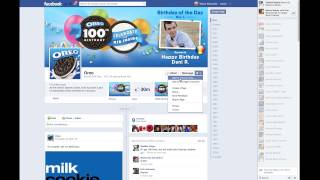
In this Social Sunday episode, Shaun Whynacht walks viewers through Facebook's "My Favorites" (Interest Lists) feature, explaining how EdgeRank limits organic post visibility and how adding pages to custom interest lists ensures their content appears in the user's newsfeed. He demonstrates, using the Oreo cookie fan page as an example, how to like a page, add it to an existing or new interest list, set the list's privacy (public or friends), and locate the lists via the "More" menu. Shaun also highlights the benefit of creating a personalized newsfeed of favored brands and advises page owners to encourage fans to both like their page and add it to an interest list to improve reach.
Chapters
Hey everybody, Shaun Whynacht here, Social Sunday. I've got a cool little trick to show you. It's one of the new features that Facebook has put out there called My Favorites. My Fave Lists. What exactly that allows you to do is when you like a certain page, you're most commonly not going to see everything that that page posts on your newsfeed unless you keep going back to their page every day and checking it out. Now why is that? Well, Facebook has this thing called EdgeRank which kind of determines that not everything that they post is going to show up on everybody's newsfeed but there is a way around that and it's called My Fave Lists. What you see on the screen here, I just brought up the fan page for Oreo cookies, and everybody likes an Oreo cookie. What I'm going to do is I'm going to go and I'm going to like the page. I'm going to click Like. There we go. Now it says that it's liked. Down here is the next option. For one, show in newsfeed. It's automatically checked. But two, do I want to add that to my interest list? Yes, I want to do that. I can click there. If you want to go back to a page that you've already liked, you don't have to unlike it and relike it. You can drop down this little arrow that's on the right-hand side by the gear cog and go Add to Interest List. I'm going to go ahead and do that. Now I've created a list already called My Fave Places. But if you want to create a new list, if this is your first time doing it, you can do so by clicking on New List. It's going to pop up here and it's going to say yes, Oreo Cookie, that's what I'm going to add. I'm going to go Next. Now I can either choose one of the lists that I already had or I'm going to go and put in the name of the new list. Yummy Food or whatever you want to call it. We're going to go ahead and do this. Now, who can see this list? It can be public. Anyone can see the list that I've subscribed to or only my friends. I'm going to go ahead and click on Friends. I'm going to click Done and just like that, it's done. I'm just going to go back to my home screen here. Now, where does this stuff show up? If you go over to the left-hand side and you scroll down, there's the More option. Now I've already shown it so that it's going to show up here, but if you don't see it, click on More and it's going to show up. So you've got your interests that are here. Again, you've got yummy food, so it's going to have the Oreo stuff or any other ones you add to that list. I also created earlier one for the Chamber of Commerce in my local area under My Fave Places, so I go ahead and click on that. Now by doing this, it's creating kind of a custom news feed for only those brands and those pages that you like. That's really cool for you as a consumer. Now you can guarantee you're going to see everything that those pages post. Now keep this in mind when you are promoting your Facebook page to your fans and to your customers. Tell them to like you on Facebook and also now add them to your fave interest lists. That's a great way to get everybody informed about what you're doing. I'm Shaun Whynacht. This has been Social Sunday. Hopefully that's helpful to you. We'll be back next Sunday with another great tip on social media.