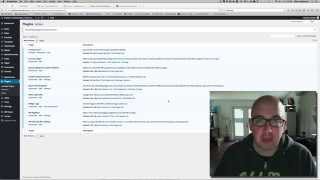
Shaun Whynacht shows how to install and set up Clef, a WordPress plugin that replaces passwords with smartphone-based login. You scan a dancing barcode on screen with your phone to log in instantly, eliminating weak passwords and the need to remember complex ones.
Chapters
Hey guys, it's Shaun Whynacht here with Blue Cow Creative. I wanted to shoot this video to show you this great plugin for WordPress. Now, if you have your site built in WordPress, you know that the, the requirements for passwords these days are getting more and more complex, which causes a lot of people to either have an unsecure password because that's what they can remember, or they have to have this really long, discombobulated combination of letter characters and numbers that they have to remember and save somewhere. And for most people, they usually have a file on their computer where they save all this stuff. Well, there is a plugin available and I've been using it for a while now and it's really great. All you need is this right here, your smartphone, and that's gonna be your key, your, your passkey to get into it. Now we'll show you here. I've got a client site up on the screen cuz I'm gonna install this here, uh, so that we're able to access it a lot easier. Now, This may look when you watch this as being a really easy way to access it, but really it's quite more secure than using just the password combination. So we're going to the plugin side here and we're gonna go and we're gonna click Add New at the top. Now this is where we can go and search. Now the plugin's name is Clef, C-L-E-F. So we're just gonna hit search and here it is, the Clef Two-Factor Authentication. We're gonna install this. This works really well. It is extremely secure because it uses your phone as the connection. Now we're gonna activate this plugin. Now if you're not familiar with WordPress, then this stuff may look a little bit confusing to you, but really we're gonna go ahead and we're gonna get started. So what it's gonna do is if you already have the app on your phone, I'm gonna say I already have the app. It's going to show me this great little dancing barcode. Now, I'm going to bring up my phone here and I'm going to show you what happens on the screen. So I'm going to open the Clef app and it's going to prompt me to put in the password. So I'm going to put in my password and I'm going to get this little dancing barcode. All I have to do is line my camera up to the one on the screen that you see and as soon as it matches, boom, it's going to start to log in. So you're good to go. Already detected the site, tells me on the phone I'm logged in for 8 hours if I want, and I can log out at any point to any of the sites that I log in. Then I can go ahead and complete the setup. Um, so I'm just gonna continue, click okay, and we're good to go. Now there's some other settings that are in here that are gonna be quite important. If you're setting this up and you have other users that may not have the app, you wanna be sure to set this part of the app up correctly because disable passwords for Clef users. Now, if, if certain users still want to be able to log in with the password, then you wouldn't want to disable that, but you can. It's really good because if somebody goes to do a password recovery, it's going to say that there's no password for that account because it's relying on them to use the phone. So go ahead and set that up. The other thing down here is the override URL. So I usually go in here and I put in a special keyword that people know, and I know more so, that if for some reason the app's not working or I just need to get in there, I can go and do this URL override and knowing that special word. Now don't put in your company name 'cause that's gonna be the first thing that potential hackers will guess. And you can go through and do the different settings. Once you're done, click Save Settings at the bottom. And everything is good to go. Now let's log out of the site here. I'm gonna show you what happens. So when you go to log in your WP admin, we're gonna just log, um, I'm gonna click log out on the app so you can see what this looks like. Log out now. So when you go to the WordPress login, for your site, you're gonna get the dancing barcode, and all you need to do is obviously just bring up the app with the barcode, hold it up to the screen, it's gonna find that barcode on the screen, it's gonna log you in. Now you're into WordPress and you're off into the races. So it's a great little app, 2-step authentication, making your WordPress site more secure, but also from a user standpoint for yourself, you don't have to remember all these passwords. You can have multiple sites that you manage under one app. All you need to do is have your phone with you to access the account. Thanks for watching. I'm Shaun from Blue Cow Creative. Check us out at bluecowcreative.ca.