Use ThriveThemes Lead Generation Forms & Exit Intent
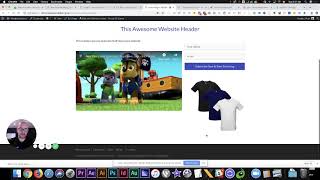
Shaun Whynacht walks through building lead-generation forms in Thrive Themes and connecting them to CRMs like MailChimp and HubSpot. He shows how to set up exit-intent popups, customize fields for mobile and desktop, and use pre-built landing page templates to capture leads.
Chapters
Hi, now if you saw the previous video where I showed you how to install the Thrive Architect builder, and the purpose of why I'm doing this tutorial is really to show you the benefits of using a product like Thrive and how it gives you all that different functionality and flexibility when editing your WordPress site. It's an extremely competitive market now, and people are demanding different experiences on your website when they go to it on a mobile device versus when they go to it on your desktop. So it is important to have a tool that gives that visitor that type of experience. So in this tutorial, I'm going to show you two things. The first thing is I want to show you how Thrive integrates as a lead capture tool, putting forms on your website so people can opt in and get information like free ebooks or whatever it is that you want to give away. So we're going to do that. The next thing is exit intent, and we're going to talk about that as soon as I show you this. I don't want to get too off in the weeds about that at the moment., but we're gonna hop right in and show you this. Now, up until a tool like this has come out, it's been very clunky to get a form on a website. You gotta use different, um, elements and maybe even completely different systems and they don't look good and things. But having a builder that integrates a form capture is an extremely helpful tool. So again, we're gonna go to the toolbox on the right-hand side and we're gonna scroll down until we find lead generation and we're gonna drag this over here. I'm gonna put it above the t-shirts and then I'm gonna actually get rid of the t-shirt. Actually, no. Let's leave the t-shirt there for a moment. Okay. So what it does is it puts in a form. Okay. So now we can go ahead and we can edit the form and the styling on the left-hand side. So if we want to change the, the sizing, we can do that and so forth. But for the sake of this, we're just going to leave it as is because that's not the main focus. What I want to show you is how does this integrate with your current CRM or marketing system? So on the form options, you can say connect to a service. Okay. But with service, they mean, you know what, a different CRM. We use ActiveCampaign. We're using that to generate our leads and nurture our clients. So that's the one that we have set up. But what I'm going to show you quickly is under the API section here, all the different integrations that it integrates with. So you got AWeber, Campaign Monitor, Constant Contact, you've got HubSpot, Infusionsoft, MailChimp. So you may be using one of these or have one of these already. You can integrate this directly with it. So like I mentioned, we're using ActiveCampaign. So that's the one that we're going to use in this. So I'm going to go ahead and I'm going to click on this and I'm going to say if somebody fills out that form, what list am I going to give them or put them in? So in this case, we're going to put them into our marketing email list. Okay. And we could have tags to show up here based on what campaign we're using. But in this case, we're going to use lists because that's the main focus of ActiveCampaign is the list. And we're going to say continue. And then what fields? Okay, so we're asking by default email. Uh, we want name. Maybe I just want to know first name because I'm going to merge that into emails. And we can add other fields in here. Maybe if you want to know a phone number, you can add that in as well. So really using the basic one that's in here, you've got name, email, and phone number, your options. Okay. So I'm going to leave it as that. And hit next. And now once somebody submits that form, what do you want to have happen? Do you want to just reload the page? Do you want to have a successful notification show up or do you want to redirect them to a custom URL? And it's completely up to you and the marketing that you do. Strongly suggest that you create a thank you page or a custom thank you page on your website and you redirect them to that page here. So when they submit it, it takes them there, either delivers that resource, has a thank you video, but gives them a different experience. If you don't have the ability to do that or the time or the want to do it, you can successfully do this with putting up a success notification. So. We can say, congrats, you're now subscribed, or whatever it is, whatever, whatever your call to action is. Um, you can put that in there and we're going to go ahead and hit save. Now the other thing you can do is you can edit the form elements. Most likely it's just going to be the button here. So instead of just sign up, it's going to say, um, subscribe now and start Exploring or saving, whatever it is, whatever your call to action is. And again, we want to change that color. We're going to use that blue that we've pre-programmed as a global color, and we can click Apply and everything is good to go. All right, so now we've got that form on here. Now remember how I changed that button for the, the texting in the previous tutorial? Maybe we only want to have this form show up on a mobile device. Okay, so again, we could go over here and we can go to this responsiveness and we can turn it off on every other option and only show it on the mobile device. Okay, sorry, I'm just going to go to the actual form, make sure that we've got— oh, we got to get out of the editing here. Hold on. There we go. So we're going to show everything. So now on the desktop it doesn't show it, but on the mobile device we've got The lead capture form. The other thing you could do, take this to a second level, is maybe you want to do two, right? You have a different offer for people on mobile versus people on a desktop computer. So you can make a duplicate of the form, show one on desktop and one on mobile. But in this case, we're just going to bring it back and have it on both. So that's as simple as it is for that lead capture. So if I went over here and I just went and saved my work at the very bottom— actually, hold on, why we got multiple layers of my face showing up here. That's really strange. But, um, we're going to go save and then we're going to go back here and we're going to go save and exit. That's how you get, uh, now we're going to see that here's that page we just built, right? We've got the video. We can click and play and watch it. Oh, watch it right within the website. Or you can go here and you can fill out your information and hit subscribe and start exploring, and you'll be entered into that CRM or whatever system it is. Okay, this is where the power of Thrive really comes in, is capturing leads. And that's what you want to do, is you want to put them into a system like ActiveCampaign, like Infusionsoft, or a very basic like MailChimp, because you want to be able to nurture to them and start to build that list. Now, when it comes to capturing leads, the thing that's really killing a lot of websites is something called bounce rate. And that's when somebody comes to your website, they hit your website, and then they leave, right? They don't do anything. They bounce off. There is something that you need to absolutely integrate within your website, and that is called exit intent. And I'm sure you've experienced this when you went to go to leave a website and you went up to either go back or X out or close the browser tab. You get an offer that pops up on the screen. That's called an exit intent, and that is something that is built right within the Thrive Architect. So what we're going to do is just show you briefly where that is. Okay, and I'm going to show you a real example. So within the builder on the right-hand side, you've got a little gear cog here called Settings. And within this, you've got Advanced Settings, and then you've got something called Page Events. So when we click on this, we're posed with two options. It's either an exit intent or a timer. Now a timer could be, let's wait 30 seconds and show an offer that pops up on the screen. That would be a timer. Exit intent is when they intend to leave the site, show this offer. Now, keeping in mind, you cannot judge an exit intent within a mobile device. So that's why for mobile devices here, you have to set it as a timer. So if it's after like, let's say 33 seconds, and you can move this around or type in the number, on a mobile device, this offer would show up. Okay? But on a desktop, it's based on the mouse move. So we're gonna go ahead and click on that, and then we're gonna figure out what we're gonna do. We're gonna open up either a Thrive Lightbox on the screen or a Thrive Leadbox if you got the Thrive Leads plugin installed. So we're gonna create a new lightbox here. We're gonna call it Exit Intent. We're gonna hit Save. Now do we want any animation? Do we want to zoom in, rotate, just something to catch attention? And we can hit Save. And now what we're going to do is we're going to go ahead and we're going to edit this lightbox. So again, it's going to open up a new editor. It's going to give you what a box would look like, and it's blank. So we're going to say— we're going to put in a heading, uh, 'Don't leave yet.' Okay, highlight this, make it our blue, and we're going to throw in that lead capture. Actually, let's put a paragraph first here. We're going to say We'd love for you to be part of our family. Subscribe now for a free gift. Okay, so obviously you have to deliver on the promise that you put in here, but it has to be really something that's enticing for somebody to do something. Okay, maybe it's, you know, get a free 50% off coupon if you're in the retail business, or maybe it's a free ebook. Things of that nature. So now what we're going to do is we're going to throw in that lead capture form. So we're going to go lead generation, and again, we can quickly connect to the service. We can do this, we can use marketing list. Maybe it's going to be, uh, yeah, let's, let's give my free ebook. Okay, so we do that one and set the forms required. First name, next Go success, your free gift is on its way to your inbox. All right, save that. And maybe you want to exit or edit that button again just to make it the color that we want. And we're going to say— oh shoot, what happened there? Move the button out here. Let's exit this mode. I've never done that before. That's weird. I can't get that back. Let's see if I can delete this. Hmm. Look at that. Now I could reshoot this whole tutorial because I messed that up, but we're just gonna leave it in there because things like that usually happen. What we're gonna do is we're gonna just, let's see what we got here. I'm gonna do redo. There we go. The undo button down on the bottom left side saves your bacon all the time. So we're gonna go back to the form and we're gonna say, subscribe now for a free gift. All right, perfect. So once that's done, hit done, and we're gonna hit save. Saved. And now we're going to— now you can pretty it up and make it a lot, you know, a lot nicer than that if you want, but that pretty much does the purpose for what we've got. So we're just going to close that one out, and that's that one. It's in there. And we're going to go boom and close this, and we're going to save this page. Okay, now we're out here. So here we are on the website, we're checking it out, and we're like, oh, we're done, let's leave the page. Oh, look, there's our exit intent. I moved the mouse to the top that I was going to close it. And there's a last ditch effort to try to get somebody into your list, try to get them to engage with your website, get them so that you can nurture them, deliver upon that promise. And that's the benefit of using exit intents. It is user action driven. They're obviously about to leave. They're either going to close the browser or they're going to close the tab. That's when it comes out. Forward. So those are the two things, um, your exit intent and your form capture with, uh, um, Thrive Themes. Now I'm just going to show you here briefly, uh, a couple websites that we've built using Thrive Themes so I can show you what the functionality is, because really this isn't the prettiest looking thing. Okay, so our website, our main one, Blue Cow Marketing, built in Thrive Themes. Okay, so this whole website here using that same Square theme, but allows us to do a lot of work with it. I do a lot of different things. Now, one thing that I didn't show— since there's our exit intent, right, the, the free ebook— the one thing that I didn't show you is let's say you didn't really want to use this theme per se the way it is. You want to build what's called a landing page. Prior to this, you'd have to use something like LeadPages or another landing page builder or custom code it yourself. So let's say our main page here, we want to actually turn into a really good landing page. Now built into Thrive Themes is a fantastic library of pre-built pages that you can pull upon. Now to get to those, on the left-hand or the right-hand side, you've got Change Template, and now you've got all these different templates that you can pull from, and they're based on different filters. So let's just say we want to go through here and we want to do a lead generation. So we're going to go and we want to say, okay, we want to use this one here. Choose that theme for the template. And now watch what happens. It pulls in some content and really gives you a starting point, right? So you've got some text here about the business. You can go ahead and you can start to edit this. You can go and change your logo by clicking on this. You can upload a new logo. And really start to use the builder as it's intended. But everything has been pre-formatted for you, so you can go ahead and you can save and exit. You've got this really great page to start to work with. So that's where the power comes in with using this, is not only just you're starting from scratch, but now you've really got a great stepping stone with your Thrive Themes. Okay, so that's one of them. Here's another one here we're going to go to. Yeah, we just did this one for a client in Alberta. It's not launched yet. It's still in its building phase, but— oh no, that's not the one. Let's do this one. It's the Toot. Spell that right. It's.ca? Nope, must be.com. There we go. So this one here, completely built in Thrive Themes. Okay, so as you can see, got a lot of functionality here, a lot of visual elements. Here's another one in the fireworks industry that we did. This one here, again, completely built in Thrive as well. Some of the other things with those pop-ups, if you want to click on it, you can pop up and have a lightbox video come up and play. Which is a great element to have within your website. And the last one we've got here is a financial advisor that we work with in Ontario. So we built the website for them, and these are all built out again using Thrive. So really nice-looking websites with that builder. They can go in at any time, edit any of the content that's in it, and really start to have control of your website back again. So thank you for watching this tutorial. Hopefully you learned something. If you want to talk more about getting started with Thrive, or you'd like to have us help build your website or build your website completely for you, please by all means do not hesitate to contact us. There's a link in this post where you can learn more about Thrive Themes. You can obviously get Thrive Themes at that link, and you can also contact us at any time at BlueCowMarketing.ca. So it's been a pleasure showing you this, and happy building your website and have fun growing your business.
More from Shaun


Julie Vanexan recognizes Shaun Whynacht from Blue Cow Marketing at the Nova Scotia House of Assembly








