Watch me set up a Facebook Remarketing campaign for website traffic
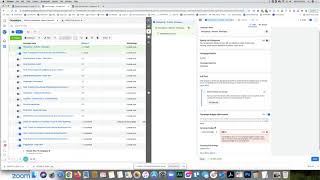
In this impromptu tutorial, Shaun Whynacht of Blue Cow Marketing demonstrates how to create a Facebook remarketing campaign aimed at website visitors. He begins by explaining why remarketing is the most cost‑effective entry point for new advertisers, then walks through the technical prerequisites (Facebook Pixel installation and verification). Shaun creates a custom audience based on all website traffic from the past 60 days, names and describes it, and shows how to edit or exclude subsets. He then builds the campaign hierarchy—campaign, ad set, and ad—choosing the ‘Messages’ objective under the consideration funnel. Budget considerations for a small‑scale test ($30–$51 lifetime) and geographic/age targeting are covered. Placement decisions (automatic vs. manual) are discussed, followed by the creation of a conversational ad using a personal photo, primary text, headline, and a Messenger welcome template with quick‑reply buttons and a link to a free consult. Shaun publishes the ad, explains Facebook’s ad‑policy review, the learning phase, and the conversion threshold needed to exit learning. Finally, he highlights additional retargeting audiences (page engagement, Instagram) and encourages viewers to follow Blue Cow Marketing’s channels. The video blends practical screen‑share steps with informal commentary, aiming to empower small‑business owners to launch effective remarketing ads without overspending.
Chapters
Hey guys, it's Shaun here at Blue Cow Marketing. I'm doing this video, I never had this planned, just figured out tonight, hey, you know what, let's, let's do a video. Let's do it impromptu because I was in a podcast today and we were talking about Facebook marketing, Facebook ads, and what would be the best thing for any business to do when getting started with Facebook ads. And it's remarketing. If you were to set any type of ad to begin with, it should be a remarketing ad. And that's the biggest mistake that people make is they go and they do acquisition or first touch ads. Where is a remarketing ad means that if anybody has come to your website, you can actually show an ad or a piece of content through Facebook to those people using the Facebook pixel. And that's probably the best way because they somewhat know about you because they would have been to your website and you don't burn through a lot of budget because you're only only talking to people who have been to the site. You're not just throwing it out there to a whole bunch of people. So I thought, hey, you know what, let's set one up. We're going to do it for our business here just to have some fun and, and get it going. Okay, so here's our website. If you've been to a blue marketing, bluecowmarketing.ca, you also have to have an ads account and you have to have your pixel installed. And actually, I'll go back here and show you. There is a plugin, Facebook Pixel Helper, Chrome plugin, that'll tell you if your pixel is installed because you'll have your name, your pixel will show up here when you go to your website. So let's hop over here to our ads account and we're just running one boosted ad at the moment. So we're gonna go ahead and we're gonna create a remarketing account and a remarketing ad. Sorry, it's late here. Well, it's 7:30, but you know, working all day, it's kind of tiring, but we'll get through this. So we're gonna go ahead and create a new account. Now, if you've never created a Facebook ad before, then don't worry, just follow along, okay? So the first thing that you come up to is the objective. Now, the objective is what do you want to have happen out of this campaign that you're creating? And there's a bunch of different ones. There's awareness, there's consideration, and then there's conversion. So if you're doing sales or opt-ins, conversion is what you want. If you're just putting awareness out there about who you are, then you can do brand awareness and reach. Now, each of these have different things telling the algorithm, and that's the fancy word for the computer brain of Facebook, of what you want it to do because everybody has a different behavior. So if you're somebody that watches a lot of videos on Facebook, you're going to start to see other videos coming to you in the sponsored post because people are optimizing for video views and they're going to show it to you first. In this case, the type of ad that I want to do is I want people to message me on Facebook because they would have come to our website whether they were reading a blog post or came across an organic search, but we want to start a conversation. So we're going to use the consideration because that's really the phase that we're looking at here, right? We're not showing first in front of people, but we want to go in the consideration phase. We're going to go with messages. Now I'm going to drop down here and I'm going to call this retargeting. Now these have no functional value. These are more so to keep your, your ad account organized. Retargeting website messaging. Messages. Let's do messages. I'm a big stickler for spaces. There's an extra space there. So as we see here, we've got campaign, ad set, and ad. So the campaign is the overarching objective of what you want to do. Your ad set is the different types of audiences. Now, when we're typically setting up an ad campaign, we're looking at setting, you know, 2 to 3 different types of ad sets or audiences. But in a retargeting campaign, In this case, I'm just going to retarget based on people who have visited the website, uh, and any page on the website. Okay. Now you can retarget on other things like engage with your ads and things like that. So when we go to set that audience up, if I feel like it, maybe I'll throw that in there, but that's okay. So we're going to go ahead and we're going to say create the ad set and we're going to call it the same thing. Now what I normally do here, um, if it's the same thing, I'll go ahead and do this.. But if you are creating an audience and say, let's say, you know, you're advertising to your state or province and you create an audience just for them, you can have different ad sets and name it accordingly for that. Now I'm going to call this one, and this will make sense in a moment, Marketing and Donuts. And yeah, you'll see in a moment. So we're gonna click Continue to move to the next stage here in the process. And Facebook does quite a good job of letting you see the hierarchy or the levels. So you've got campaign, ad set, and then ad right here. So when we look through this, what we're gonna see is, you know, what's our budget. So what we consider for this is if you're really trying to scale your ads and go a long way with them, you'll get into daily budgets of how much you're gonna spend., but if you want to play a safe bet, especially on a retargeting side, you know, if you go ahead and say, okay, let's, let's just do like $30, right, for the lifetime of this. And when it burns through that $30, man, it's, you know, the ad will turn off. You can go in, you can bump it up to, you know, and spend more money if you want. But the key is you're not going to overspend. You know, you're at least in this for $30 to see if it works. Now, in a retargeting campaign, you're not going to spend a whole lot because, you know, unless you've got a high volume of traffic, the ad's not going to show to like hundreds of thousands of people. It's only the people who've come to the website, and it will burn through it that way. So let's go ahead and we're going to click on the next level here for the audience, and this is where we would go ahead and start to create the audience. Now here, I'm just going to jump out of this for a second, and I'm going to show you how to go and create that audience, or how I would do this. Now there's different ways to do everything. So over on the left side where we got these 9 little dots for the business tools, we're going to break that open, and then we're going to scroll down until we find the audiences. Now I'm going to right-click and go open a new tab so I don't lose this spot where I'm at. So in here, this is where we go ahead and we create the retargeting audience. Now I already have one set up, but I'm going to go ahead and create another one again, uh, just so you can see how to do that. Now on the top left-hand side, you got the create audience button, and we're going to go create a custom audience. Now you got a whole bunch of different types of audiences that you can choose from, and they give you kind of a summary here on the right-hand side about what they're for and where they come from. But in this case, what we're going to do is create the audience for website, and it's using the pixel, and it says all website traffic. And depending on your website and how many times you have people coming there, you're going to pick the past X amount of days. So usually What you'll do is a maximum of 180 days is what they'll allow you to do to retarget, but the idea is recency. So when you're driving people to the site and we're driving traffic to our website with our blogs and other boosted content that's there, we want to pick them up on this retargeting. So let's just do, you know what, last 60 days. Now name your audience. So website retarget— actually, let's reverse that. We're going to go retarget website, all last 60 days. And it's key to get a good description here of what it is. If you want to describe it a bit more, you can go add description and you can write it in down here, but it's not required. So we'll close that out. Now we're going to go ahead and create that audience. There we go. So that audience is now created and it will start to build. Now, one of the things that you can also do, if we go into this, and I'll go back and edit this audience, is you could include other people, so, or more people. So you can do website visitors, you can do, you know, visit time spent, you can add other things in there if you want, or you can exclude people. So for example, you might want to exclude people that have not, or have been to a certain page. So if you're retargeting for a different service that you have, so maybe Maybe you got a different service page and you want to run an ad about that service. It makes sense to retarget people just for people who have hit that page. So I'm not going to exclude anyone from this. I'm just going to go, okay, I'll cancel that and be okay with it. So that's how you would set that up. Now I'm not going to use this one because I already have one set up. So I'm just going to click on this and I'm going to go delete that audience. So when it comes time to setting up my ad, what I'm going to be looking for here— actually, I'm going to go in and edit this one from 30 days to 60 days. Let's go and edit this. Is that the one I want? Let's see. Um, no, I think it's down here. I think it's this one. Nope. I've got a bunch in here. I do this several times. There we go. Okay. So this is the one down here. This is web retarget all traffic last 60 days. So that's the one I'm going to use. So let's go over here to the ad again. And we're going to go through the steps moving down. So, it's the type of ad is a click-to-message, which is what you want. Messenger, Instant, or Instagram because we do have an Instagram page and it's set up here. And we're going to run this. Let's go right through to the end of December. Now we're going to go down to the audiences and we can go either create a new one here, which we're not going to do, and we're going to go and find that audience. So we are calling it— what was it called? Memory is bad— Web. Okay, so we're going to come back here and we're going to go Web. Not there. It is under here, under Custom Audiences, Web. There it is. Web retarget last 60 days. There we go. And that's in there. So one thing you're going to notice right away is up here it says verifying your changes, but your budget is too low. Your campaign budget must be at least $50 and 60 $0.16 for the ad sets to run that long. Okay, so they've figured out calculations based on the amount of time you're going to run that and the size of that audience. So what I would have to do is actually go and bump up my budget. So I know I'm okay with that. So let's go back here one level and let's go and put that at $51 to appease the Facebook peeps so that they're okay with that. And I'll come back in here. Alright, so we'll go through and see if they update that and are quite okay with it. So the start date is in the past, so that means the time has actually passed. So we're going to go ahead and let's change this to 8:30 PM so that it is now in the future from this point forward. So we got our custom audience here, and then you go down, you could do your, you know, your demographic based off of that. So in this, I have it set for location Canada. I'm also going to include United States because we also do work with clients there. Wait for that to come up. Perfect. So now in that audience, if there's anybody outside of Canada or United States, they're not going to be served that ad. And the same thing down here for age. Now I'm not really doing work with anyone 18 years of age. So we're going to go down and Usually we're going to set it at, let's say, 30, because our client base is usually 30+. I'm not going to worry about the top end of it, that's okay. Male, female, that's okay. And then all the other demographics are here, which are okay. So we're going to keep that, we're not going to narrow it down even further. It's okay if I don't click Save the Audience. And then we get down to placements. So there's a lot of discussion out there whether, you know, you want automatic placements or you want to go manual. So manual allows you to actually say, okay, let's show this in Messenger, Instagram, and then all the different places. The algorithm of Facebook is extremely smart and extremely important to serving your ad to the right people at the right time based on who's engaging with it. So I always like to take their recommendation of recommended, you know, unless I'm getting very finite in my ad strategy and building out very targeted ad campaigns with ad sets and certain ads that we want them to be only on Instagram or only on Facebook or only in Messenger or anything like that. Alright, so once that is there, that's good. Now we're going to go over to the fun part, which is creating the ad. Now when it comes to ads, you can create different types of things. You can create ads that are images or ads that are videos. The key with a retargeting ad is that you're not trying to sell them, right? You're not trying to sell unless you're doing product marketing where you're retargeting like an actual product because they added it to a cart. Then you'd be trying to sell. What I find is this is like the second date. You know, somebody's already found out about you, they've engaged with your website, now you just kind of, kind of show that personality. So when I talk about marketing donuts, you'll see in just a second what I mean by that. I went through my personal Facebook account and I found an image that I think will work really well. So I'm going to go ahead and just upload that right now. You'll see here in a second what I mean by it. So it's a picture of my son and I. We were at the Halifax Airport one time and we were eating a donut at Tim Hortons. Very Canadian of us to be having a donut. So that's why I want to put that in there. And you'll see here in the copy. So the idea is when your content comes through a newsfeed to make it feel as organic as possible. So I'm not using highly produced images Photoshop stuff, graphics, all those type of things. I just want this to be, you know, a very comfortable, uh, conversational ad. So as you scroll down, so you got your ad and you got your primary text. So your text is what comes above the video— or not the video, above the image. So I already took the time to write this out before I did this because I knew I was going to do it when I made that decision. So I'm like, I'm going to write it out so you guys don't have to see me stumbling through how to type and come up with ideas. So I'm just going to go here and I'm going to copy this text from this text document. I'm going to put it in the primary text here and you'll see it'll preview the ad over here. Um, just like that. Now I'll play with this before I actually publish it. And then you've got your headline. So your headline is what shows up right here. Okay. So this is chat with us. I don't want that. So we're going to go over here and we're going to say, let's talk marketing. And let's do, and maybe donuts. Getting some curiosity there. Copy and paste. You'll see, there it is. So looking at this, this is, you know, just a feed, and you'll have that see more button, which we all know exists, and most people have to click on it to see the rest of the content. The idea is you want people to be able to get an idea at the top, so what I'm gonna do is put something of curiosity factor. Why are we eating donuts? Depending on your style of your business and your brand, you might be a little— be able to be a little bit cheekier with your content, or you might be, you know, very, very rigid or firm with a lot of the branding that you want in there. So I've got Grammarly on, so it doesn't like to— it's going to fix my grammar, which is normally, you know, not that great all the time. So, uh, others, others. Now what it did here, and this happens sometimes with Grammarly, is it took that and it got rid of it. So let's see if I can replace— there we go. Why it does that every now and then. See, look at that, messes it up every time. All right, so we're going to leave that there, um, to help you with yours. So we're going to fix that. All right, that's cool. I can always go in and change this later. So as we scroll down, description is optional. It would be text that would show up underneath this. So messaging template, so by this you could go ahead and create kind of the template of what happens when people engage with you. So do you want to start a conversation, which is what we want? So we're going to click create here and let's see what happens. So the greeting is hi, puts in their name. So when they click message, it's going to say hi, uh, please let me know how I can help you. Um, did— we're going to go ahead and did the donuts My computer's a little slow when I'm writing here, which is always fun when you're trying to do a video. Did the donuts catch your attention? All right, let's see if that's actually gonna— there we go. And then down below, you can put in the questions that you want them. So they're going to see these little buttons that they can click. So we're going to say, did the donuts catch your attention, or did you want to discuss something else? Question mark. That go in. And now down here, like I said, we can put in there and say, uh, kind of learn more about your business, um, about how you work with clients. I could put an automated response, meaning that if they chose that one, this would be the next thing that they say. I'm not going to get that elaborate at this point because really all I want is this to come up, then pick one, or them to write a message, and then I'll respond, you know, live as well. But a lot of times you can have things in here like, what time are you open, or what are your hours, or what are your holiday hours, or, you know, how do I, you know, what's your phone number? And then you can have that automated response that automatically happens there. So can you tell me about this ad? We don't want that. So can I learn more about how you work with clients? I'd like to book a consult. Do that. Now what I'm going to do is I'm just going to run over to the, to the website here and I take my link for booking the free consult. We're going to come back to the ad. And certainly you can schedule it for free at this link. Paste it in there. Gotta hope you don't type wrong when you're doing this kind of stuff because, you know, If you have a computer that's been slow like that. So look at that, now I had a little double T. So we're gonna get rid of that, fix that one up. For free at this link. There we go. And then the last one, is anyone available to chat? Yes, we will respond as soon as we can. We are sometimes in meetings and unable to, but we promise you we will respond as soon as we see it. Now, I know I typed a lot and I messed up a lot in that, so we'll see what the magic Facebook pop-up thing does for us and gives us an answer here. So let's just wait for it to do its thing. This is kind of like back in the 1980s when computers first came out. Yes, that's kind of dating my age, um, you know, when you're typing and things are very slow and slow. It shouldn't be this slow, but I'm on an older iMac at the moment, and for some reason it's being very sluggish. Okay, uh, yes, we'll respond as soon as we can. We are sometimes in meetings and unable to, not am. Hope we're not keeping you from something to watch my glorious display of, um, I don't know, I was going to say penmanship, but it's typing. Respond as soon as we see it. Perfect. All right. So next we're going to go and we're going to say save and finish. All right. So that template is set up. There it is. The welcome message. We are tracking on the Facebook pixel. So we're getting parameters on that. Uh, And we are good. So now the next phase of this is to click the good old publish button. So we're going to click this. You're not over the water yet. This has to go to Facebook. They have ad policies and, you know, depending on what you're advertising, what your messaging is, there are times where they will decline that ad, but they will tell you one of the policies that you are breaching. So if, for example, you are marketing something like, you know, a medical product and you're calling out a condition, you can't say 'Hey, for your, you know, to treat your whatever condition,' right? You are calling them out. You are implying that that person has that condition. So that is a breach of their policy. You obviously can't sell illegal products on here. So in most cases, for most businesses, if you're, you know, in the up and up, you will get past this. And, and, you know, there's no time limit as to when they review this. This here, I would guess, would be up and running, you know, within an hour or two, right? I'll get a notice. There are times where, you know, busy times when they're doing a lot of ad coming through that, you know, it takes longer for that. So I'm just going to close that now, and it's in its review stage, and it will just come up and it will say active or learning. There are different stages of delivery. There's learning, so the moment that it actually goes live, it goes into learning phase. And what happens— has to happen is within a period of, I think it's 7 days, there has to be 50— I think it's 50— of the actual conversion events. So in this case, it was messages. There has to be 50 of them for it to go out of learning into active, and then the algorithm really takes over. This is determined by the size of the volume of the audience and then also the amount of budget that you have. We have a very small budget. We are never going to come out of learning phase, you know, unless— oh, the dog's knocking stuff over— unless we get 50 conversions in 7 days, 50 messages from the ad in that time. That won't happen. Okay, so that's what we're going to do. We're going to let that run and we'll see how that performs. So that's what I wanted to do is I wanted to give you an idea of how to set up an ad for retargeting. And I did mention about how you can set up different audiences for different types of things. Actually, I'll show you that right now. So we had set up that one for the website traffic, but another one that I would recommend you also do is creating another audience for, you know, if you got Instagram, you can do Instagram as well, but Facebook page, and then you can pick your page here. So I've got all the ones that I manage. So let's go find ours, which is in here somewhere, right there. And anyone who is engaged with the page, right? So you can do the same type of thing. You know, if you got a lot of traffic on there, you can do 90 days, you know, 180. But you can set up those, those audiences as well so you can get those people retargeted. And the same thing for, for Instagram. So if you like this video, please like our page, go to bluecowmarketing.ca, facebook.com/bluecowmarketing, youtube.com/bluecowmarketing, subscribe to us on YouTube, whatever you want to do to get more content from us. We love you for that. And absolutely, thanks for watching this video here this evening.
More from Shaun


Julie Vanexan recognizes Shaun Whynacht from Blue Cow Marketing at the Nova Scotia House of Assembly








