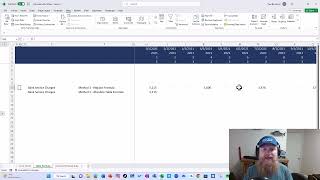
This is a YouTube video titled "Excel Table Formulas" created on February 25, 2023, featuring a detailed tutorial on how to work with Excel table formulas, including common issues with dragging formulas and how to write absolute table references. The content is a monologue by a single speaker explaining financial modeling techniques related to FP&A and Excel tables.
Fp and a guy here. This week I posted on LinkedIn about tables and got a lot of comments. And one comment was from Chris Riley who said, hey, why don't they update right when I drag them across, why do I have problems? So we're going to talk about why that is and different ways to solve that so that you understand how the tables work and how they're different than a regular formula. So in this example we have a data with three columns. We have here P and L category, amount and date. We're going to update to get bank service charges for all these months. So we can see the data here. And then we're just going to go to this fact sheet here and we're going to go and show you how you update it. So I have a regular table formula here. You'll see in this formula we've highlighted the amount, the category and then with a criteria for the category, the date and then the criteria for the date. So you can see each of these here, you can click on them and see that's the basic formula. And so now what we're going to do is we're going to try dragging that formula across three different ways. So first let's say I just want to drag it with my mouse. Okay, I got these zeros. But if I look here, I have data for every single month. So something's wrong. Alright, so that's method one. I dragged it across with the mouse. What if I do control C come down here and hit Ctrl V. Does it work? Well, it appears to give me numbers. Is it the right numbers? Well that's 2,258. That's right. And the last one should be 946. So that worked. So control C worked. Well, what if I try Control R to fill? Right, that worked. So what we're seeing is one of the three methods does not work. And that's probably one of the most common is just dragging it with your mouse. So why isn't that working? What's going on here? We can see down here, that's the formula. We can see amount, category, etc. Well, let's look at the formula in this next cell and see what happens here. So if we come up here, you'll notice the formula is different. It references date first. Well, this one referenced amount, then it references amount. And this one references P and L category. Then it references P and L category. And this one's referencing date. So we can see a difference there. So let's walk through it. So what Happens if we look at the next column. So first one we have amount. Next one has date. Next one has category. Well, what's this one have? Has amount. Was that the right number? Well, let's look for April. It is. So what's happening? As you can see, we have P and L category, amount, and date. Every time we drag the column over, it's treating it as a relative reference for only the object of the table. Hence why it never goes over to def is it goes amount, Then the next one does date, next one does category, then back to amount. So you can see on the fourth one, we're back to amount. So if you had six, it would work the same. A seven one, you'd be back. It all depends on how many columns you have, how long it will take to get back to your right answer. So the solutions there is not to use the fill with your mouse, but let's just say, hey, that's the way I do it. I don't want to have to do that because I can easily write the formula without a table. And it works every time. All right, well, there's a second method. So here's an absolute table formula. I'll walk through how it works in a minute, but let's try all three methods with this. Drag it across with the mouse. That worked. You can see same answers in each of those months. Next, let's try it with paste. Worked. So now let's try it control R and see if we get the same answers. Control R worked in every single situation. So how that formula is written, and then we'll write it is I want you to be able to see this second one here. So I'm going to go ahead and hide this one for now and show you so you'll see a sumifs. You can see the formula. Notice that I have a bracket, two brackets in the front, two brackets at the end, a colon in the middle, so the double dots. And I've wrote an amount twice. That is the equivalent of if I said equals B2 and use the dollar sign. So that's the way to make a table an absolute reference. And see, I did it in all three situations. Amount, p and L category and date. And so what that does right. If we come up here, as you can see, it makes it absolute. It treats it like the dollar signs for a regular formula. So let's just write the formula so you can see how it works. So we're going to write this formula a second time. We're going to go sumifs. We're going to come over here. We're going to highlight our formula to get our amount. And then what we have to do is we got to do amount a second time. I'm going to come in here, type amount, right? And I got to put the bracket around the front. So now we have is we have that there. So next we're going to do our P and L category. So we'll come here, we'll get our P and L category. And this time I'm just going to copy it. So Ctrl C this put control V and then put the brackets around it. It's a little painful to write. I wish there was an easier way, but once you've set it up, it works really well. So now we'll select our P and L category. So we want that we'll hit F4 here because that's not a table. And there we go. We get the E. Now we'll come back and we'll do date next. So we'll highlight date here. We got our date. We'll put our semi. Our colon, not semicolon. We'll put our colon here. And then we'll type. Type date. I can type date there. And we'll put the bracket in the front. And you'll see accidentally. So let's just fix that. I have insert on. We'll take that off and we'll type date there. And now you can see it's referencing date there in an absolute manner. So now we'll go ahead and select our date here. We'll go ahead and lock it. Now that works. So there is the example of what you can do when you're working with tables. How to write the formulas. Takes a little while to get used to it, but it's worth it because all your data will automatically update. You don't have to worry about table ranges. You get all the benefits of tables. So go ahead and comment below. What did you think of that video? Was that helpful? Did you already know all that? Thanks. Bye.