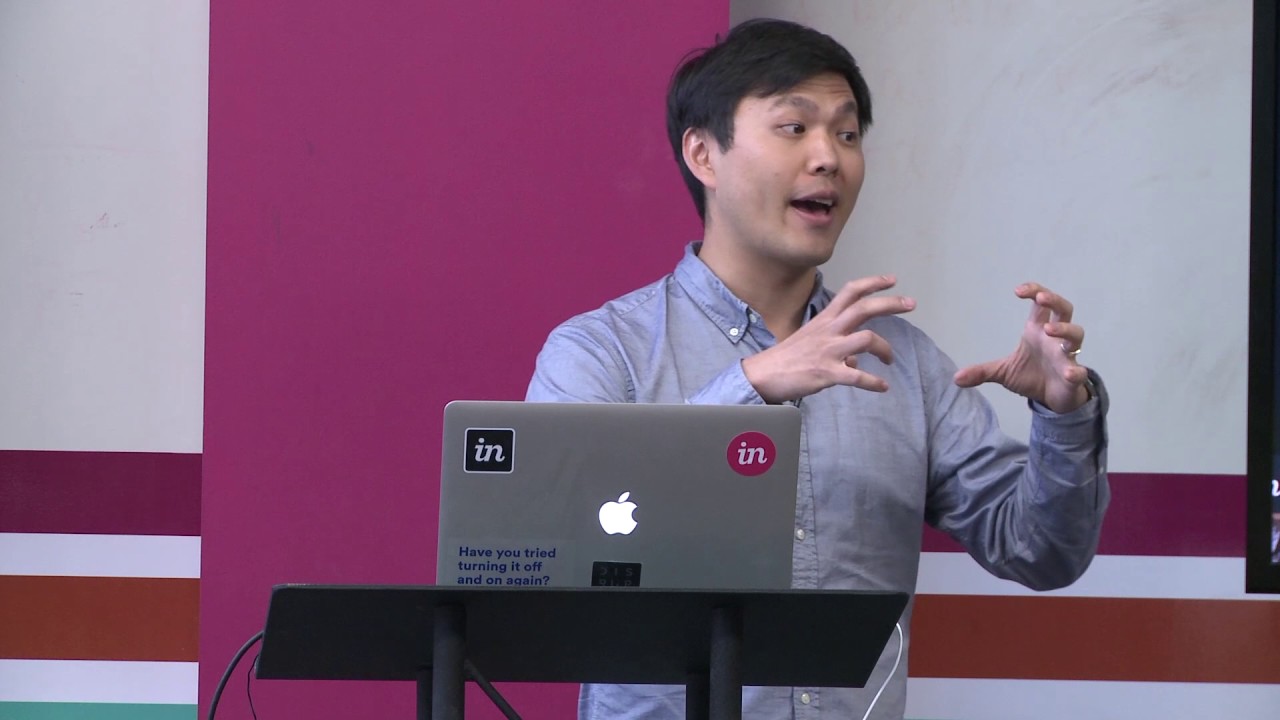
Jonathan Hau walks through InVision's core features for design collaboration. Learn how to upload assets from Sketch or Photoshop, create interactive prototypes with hotspots, leave in-context comments with @mentions, and use Inspect mode to generate CSS and export assets for engineers.
Chapters
Cool. So I'm going to dive into some of the nitty-gritty in using InVision. I know that some of you have heard of it. Some of you are even using it. But I'm just going to go through from the beginning, the basics, signing up, and then making a prototype. So signing up is really easy. www.invisionapp.com. Click Sign Up Free. You get one free prototype. Free forever. And in that prototype, you can upload unlimited screens, unlimited assets, free forever. Literally free forever. Now, when you create a prototype, you just hit this pink plus button. Just name it whatever you want. So I'll just name it Draper 123. You want to select your form factor here. So this form factor— it doesn't really matter what you choose, because you can always change that form factor. But I'll just choose desktop for now. So we have a number of different ways that you can integrate with InVision. You can upload images directly through the web or through Dropbox, Google Drive, or Box. And anything that you upload through Dropbox, Google Drive, or Box, InVision will automatically track that file. And anytime you make changes to that file, we'll automatically retain a history of that file inside InVision for you. Mm-hmm. In addition to that, if you upload your asset to our assets folder, we'll automatically time machine every single version of your file and make every version available for download. So you never have to worry about losing any of your work. If you upload a PSD or a Sketch file, InVision will automatically extract out all of your artboards and screens from your PSD or Sketch file. PDFs, all the pages in that PDF will automatically be extracted out for you. Okay, so I'm just gonna go to a prototype where we have some images already preloaded. These are pretty high fidelity, so they look like the the final product. But this is something that a designer might mock up inside Sketch, right? And they might look like these, right? So if I— if I've uploaded them, they won't automatically be put into sections, but I can hover in between these screen images and create my sections to kind of separate out my user flows, right? So now I've got these images in here. And if I dive into an image by clicking into that, I'll go into my console view. And in the console view, we've got 5 different areas that you can navigate at the bottom. We've got our preview mode where you can preview the interactions between screens. We've got our build mode where you can create clickable hotspots that link from screen to screen that allows you to create— visualize that entire user journey just from flat image designs without writing a single line of code. We also have our comment mode where you can create in-context comments right on top of your design. So I can take my cursor, click anywhere, Make a comment. I can even @mention somebody and say, let's see here. I'll just do this guy here. And when I @mention him, he'll get an email notification. If he responds to that email, it'll automatically thread it right into this conversation. I can also click on this pen icon, draw over the design, save that drawing in my comment thread, so that when I send him that comment. He can click on that, or he'll get a preview of that in his email directly. So he'll instantly see my drawing right inside that comment thread. All right? So this is all about in-context feedback stacked right inside your design so you get the best feedback available. All right? The other really cool thing is we have this Inspect mode. That's the 4th tab at the bottom. And InVision will automatically take the Sketch file— Sketch is one of the latest and greatest design tools out there— A Sketch file and automatically redline the designs for you. So from a design perspective, if you've ever worked with designers, if you've ever talked to designers, the bane of their existence is redlining documentation so that they can take those designs and give it to engineers and hand them off so that the engineers know this is the pixel distance spacing between this asset and the edge of your canvas. This is the pixel distance spacing between this asset and the other relative asset. This is the hex value of this color, blah, blah, blah. All that stuff designers don't ever have to worry about anymore because it's all available from the Sketch file. And we render that right inside InVision for the engineers. So you'll notice that if I click on any or I just hover over these assets, they're just all available. If the designer has marked that item for export from Sketch, it'll also be made available in a neat little folder that the engineer can just go up to the upper right here, click download, and all those assets will be downloaded right onto their computer for them. So engineers can save a lot of time as well. On the right, you can even see CSS. So an engineer can take that. They can grab hex values. They can even toggle between pixel distance spacing and percentage spacing, right? If you're coding in Swift for iOS, they want, you know, or for responsive design, they'll want to see percentage distance spacing instead of pixels. All right. So, we've got all this data here available. And then finally, we have our history mode. Remember how I said when you upload an image, InVision will automatically retain the history of it? Well, every time you replace it or anytime you make a change in it, since InVision is automatically monitoring that file, we'll make— we'll make those history versions available right here for you. And you can see each prior version. And as you toggle to the left, you can just click on each version. You'll see who had uploaded that version. You'll see the number of comments that were left on that particular version. And you can see the timestamp link of when that version was uploaded. The other really cool thing with this is InVision will automatically make all of your comments accessible on every single version of your screens. So anytime you iterate on your screens, That comment will stay in the same location in the new screen. That comment is marked unresolved and retains its place and value in the new screen until that item is marked resolved by a designer, or by you. So once you mark that item resolved, it's hidden from view. But you can always, of course, toggle it back on into view. So all this is about retaining that history, seeing the changes to the designs, and iterating Really quickly. Any questions?