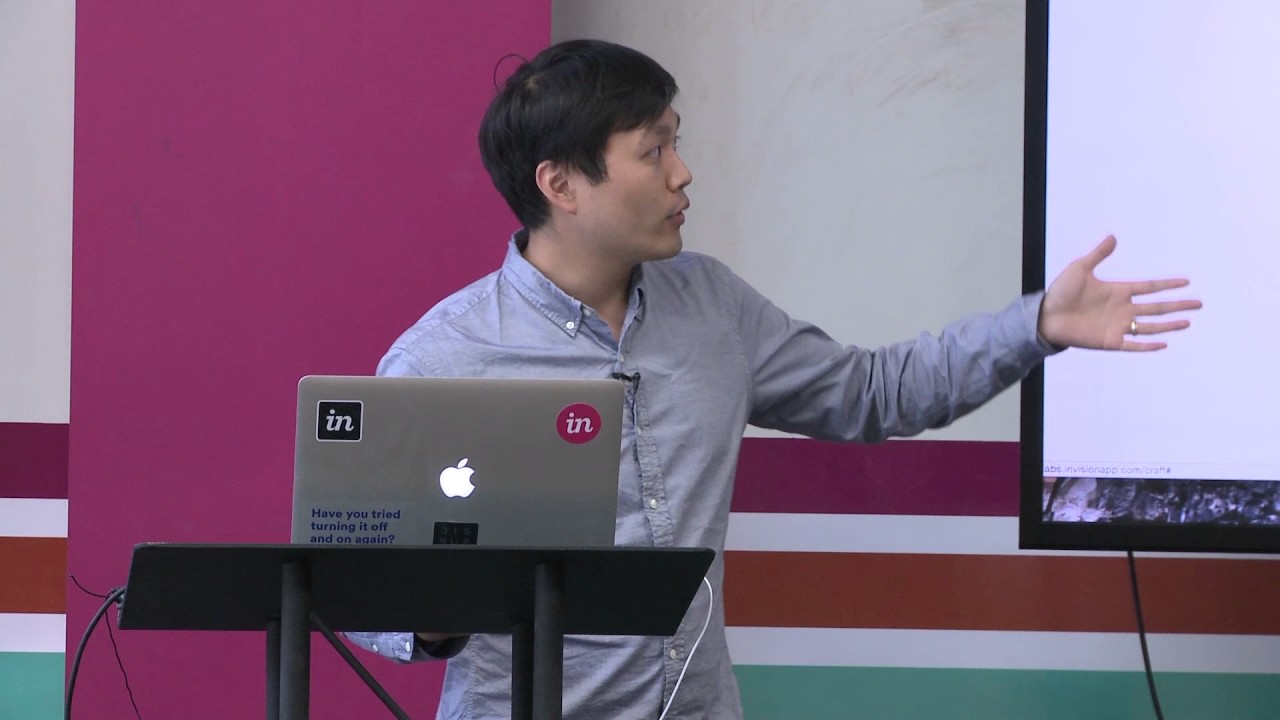
Jonathan Hau demos InVision Craft, a plugin for Sketch and Photoshop that pulls real data from websites, Google Docs, and APIs into your designs. It syncs components and style guides to the cloud, and a beta feature lets you prototype native iOS interactions like camera and keyboard directly in Sketch.
Chapters
So one of the things that we've been working on is InVision Labs. And InVision Labs is basically going to help you iterate on your designs even faster than anything that I've talked about. This is going to supercharge everything that your designers are going to do. And it's really fast. So put on your seat belts.
I'm not wearing a seat belt.
And watch this.
A powerful new set of tools to drive the screen design workflow of the future. You can add real, unique content with a click. No more copying and pasting or making up fake usernames. You can also pull in content from live websites, text, and images. And you'll save time dropping in placeholder photos from Unsplash. Or you can choose your own images from your computer or Dropbox. Oh, and did we mention you can connect to APIs to pull in any type of real data you want? Yeah, you can do that. And when you duplicate photos and data from Craft, you get new content every time. But that's not all. You can sync your brand and UI components to the cloud so everyone on your team has the most current stuff. And if something gets updated, everybody has it. Craft also builds style guides for you with click, giving unparalleled control over colors, fonts, and text styles. Change it once, see it everywhere. This is Craft, supercharging your screen design workflow.
All right.
Yes.
So this is like Sketch, but better, right? So this is for Sketch. This is a set of plugins for both Sketch and Photoshop. And the reason why this is so revolutionary— yes? Is because it's taking all of the same things that all of your designers are already using inside Sketch and just adding cherries on top for everything that they're doing. All right, so I'm gonna go through each of the different components so you guys can see how this works in action inside Sketch. So I'm gonna— I have a sample Sketch file here so you can see what this looks like. So this is available, right? This is available for free. Everybody can download this for free. I'll send all the links to everything after this. So you guys have links to everything. All right. So you can see I've got a Sketch file here. And we've got all of the InVision Craft plugins already installed here. It's just one file that you download here from labs.invisionapp.com/craft. And I'll send you guys the links, so don't worry about writing anything down. But we have 4 different components within Sketch that you can use. We have our data component. And this data component is really powerful because it can pull in real data. You can create your own set of lists. So let's say I want to create a list of US presidents. I can add that item here, name it whatever I want, add in some US presidents, and boom, I have a list there that I can insert into any design. Let's say I have all those lists only available in a Google document. Well, We've got a thing that works for that too. All you do is take your Google document link from your spreadsheet, paste that in here, and then you can take any list that you want and insert that right into your designs instantly. All right, the other thing is JSON files. All right, if you have an API, let's say you have data that you're working with from some other company that you want to pull in directly into your designs, You can just pull it in. I can pull that in real time. All I do is put that API link here, and then it'll link that, and it'll make the JSON file available. And then you simply choose the marker for the type of data that you want to insert into your design, and it'll pull it in instantly. It doesn't have to be from a Google Doc or the web or JSON files. It could just be from anything locally as well. You can even choose it from a Dropbox, Google Drive, or Box folder. It doesn't matter where your data is, we can pull that directly into your designs instantly. All right, so let me show you how that works. It's really, really easy. Let's just say I want to pull in an article from the New York Times. So I'm just gonna go to newyorktimes.com, and it's probably had a line about Trump and Hillary from last night's debate. So I'm just gonna click click on this headline here and I'm gonna scroll down on this view here.
Sorry.
And I'm just gonna click that and you can see— well, that's— this is not a good example, but you can see what I did. I just clicked on that headline and then it just inserted that headline right here. So you can literally take any text from any website any location, and it'll just insert it right into your design. I'm not a designer, so this, this looks horrible, but you kind of get the idea there. Now, I'd mentioned earlier that you can also insert images. So let's say I have this square. I can also reference Unsplash. Unsplash is a free image library where you can just pull in random images. We can choose a category. Let's just say cats. And I'll place a photo of a cat in there, a random photo. And that should just place a photo right there. So I'm not sure why this is not— it's a little bit buggy because this does not look that clean. So I apologize. But normally, you would see the photo just placed right in there. So these are some other pieces of data that I've pulled in from from other sources, from other meetings that I've done. But you can kind of see how you would do that. If I were to just click a bunch of these dog photos and replace them with cat photos instead because I like dogs over cats, or cats over dogs, I can just do that. Choose my Unsplash. Let's just add beach photos or something. So now I've got a whole set of new beach photos that have replaced my dog photos. So really, really easy. You can set your own category. Yeah, sure.
Question? I wanted to ask, if I want to integrate here the photo like OpenClipart, that is a free vector library, you could add?
Yeah. If you have a free library somewhere on the web, as long as you can see that, you can even click into this web, go to that site.
Ah, and then click the image.
Exactly.
Yeah.
You would have to log in through this view. Wherever it happens to be. If it's a copyrighted image, that's up to you guys. I'm not going to— but yeah, that's something that you can totally access if you want. All right, so that's data. The other one is prototyping. This is currently in beta. The cool thing about prototyping is it allows you to prototype inside Sketch. All right, so this is not something that we used to be able to do, We recently made an acquisition that allows you to do this directly inside Sketch. The cool thing about this is it allows you to— and I don't actually have this to demo, but what you can do is access native applications on your iOS device. So the keyboard, or your camera, and you'll literally see—
Oh, cool.
A video of your camera as if you've connected your phone directly to your design. You can see that. You can take a screenshot of your image from your camera, and it'll place that image right into your designs instantly. So all that is available completely free, by the way. We're not charging anything for it. All right. So that's prototyping. Live demos.