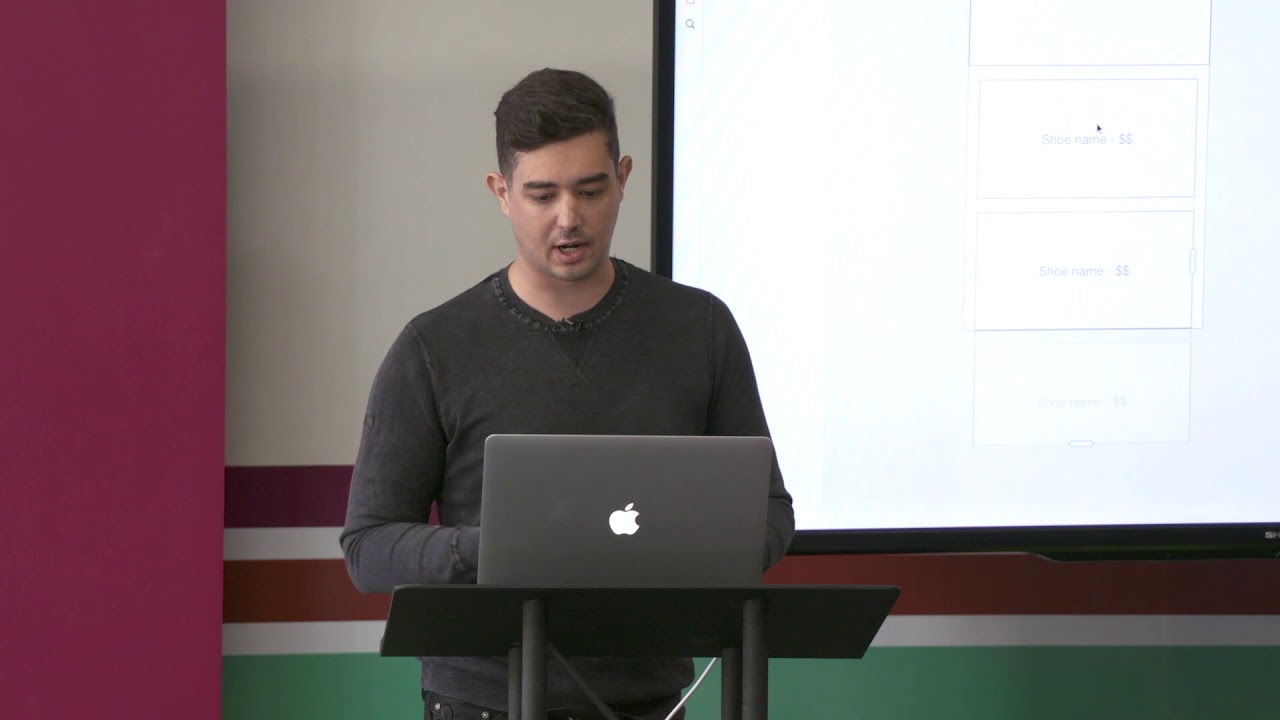
Alex Poterek builds a shoe-store mobile app prototype in Adobe XD, showing how to use Repeat Grid to duplicate product cards and Symbols to make changes cascade across the design. He covers Design and Prototype modes, artboards, and why XD's free tier makes it accessible for rapid prototyping.
Chapters
So I'm actually gonna jump into Adobe XD right now and kind of give you a bit of a demo. I think I have to mirror my display. Cool. So when you launch XD, you're gonna be shown this. And this is gonna be a little bit of a tutorial part. I do want to teach you how to use this product. you can use it in your actual everyday work. I think it's incredibly useful to be successful. So you're gonna give this— you're gonna be given this welcome screen. And from here you kind of have these templates. So let's say we're gonna build this iPhone app. So right from the start you have the artboard. You have it at the right dimensions. And you can kind of see you have this design mode. You have this prototype mode. And on the right side over here, you have all your sharing mechanisms. So this is— I can share it. I can send things to people. I can actually give a live preview of what it looks like right here in the app. So for today, let's do an application. And this is all gonna be really high level. It's not gonna be this super deep dive into how you're gonna brainstorm and do all these crits with this. This is gonna be the very fundamentals of how you would start a project. So we're gonna actually do a shoe app today. So this is gonna be essentially— I've kind of had this obsession with shoes lately. So this is gonna be like a store. Very simple, very high level. And to do that, I'll select the shape tool. And I'm gonna come in here and just really start to get just the wireframe of how this entire process is gonna go down. So we'll start with this header. I'll copy this. I'll duplicate it. And I'll create my hero image right from the start. And then again, I'll duplicate that. And I'll start to maybe create this gallery right below all of this. So from here, I will do— let's do shoe name. And let's do price. Oops, wrong thing. And I'm gonna actually select both of these things. And then something really useful in XD is that it has repeat grid. And so I click this up here, and what this allows me to do is just take this selection of things and actually just repeat them. So this will go on forever. And when I make changes to one thing, it's gonna affect all of them. So this really is gonna simplify my tasks going forward. And if you're using Windows, don't feel left out. It's one of the only prototyping tools that actually has parity with Windows. So we actually do have this on Windows right now. And this is actually free right now. So anybody can go in and try it if you have a Creative Cloud account, which is free. Okay. So we have the fundamentals of what our app might look like from the start. We'll just kind of high-level give a little bit of contrast to this. Just to break it down a little bit. Okay. So from here, you have your homepage. Just very rough, very raw. It's not meant to be anything super detailed yet. I can now duplicate this. And actually, from this one, I'm gonna make it a little bit larger because I want this to be scrollable. So I'm actually gonna go a little bit deeper with this. So now I have this other page set up. And this is gonna be actually when you click on a product. So let's say I go into one of my shoes. This is gonna be where I'm gonna get some of these details. So I'm gonna delete this. I'm gonna keep this hero image. Then I'm gonna start to roughly say, okay, let's get a product description with their type tool. And I'm gonna take the type tool again, get some body copy. And I'm notorious for just kind of doing this guy while I am working in a prototype. And then we're gonna get a price section and duplicate this. So now you have very raw, very rough, simple ideas starting to form on the page. Now I'm gonna create a button that lets you check out or lets you buy now. And I'm gonna group these. I'm actually gonna make this a symbol. So I have this symbol panel over here. And I'm gonna just make this a symbol. So now when I duplicate this, any change I make to this button is gonna just kind of cascade that across all buttons. So let me delete this guy for now. We'll do this. And I'll give it a little bit of curved edge, so by now. And then lastly, I want to create some sort of cart for this. So when I do click Buy Now, I'll have this cart. So I'm actually going to delete most of what I have already and start to form this other pattern in the app. So let's say it's a preview, a thumbnail of what I'm about to buy. I'll take this description, this description box, kind of repeat it over here. Maybe shrink things up a little bit. And I'm trying not to get too hung up on any details. And then maybe I'll have a price mechanism right over here. So now that I have this component right here, I will again use the repeat grid. Which is Command+R, or you can click this button over here. And then from here again, I can just start to repeat these things. So if I wanna make any changes later on, I can easily affect all of them. And this is gonna overflow, so we're gonna say that people are buying a lot. And this will come all the way down here.