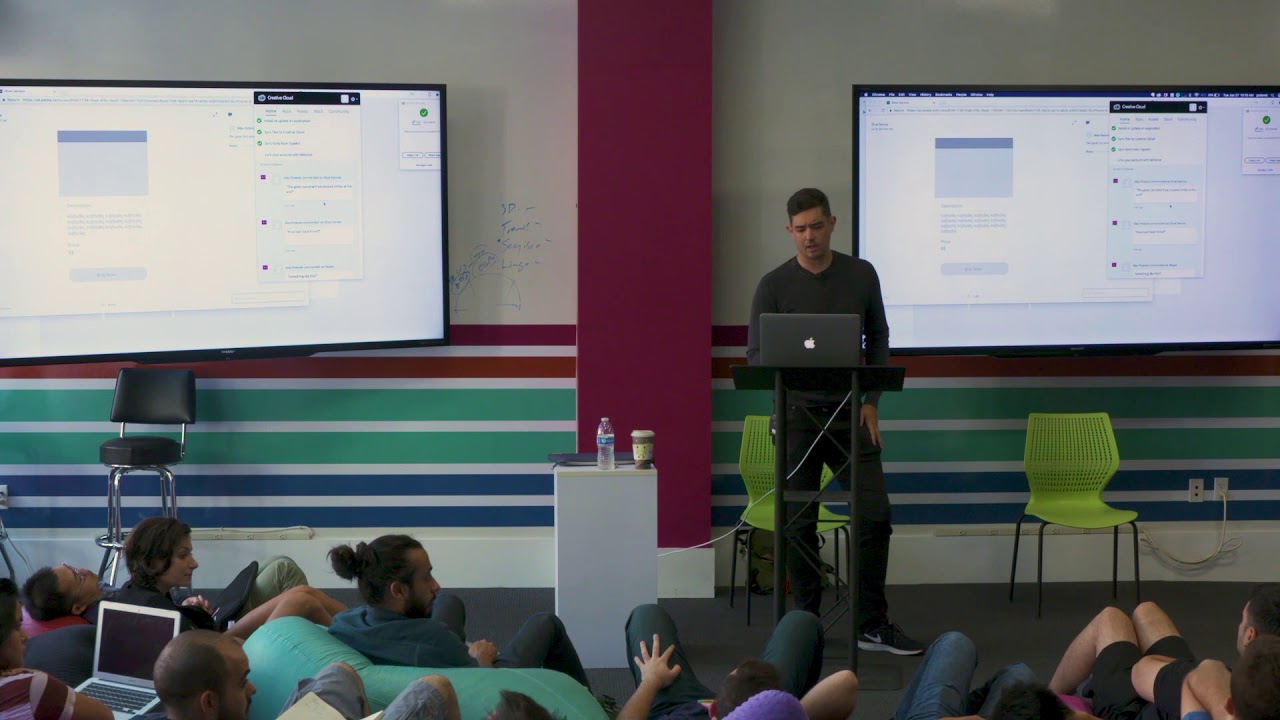
Alex Poterek walks through Adobe XD's prototyping tools: switching to prototype mode, wiring artboards with transitions, previewing interactions, and sharing cloud links for feedback. He shows how to update designs based on comments and iterate quickly.
Chapters
So real quick, again, not the prettiest thing in the world. It's really simple, really raw. But the thing about prototyping is that you want to get this in front of people as quickly as possible. You want to make sure that you're getting eyes on it. And that's what XD really allows you to do. And unlike a lot of other prototyping tools, we allow you to design and prototype in the same app. So when I switch over to prototype mode in this tab, You're going to see that when I select things, they have this little tab on the side. So I can actually take this and then wire it right to this artboard. So I can pick between different transitions. If I want this to slide left, it'll slide left. And then from this one, I want this Buy Now to take me to the cart potentially. And it's going to keep the slide left. And then right away, I can preview up here. in the top right corner, you see the app is kind of working functional already. And if I click on this, it's going to take me to the next one. And then if I hit Buy Now, it'll take me here. Where have you been? Yeah, right. And it gets better from there, because if you're using Adobe XD, you can come up to this tab right here, and you can name this. Let's say this is Shoe service. And then I can just hit Create Link. And it's going to kind of spin for a minute. I'm hoping I have internet because I didn't check if I had internet, which is kind of important. Oh, I do. Cool. So now it just generated this prototype that's going to actually live in the cloud for me. I don't have to do any self-serve hosting or anything like that. It generates this link. I can copy it, or I can just click on it. And when I click on it, it's just going to take me to this page. So it's there. It's working. So I can click between all of these things right there in a matter of seconds. And everything's still scrollable and works. Now, the best part about this is this link, you can share it to anybody. You can send it to your teammates, your friends, your client, your manager. And they can all comment on this. So we have this comment section where— I'm right here, and I'm wondering, OK, how do I get back home? I can put those questions out for the user to answer. They can reply to me. I'm kind of critiquing my own thing. Or on this page, it's like, oh, this is great. But what if we showed similar items at the end? So this is a really easy way to get quick feedback and just kind of put it out there for people to use. And if you're using Creative Cloud, you'll have the thing called Thor, which is this cloud up here. And it actually will give you these notifications saying, hey, somebody commented on this. And this will take you right to that page so you can react. Do people have to sign on to the Adobe platform to comment? I think you can comment as a guest. Yep. Actually, let's find out. Yes, comment as guest. Yep. You have to confirm you're not a robot, though, apparently. So taking some of that feedback, I'm now— I've created something really quick. I've shared it. I got feedback. And now I'm going to start designing again. I'm going to react to those comments. So one of them, it was a good comment. It was, hey, how about we show some recent items? So I can actually take this gallery that I started over here. Copy it and paste it over here. And I'll give it a little category like similar item or similar shoes. And then, of course, make this a little bit longer because it's gonna be an artboard. So now, just real quick, I have this homepage that I can scroll. I can click through here. I've made some feedback, added some new functionality to my product. And now I kind of want to see what people think. So I have this prototype I've already shared out. I can share again, and I can just update it, or I can create a whole new link. So if I don't want the same people that I've shared this link with to see the thing I've already sent them, I can create a new link, or I can say update link. And then that's just going to take what I had before, and it's going to replace all of that. So it's going to churn for a minute. Anytime. That might take a second, I guess. But this is— oh, I guess I'll go in here. So if I just do a quick refresh on this page, it'll show me those updates, and then I can respond to some of the criticism that I had before, some of the feedback I had before. Whatever ends up being the case. So let's see if this loads. I don't know what Wi-Fi I'm actually— oh, I'm on Xfinity. Okay. So yeah, now I have this new feature. I have these comments, and I can just comment as a guest real quick. I can say, how does that look? Question mark. Prove I'm not a robot. It'll churn for a second. All right. Well, that's erroring out now that I'm not signed in. All right. I'll move on. But you can also, in the comment sections, you can also pin things. So I can actually make a comment, and I can actually put a pin on my artboard and call it