In this instructional video, Tom Hext demonstrates how to manage sponsor licences using the Borderless platform. He begins with the onboarding tab, which guides users through a three‑step process to start a sponsor licence integration. The walkthrough covers two main pathways: integrating an existing sponsor licence and applying for a new one. For integration, he shows how to select or create a business, add Borderless as a representative in the Sponsor Management System (SMS), submit change‑request details, sign the sponsor submission sheet, and request Home Office priority to become a Level 1 user. He explains how to enter the representative reference number, request Level 1 user status, and monitor progress via the Sponsor Licences view. For a new licence application, he walks through the seven‑section to‑do list: company information and document uploads, role templates (SOC codes, job details, sponsorship length, salary), employee activity (current staff, organisational chart, prospective hires), authorising officer details, additional supporting documents, and final declarations. He also demonstrates how to track the application timeline, manage uploaded documents, and configure businesses, work locations (sites), and user permissions (owner, editor, viewer) within the platform. The video ends with a summary of how to add sites and users before sponsoring workers.
Chapters
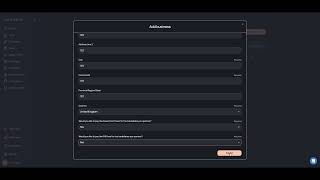
In this video, we're going to take a look at how you can manage your sponsor license with Borderless. When you're first onboarded to Borderless, you'll see a tab called Onboarding and this will give you a three step process to begin your Sponsor license integration with us. If you click to first add a Sponsor License, this will take you to your Sponsor Licenses view. This is where you can manage all of the sponsor licenses, including the businesses, work locations and users for each license within the Borderless platform. First you can click to add a license. We're then going to ask you if you're applying for a new Sponsor License or integrating an existing Sponsor License. So we're first going to take a look at how you can integrate an existing Sponsor license. We're first going to ask you to select the business for which you would like to add this Sponsor License. If you haven't yet added a business, you can just click to create a new business and and add that here. Once you've done that, you can click to submit. We'll now click to add License, integrate an existing license and choose to use that business and we'll click to continue. At this stage we have one task to complete which is to add Borderless as a representative on your Sponsor Management System. You can click on this option here and you'll be presented with a set of instructions and a form to fill. The first thing we need you to do is to log on to your Sponsor Management System and access your license summary. The first thing we need you to do is to log on to your Sponsor Management system and access your license summary and enter in the following information in this form. If you're not sure which page to choose, you can click on this link here, which will show you an image of the page. Just enter your organisation name and your organisation address and your sponsor license number. Once you've completed that, you'll need to enter information about your authorising officer. This must be the authorising officer on your current Sponsor License. Once you've completed that information, you'll then need to go into your license summary again and click to request changes to license details. Click to request any other change to your license details and then select to appoint a representative again. If you're not sure where to go, you can click on this link which will show you an image of the screen. Simply copy the text below into the box provided and click Next. Once you submit this, you'll be given a change request number. You will also be asked to sign a submission sheet at this stage on the Sponsor Management System, you can ignore this step because we're going to ask you to sign the submission sheet as a next step in the Borderless platform. Enter your change request number and then click to Submit. Once you've submitted the form, you can then click to sign document. This will show you the Sponsor Submission sheet which you can check and review and then add your signature here. You can then click to sign and once that's complete, you can then click to submit this document for review. Once Borderless has reviewed your form, we will then start requesting Priority from the Home Office to be added as a representative. And once we are added as a Representative, you'll then be able to come back to this form and add Borderless as a Level one user. A second step will appear that you can then click to fill. At this stage, we just need you to return to your Sponsor Management System, go to your license summary and click to manage Level one and two users and you're going to click to request a Level 1 user. You can fill the form using the information provided here. You're then going to have to enter the Representative reference number. This will have been provided to you in an email or in a letter. Once Borderless is added as a representative, you can enter this in here and then enter the Level 1 user status which will be requested, and then click to Submit. Once this is done, you just need to click to submit for review. Borderless will now begin requesting Priority for the Home Office to add us as a Level one user and once we are added, you'll be informed and the Sponsor License integration is complete. You can check on the progress of your Sponsor License application by clicking on Sponsor Licenses and clicking to View Applications. This will show you the status of all of your ongoing Sponsor License integrations or new Sponsor License applications. To add a new application, click to Add License and click that you are applying for a new Sponsor Licence. You'll again have to choose the business or create a new business to apply for a Sponsor License for. Once you've added your business, click to submit and you can then click to continue. When applying for a new Sponsor License, you're going to be shown a To do list of 7 sections. The information that we need from you here is first of all, information about your company, including whether you already have or have had Sponsor Licenses in the past. We're going to need information about your company, specifically your registered name and address, and we're going to ask you to upload as many documents as you can to support your application. This can include your Registration documents, any proof of business ownership and things like HMRC accounts, office confirmation. Once that's complete, you'll need to tell us about any prospective roles that you're looking to hire. To add a role, you can either choose a SOC code from the list or search using our smart search. Give the role a name and we're then going to ask you to confirm your regulatory registration. Once you've done that, we'll show you a job title and job description which you can edit, and you can tell us how many years of sponsorship you would typically offer for this role and the typical salary as well. This is simply creating a template that can be reused when you come to Sponsor Workers and gives the Home Office an indication of the type of roles that you'll be offering. The fourth section is around your employee activity. This is where we need to know how many employees you currently have in the uk and examples of some of those workers, including sponsored workers. We'll ask you for things like your organisation chart and also further down the list, we're going to ask you about any named individuals that you're looking to hire once you receive this Sponsor Licence. By adding individuals here. This will both support your application, but also mean that those individuals are stored on the borderless platform to be used again when you come to sponsor workers. Section 5 is about your authorising officer. Please give us information about who is going to be the authorising Officer on this Sponsor License. It should be one of the most senior people in your company. They should be based in the UK and should ideally be a UK Citizen or a Settled Worker. If they are not, then at least one of your level one users must be a UK citizen or a Settled worker. The next section is Additional Information where you can upload any additional information or documents that you feel may be useful. And finally, your declarations where you have to tick these three boxes and you can then click to submit your Sponsor License application at all stages. You'll be able to track the progress of your application using the Sponsor License timeline. You can upload any additional documents here that you need to as well, and you can view any documents that have been submitted to the Home Office here as well. You can track the progress of your Sponsor License application here and you can also click to now manage your Sponsor License. By clicking in here, you can see all of the documents that you've uploaded to us as part of that Sponsor License application. You can add and manage your businesses as well. If you've already added a business, you'll see it here and you can also click to add Businesses before you add any sponsored worker to the platform or any users, you'll need to add sites. These are the work locations where you're going to be hiring employees. If you only have a single work location, this can be the same address as your business. And finally, you can add users. You can click to add a new user, give them a different level of permission. They can either be an owner, an editor, or a viewer, and you can give them access to specific businesses and sites within your sponsor license. If there aren't any sites available to select here, you'll just need to return to the Sponsor License menu and click to add a site first. Thank you.