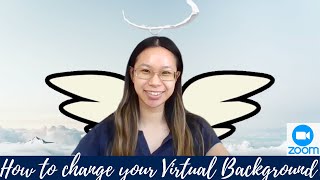
Winnie, a Sydney teacher, shows how to add virtual backgrounds in Zoom on desktop and mobile. Download images from Google or Canva, save them to a Zoom folder, then select them in the app's background settings. On mobile, add images directly from your photo library.
Chapters
Hi everyone, this is Winnie. I'm a teacher in Sydney and a relieving assistant principal. I'm going to show you quickly how to change your virtual background on Zoom. So I'm on Zoom at the moment. All you need to do is go over to stop video. There's a little arrow and then you click on that little arrow and you click on choose virtual background. And then you can pick from backgrounds. If there aren't any backgrounds there, that's okay. You can click on "Add image or video" and then any images that you download, you'll be able to find it into your Downloads folder. I've made a folder of Zoom backgrounds and I can also show you where I found this angel one as well. So you can do an image So for example, maybe Egypt, you can add that in, or you could do a video as well, which is super fun too. So I downloaded this fish tank background. So it looks like that. Looks amazing. You can also mirror your video. Yeah, and let me show you where I got the angel one and the Egypt and the fish tank ones. So I went into Google. You can literally Google any, you know, any picture you want and download it and save it. Or I found these ones from Canva. So canva.com, they're free. You can click on them. You can download them, put them into your downloads folder. So for example, I might click on this waterfall one. And then you go over to Publish or Download. Download as video. And then it should go into your Downloads folder. And then you'll be able to find it again. And I'll also show you how to change your background as well if you are using your phone too. So it's downloaded as a video. You can do this with any picture as well. Huh, I've got some meerkat ones too. So there's that one there, so Then you go back, go to next to stop video, there's arrow, choose virtual background, add. So that was a video, so I'm going to add video, and then I'll go into my downloads, waterfall, open, and then there's my waterfall background. But I actually do like the angel one, so I'm gonna keep that one there. So, so yeah, that's how you do that. And if you want to know how to change your virtual background on your mobile phone, then yeah, then I'll show you that in a second. But if not, then thank you very much for watching. Make sure you subscribe to @misswoonietang on YouTube, Facebook, Instagram, and Twitter. Thank you for listening. If you do want to learn how to change your background on your phone, then let me show you now. So this is a screenshot of my phone. So on Zoom, if you go right down to more, the three dots, then you just click on that. And then after you click on More, it will come up with some emojis, chat, meeting settings, minimize, virtual background. You just click on virtual background, and then after that it will take you here, and you can add. So if you add, then it will go into your photos, and then you can add some background photos as well. And you can just go into Google and you know, Google like the beach or Sydney Harbour Bridge, etc. And then you can save some photos. Like, for example, a photo that I, I just looked up was just Sydney Harbour Bridge. And then you just do the same thing, you just go into the images, pick whichever one you want. And then you just If you're on your phone, then you can do this too on there, and then you just save— yeah, save that image onto your phone, and then you can use it as your background on Zoom. So yeah, anyway, thank you very much for watching. Make sure that you subscribe for more videos, and I'll see you in my next video. Bye!