How to use Google Classroom AND make it fun for students during COVID-19
Winnie Tang, a primary-school teacher, walks through setting up Google Classroom, organizing assignments with to-do lists and timers, and keeping students engaged with daily check-ins and poll-style activities like "magic wand vs. broomstick."
Chapters
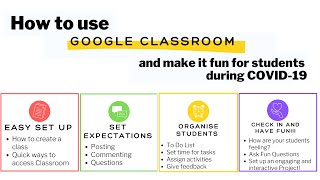
Hi everyone, my name is Winnie. I'm a teacher and a relieving assistant principal in a primary school in Sydney, Australia. Here is my video on how to use Google Classroom and make it fun for your students. So I'm going to go through 4 easy steps. So an easy way to set up, set expectations, organize your students, and to check in on their well-being and Alright, let's get started. I'm going to share my screen with you. Alright. So for the first step, we're going to show— I'm going to show you how to create a class and some quick ways to access Google Classroom as well. So first you log into your staff portal. So you just put in your login and your password, and then, then after that, you will get taken into your portal, and then you have a look for the G Suite and the Google Apps for Education. So you click on that. And then you go into Classroom. Some other quick alternative ways that you can access Google Classroom is by saving your link onto your Google homepage. You can also go into your Google Home and have a look for the 9 dots so that you can access the classroom through there as well. So let's go there now. So there's— you save your link in there or the dots and then you go into Classroom. And then once you are in, then you'll be able to find a plus sign here and that's where you can create and join a class. So So you just create class, you just put in your class name. So I'm just gonna go 3-4 because that's what I'm teaching this year. Then you create it. You can fill out the other sections as well, but they're not required. You just have to put in your class name. Then it'll get taken to this page here. So here is the class code that you can give to your students so that they can join, and once they join, you'll be able to see, yeah, who has joined, who still needs to join, etc. Let's have a look. So in your Google Classroom, you've got your stream, you've got classwork, the people, and grades. So for classwork, you can create assignment, quiz assignment, a question, material. You can reuse a post. You can put in your topics. And in your stream, this is where you can— if you put in a due date for assignments, then they will come up here so that the students can see, and you can also communicate with the class here and schedule announcements, etc. And then in your class settings, you can decide if you want the students to be able to post and comment, for them to only comment, or for teachers to only post and comment. And you can also pick whatever you post up, do you want them to be able to see the attachments and details, do you want it condensed, or do you want to hide it. And then there's also the grading too if you want to use that. Alright, so one of the first things that I do as people are— or as your students are signing in or using the class code is setting expectations about posting and commenting and questions. So one of the One thing that can happen in Google Classroom if you do enable your students to post and comment is that it can clog up your stream, especially if they're posting, yeah, they're posting, you know, just saying hi or, yeah, anything. So to set expectations, this is what I've put up. So I'm going to leave this PowerPoint in the description below so that you can also copy and paste this in if you would like to, or if you want to modify it as well. So I've just put in Term 2, Week 1, and I've just said, "Good morning, 3/4T. If you have any questions or positive and encouraging comments, you can comment below." So I'm just gonna make this one post where they can comment below with any questions "post" and "comment." So the expectation is that they use that one post to do it there. And then I've said, "Remember to think before you post or comment and avoid random posting and spamming multiple comments. I get emails from who is posting." So I'm just going to copy and then I'm going to paste that in here. You can add anything from your Google Drive, a link, a file, a YouTube click, clip, whatever. And you can also choose what classes you want to announce it to and also the students. So I haven't got any because I haven't given them the code yet. So you post. You can also schedule a post as well. So also schedule a date and also the time too. So this is where your posts will come up. So any announcements that you put up will be here, any assignments that you put will be in here, and it does get a little bit clogged up But if you just give them one post where they can comment their questions and positive or encouraging comments, then that should make it a bit easier. So I do it weekly. And then I'll do a new one each week. So yeah. Alright, let's have a look. So that is there if you want to copy and paste. So organizing students. So what I do is I give them a to-do list. I set them time for the tasks that they're given. I assign the tasks and also we're going to talk about giving feedback. So this is something that I would put in the announcements. Here. So I will give them today's to-do list. I'll get them to check in. So we'll talk about that in a minute. And then I'll give them a to-do list of what they need to do during the day. So this is an example of what it looks like. So for example, for writing, they need to, you know, finish their draft, etc. And then I'll say, you've got to set your timer for 60 minutes. And then I would show them. So every morning we do a Zoom. They do— yeah, we do a Zoom session and this is where I tell them the to-do list. I also post it up on Google Classroom and I also tell them how much time around about they need to spend on that piece of work. Obviously, it depends on, you know, the age group that you have. So For the timer, I just told my kids to type in timer, and then they can set it. So they could put 60 minutes, and then press start. And then they can set the timer, and then that's how long they have to complete that task. So that's there. And then comprehension task, and then I've said, you know, after this you can have a lunch break. You can also put a timer there if you want. Obviously, this is, you know, flexible and adaptable for parents. So it's a guideline that I give to my students so that they know what they need to do during the day, and it just helps them organize themselves and the time that they spend on their task as well. And then I've said, you know, for math, this is where you've got to post your photos. And then also in the afternoon, they complete a project. And then I've given them also reminders as well about, you know, commenting on appropriate posts, because there is a mute button that you can use to mute students. But obviously, I don't want to do that. So the expectation is that they use this post to comment. Any positive, encouraging comments or questions, this is where they have to— yeah, that's where they can post. So in regards to this, when I'm using Google Classroom, I usually change the settings so that students can only comment. I don't like to give them this yet because they could, yeah, they could use that to comment anything, but I also do want to allow them to comment because I still want them to interact and be able to ask me questions. And then you can also give some reminders as well of whatever it is. So I'm going to leave that in the slide so that you can also copy and paste it in So save the settings, and then in your stream, you can also put that in there and post. There. And then your students have a to-do list ready to go. OK, so another way to organize your students is to use the Classwork tab to organize your topics and assign tasks. This is my go-to that I share with my students. So even though they've got the stream, I use the stream for announcements, but whatever it is that they're doing, whether it's reading, writing, whatever it is, I tell them to go straight to Classwork tab because this is where I organize all of their topics. So just there and there. So you can, you can create assignments, you can create topics, reading, you can do Writing. Math. So you can set your topics first, or you can also set assignments or materials first. So if you had some comprehension you wanted them to do, the comprehension task, then you could add, you know, a file or some slides that you've created from your Google Drive. You could put in a video that you want them to watch and ask them some questions. You can put in a file from your computer. You could put in a link to a website, or you can also create documents as well for them to complete. You can also create a topic and pick a topic that you want it under, so reading. You can post and you can also schedule it as well. So I'm just gonna post it and then that Task will go under Reading. What you can also do is you can also hold on to— you can, well, yeah, you can rename it or you can hold on to these topics and you can actually rearrange. I only found that out recently. That was a good find. All right, so that's where I've said that you can rearrange your topics too. For giving feedback, so I've made a whole video on how to give feedback via Google Classroom and Zoom, so this goes into a lot more detail into, you know, some documents or slides that you might give and how to give feedback to move your students forward and how to help them grow and keep progressing, even if you are you know, teaching remotely and they're learning from home. Alright, so let's move on to checking in and having fun. So have a think about, you know, how are your students doing? How are they feeling? What you can do is you can get them to check in with you through Google Forms or using the questions in your Google Classroom, and I'll go through that as well, and asking them fun questions and involving them into a in with a project. So one way that I've used to check in with my students to see how they're doing and feeling is via a Google Form. So these are some of the questions— well, these are the questions that I've used to check in with them. So the title was Stage 2 Daily Check-in because we used it as a whole stage. We put in what's your name, what's the date, the class, what did you work on today, what are you looking forward to, and also how are you feeling. So they could pick, "I feel great," "I feel good," "I feel meh," "I'm struggling but I have support," and the last one is, "I'm struggling and I wouldn't mind if you checked on me." So that's where Yeah, that's where we would need to check in with those kids there. And then from the form, you will actually be able to find the data as well. So the percentages of, you know, how many kids are feeling great, how many kids are feeling good, or meh, or struggling but they have support. And then these are the kids that, you know, we need to look out for as well to help them. And I've also put into these slides how to set up Google Forms as well, if you're wondering. So for example, if you wanted to create a Google Form in your Drive, then you would just click on New, and then you'll go down to More and Google Forms, and then you can click on that, and then you can start creating your form. Another way is you can go into Google Classroom. So just get out of this. So you can go into your Google Classroom, Classwork, Create, go down to Question, and then you can actually ask a question there. For example, here. So, "How are you feeling?" You can turn it into— put "feeling?" question mark. You can turn it into multiple choice, and then you can put in the options. So, "I am feeling good." I believe it was "I'm feeling great," then "I am feeling good," "I'm feeling meh," blah blah blah. And then you can— well, you're not really grading it, so you can leave ungraded. You can also do a due date, so maybe by the end of the day you want, or in the morning, or no due date. You don't have to do a due date. You can also Create a topic, which is the check-in topic. You can decide if you want your students to see the class summary or not, and I can leave that up to you. And you can schedule it, you can save it as a draft, or you can just straight away ask that question. So I'm just going to click on that. And there it is. So then they will just click on it and you'll be able to see who has clicked on what options, and then you can check in on those kids who need it. Okay, so here is a fun activity that you can do with your students. So I'm a huge Harry Potter fan. So I asked my students this question and they were able— they, yeah, they had fun with it. I asked them, would you rather have a magic wand or a magic broomstick? And then I gave them the two options that they could pick from and we had a fun poll. And then they, yeah, they had fun interacting with each other in the comments as well. So as you can see, down below, there were 36 class comments because they were all interacting with each other and trying to tell each other, you know, why they picked each— whatever they picked. So you can do that too. So you can set some fun questions like, would you rather fly or be invisible? And it's just a, you know, bit of a break from you know, all the work that they've got to do online, etc. So it's a fun way for you to interact with your students and for the students to interact with each other because they just end up, you know, discussing their comments and their opinions and their reasons why in the comments below. So that's a fun way where you can interact with your students on Google Classroom. Another fun activity is you can actually involve your students in an interactive and engaging project. I made a whole video on projects that were really engaging for my students and I assigned them through Google Classroom. So you can do that too and it's just a quick and easy project to implement for the next term. So if you're interested, then I'll put the link to this below. Alright, so in the resources that I'm going to provide, it will be in the link in the description, there will be a step-by-step guide, these slides for you to use on how to use Google Classroom, make it fun for your students. And comment below. So what platforms other than Google Classroom have you been using to teach remotely? And what has been working so far for you? So share your thoughts and ideas in the comments below. And thank you very much for watching. Please subscribe for more videos on how to engage students during this time of COVID-19. You can find me on YouTube, Facebook, Instagram, and Twitter, and my handle is @misswinnietang. Thank you very much for listening. I hope you find these videos helpful. And yeah, stay safe, be kind to each other and to yourself. And yeah, I'll see you in my next video. See you guys.
More from Winnie



How to use Dialogue Punctuation (Quotation / Speech Marks) | Grammar and Punctuation