Order Types - 3: use Think or Swim and Interactive Brokers
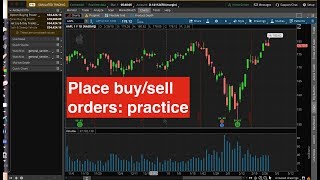
Alberto Costa walks through placing and managing orders on thinkorswim and Interactive Brokers. Learn to build bracket orders with entry, take-profit, and stop-loss levels, set trailing stops, and use OCO orders to automate exits. Examples use Apple stock on both platforms.
Chapters
Hi everyone. Welcome to this video on how to place order with tinkorswim and interactive Broker platform. So before starting as usual, have a look at the disclaimer. Okay, so as I said, today we are focusing on how to place the orders that we have discussed in the last video using two popular platforms. So one is the TD Ameritrade Tinkorswim that allows you to buy US stocks and ETFs. And the other one is the Interactive Broker Trader workstation. And this one gives you exposure to a broader market, not just the U.S. so let's start with the Tinkorswim. Okay, so this is the platform. Here you see the chart of Apple. Okay. And before starting, I am not sure if you know what is the meaning of this green and red candles. So it's a way to visualize the price. So let me explain you the meaning. Let's take a red candle. Okay? For example, this one. So this point. So the upper shadow, right? This high point is the high of the day. Those are daily candles. It means they represent one day, one trading day. So the highest point here is the highest price of the day. And as you can guess, this one is the low of the day. Right? Now look at the body now of this candle, this lower part here. Okay, so this point, this is actually the closing price of the day. And this one here is the open. So what is the meaning? The meaning is this day, the price open here and then it closes below. So it means that the price that day went down. Right? So the candle is red. When you have a green candle on the other hand, for example, this one. Okay, the meaning of the lower and upper shadow are actually the same. So this is the low and the high price of the day. The difference is that now this point, the lower part of the body is the open price and this one is the closed price. So today the price open here and it closes here. So it went up. Okay, so now how can we place orders using tinkorswim? So when you want to buy or sell, you need to go to trade. Okay. And when you are here, by the way, remember last time we spoke about the bid and ask? So you see, when your mouse is on the ask price, you see buy. And when it's over, the sell price, you see sell. Sorry, the bid price, then you see sell. And if you remember, we say that if you want to buy, you buy the highest price, that is the ask. And when you want to sell, you sell at the bid price. So let's say you want to buy 10 shares of Apple. Okay, now what you do, you click here and then you will see buy. Okay, when you click on buy, you will see this window. So what is the meaning of this? Now here we are saying that we want to buy 100 shares of Apple. And here we can change the order type. So now we have a stop limit, but we can put a market order. And of course for market order the price is the market price you cannot choose, but you can put the limit price. Stop limit what we have discussed last time, right? And here you can change day or good deal cancel. Ok? And here you can define how many shares you want to buy. And if you want to sell, well it's the same, you click here, you click on sell and the difference is that now the number of shares is negative because you are selling, right? So here it means I want to sell 100 shares. But what happens if I want to have an order with stop loss? For example, now I have to click here and go to buy custom. And if I want to have a buy order with a stop loss, then I click here. And now you will see two rows. The first one is as before, the buy order that I want. The second one is the stop loss. Okay? So in this case we have for example a buy limit order and we attach a stop loss. That now is a stop order. As we say, it is better to have either stop or trailing stop. So if you have stop you can decide the price. If you put trailing stop, remember you have to decide the gap. So in this case you have 10 cent of gap. So the stop is following the market price by 10 cent. And remember for the stop loss is better to use good till cancel. Okay? What if you want to have OCO bracket order? So again you go here buy custom with OCO bracket. Now you will have three rows. So the first one is again the green one, the buy order and the second one is a limit price. So this means that the second row represents our taking profit and the third one is again the stop loss because it's the stop order, right? So when you want to short sell is actually the same, right? So sell custom with stop and you will have your sell order with a stop loss. That now is a buy order. And if you want to sell with a OCO bracket, you click here and again you will have your taking profit, that is a buy limit order and you will have your stop loss. That is a buy stop in this case. But you can put trailing stop. And again remember that for stop loss and target we need to put good tip cancel so let's try now with an example. To place an order. So you see here the high price is 186 2. So let's say just to show you the most complete order, the OCO bracket. Let's say that I want to buy if the price is going above this level. So if the price is going at 18062 or more and maybe I can say okay, if the price is going 1862 and maybe I can also put a limit. So I want to buy if the price is going from 18062 to 180, let's say 72. So which type of order do I need to use here? Yes, you're right, it's a stop limit where this is a stop and this is the limit price. But since I want to place an OCO bracket order I need to define also the stop loss and I need to define the target price. So the stop loss, let's put it at, I don't know, maybe around here. Let's say under 76. Okay, well actually no, one thing about the stop loss is that I suggest you not to put it as a nice number because many people will put the stop loss at, you know, under 75, under 76. And some people can exploit this, right? They know that all the stop loss are condensed around those numbers. So it's better if you put your stop loss at some strange number. Let's say 175 92. Okay, stop loss. So just this is just not to have the 176 and target profit. I don't know, let's say we want a target of 185. Target 185. Okay, so now we have the three components of our order. The buy stop limit, the stop loss and the take profit. So let's write it down so we will remember. So we want to buy, lets say we want to buy 10 shares of Apple with a stop limit. Okay. And the stop limit, we said we want the stop to be 18062 and the limit 180 72. Right. Plus stop loss. That is a stop order at 17592 if I'm not wrong. Let me see. Yes, and the, the profit is. Target. We want a limit order at 185. Okay, so let's see how we can insert this order in the platform. Okay, so we need to go here trade. Okay and well actually I can see the numbers here. So we need to click here. Buy custom with OCO bracket here. We need to put 10 shares. Okay. Okay, we want a stop limit where the stock price is 180.62 and the limit price is 180. 72. This is the target profit. So it's 185. Stop loss is a stop order is fine under 75 92. And this one and also this one. Good deal comes. Okay, so we confirm and then we can check. So we have 10 shares by 180 72. Okay, this is the limit price and this 18062 to open is a stock price. The second order is the target profit. So it's a limit. Good deal. Cancel. 185 order number three is stop loss. So it's a stop 175.92. Good deal. Cancel. Okay, so we can send our order and you can see it here. And now if you go back to the chart, you will see this right? So you will see three lines. Representing your. Well, this one 185 we cannot see because it's too far. But this is your buy order. This is your stop loss and your take profit. And actually you can move with your mouse, right? You click here and then you can move this if you want to change. And if you are fine with the change you can send or you can edit, you can change this, right? But basically the thing is that you can see here the order you place. So this is an example of how we can place buy order with OCO bracket. So let's try now short. Okay, so we can cancel this and you see that the order has been cancelled. So let's say now that we want to short sell now the low here you can see here the low and high. So when I'm here I can see that the low price 178.05. Okay, so we have 178.05. And let's do the same. Let's say that we want to short if the price is going below the low. So we are betting that the price is dropping. So again we want to do it with the stop limit order. And let's say that again, we don't want to sell if the price is dropping too much at the beginning. So we can place as before $0.10 below. So this will be our sell order where this is the stop and this is the limit price. Okay, if you are not sure about this, you don't understand why this is the stop and this is the limit. Please watch again the video. Part one and two. Stop Loss let's say that we want to put the stop loss at 180.11, just a number. And this remember will be a buy order. And the target profit will be maybe 170, 171.5, something like that. Okay, so let's write this here and this time we want to sell let's say five shares of Apple. Now the stop limit. Will be stop. Let's see under 7805 and limit under 7795. Then we have stop loss. That is a stop order. So stop loss we said 180 11. And then we have to attach the target. That is a limit order. 171.5. Right. So let's see how we can place this order. So again we go to trade, we click here sell this time with OCO Bracket. So we say that we want to sell 5 shares. So here we write 55 and again 5 we want to sell with a stop limit. Okay. And the stock price is 178 and 05 and the limit is 177.95. Target profit is a buy limit. Okay. And is 171.5. And the stop loss is 180 11. Remember good deal cancel. Good deal cancel. And let's check. So we have sell 5 shares under 7805 is the stop. 7795 is the limit. So it's okay. This is our Target profit under 71.5 buy 5. OK good till cancel limit. Okay. And finally the stop loss that is again a buy order is a stop order 18011 and good till cancel. So we just need to send. And now again you will see here you have your entry price, your sell order. Here you have your stop loss and this one is your target profit. Okay so this is basically how we can insert order using the tinkorswim platform. Now let's move to the Interactive Broker. Okay, so this is the Interactive Broker trader workstation platform. And as you can see it looks a little more more complex than the Tinkorsweed. And here you can see there is this mosaic or classic. And the classic one is something like that. Okay, so let's start with the mosaic. We can use the same orders as before. But I just want to show you, here is where you write your Apple. We decide to take stock. Okay, Here you decide if you want to buy or sell. Let's say we want to buy. This one is the number of shares. This one is a type of order. So you have the limit. The market stop, stop limit the same. So let's use stop limit for example, here you can write your limit price, stop price. You decide if it's good till cancel or daily. And when you click on this advance right, then you can decide to have the stop loss or the bracket order. So if you just want stop loss, you click here and you will see here that you have a stop loss. Stop loss can be a stop and you write the price. Or it can be for example the trade. So you write the amount here, 10 cent. Okay, good deal, cancel. If you also want the profit taker, then you click here and then you will see here that you have an order plus bracket default is a limit. That is correct. Good deal, cancel. And here you write the price right? So let's see how we can, how we can submit the same order that we had before. So before we said we want to buy 10 share at 180 62, 180 72, stop limit. Okay. So we want to buy 10 shares stop 18062 and limit is 180 72. And we also want a stop loss at 175, 92 and a target at 185. So we go here, Stop, okay, and 185. Then if you want to check, let's see if everything is correct. So we want to buy 10 shares, limit price under 80 72, stop price under 80 62, profit taker under 85 is a limit order. Okay, good deal, cancel. And the stop loss is a stop price under 75.92. Good deal, cancel. So when we are ready we just click here, we accept and we have submitted our order. And again here you can see as for Tinko Swim, the three lines representing the buy, stop, loss and limit. Now if you click here on the classic interface and you click on the pending all you will see here the order that we place. And if you want to modify to edit the order, I suggest you to move here. So to place the order you can use the Mosaic interface. But to modify is much easier to to use the classic interface. Because suppose you have, I don't know, by mistake you put under 85, you want Android 86. Well, you just click here and then U means update and it's done. You, I don't know, you, you put here for example before daily and you say oh my God, it's a day order. I want good till cancel. You just click here good till cancel, update and it's done. Okay, you can also insert order directly here. But to do that directly you need to have the market data subscription that is something around. If I'm not wrong. $30 for month for us. But even if you don't tab like in this case, with an additional step, you can still insert your order. So I will show you how to. So let's cancel. Sorry, this one here. And let's. Now this is the pending order. So if I want to insert an order here, I go here to another window. I write the name stock. Now again, if I want to buy, you see, this is the bid price, sell, ask price, buy. I want to buy. I click here and you will have this window. Okay, so here you can write your stop limit and number of share. And is exactly as before, right? And let me see. Wait, let me see the numbers again. So under 80 62. Under 80 72, 10 shares. Okay. And then we can from here we can also accept the order. So it means it's not transmitted yet. We can still modify before sending. So now we have this one. And suppose you want to attach stop loss. Then you right click here and you have attach and you have stop. Or you can put trailing stop. So if I put stop, for example, here I have my sell order is a stop. Here I can define the price good till cancel, right? But if I want to delete, I just click on this row and delete. But let's attach the bracket order. Okay, so remember this is good till cancel. Good deal, cancel. So the limit price we wanted is under 85 and stop under 75 92. So 185 and 75, 92. So when we are ready we just click transmit. Here we accept this, this, this. And if you go to pending, you will see the same order as before. So before we created the order with the Mosaic interface. I also show you how you can do the same with the classic if you want to cancel order, let's try the short sell example. Okay, so if you remember, we wanted to short sell 5 shares of Apple with a stop limit under 7805, under 77.95. So. Sell 5. Stop limit. Okay, what about stop loss is under 8011 and target under 71.5. So here. Okay, so good deal. Cancel. Good deal. Cancel. Okay, let's check. So we have sell five shares, stop price under 7805 limit price under 7795. Stop loss is under 80 11. Okay, good deal. Cancel. And profit taker is under 71.5. And yes. Okay, so fine, if we are okay with that, we confirm. And again we can see it here. And again we can see it here where we can modify. Okay, So okay, we have seen basically how we can place these two, how we can place orders using these two platform. Actually, they also have some software for smartphone or tablet that is more simple. But yeah, I think, I think you just need to practice a little. And even the interactive broker that seems a little more complex after a while will be quite easy to use. Okay, so that's all for today. Thank you for watching this video and if you like it, please subscribe to this channel and see you next time.