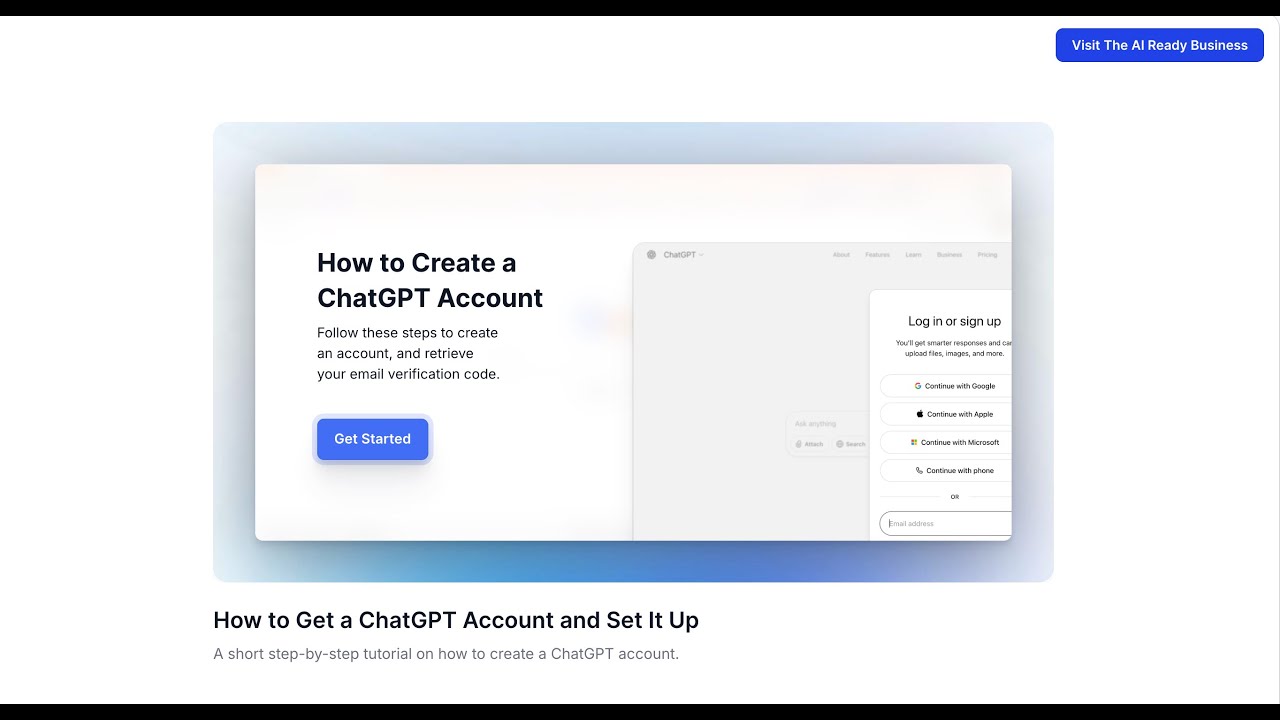
In this instructional YouTube video, the presenter walks viewers through the complete process of creating a ChatGPT account from start to finish. The tutorial begins with opening chatgpt.com, clicking the “Sign Up for Free” button, and entering an email address. It then details retrieving the verification code from the inbox, entering it, and optionally setting a password. The video continues with the onboarding flow where users provide their name, birthdate, and select use‑case options that help personalize the experience. After the quick tour of ChatGPT’s features (with options to skip), the presenter shows how to reach the chat space, read starter tips, and then access the profile icon to open Settings. The video concludes by introducing the next segment on customizing general settings to improve conversation quality. Throughout, the speaker uses a clear, supportive tone, encouraging viewers to follow each click and confirming completion at each stage.
Chapters
How to create a ChatGPT account step by step. Follow these steps to create an account and retrieve your email verification code. First, go to your browser and enter chatgpt.com. Next, navigate to the top right corner of your screen. Select Sign Up for Free. Enter your email address in the input field to continue the sign up. Click Continue to submit your email and proceed. Go to your email to get the verification code. Navigate to the inbox of the email you entered to create the account. Open the ChatGPT verification email to find your verification code. Enter the verification code sent to you in the email, then click Continue. Another option is to select Continue with Password and follow the prompts to set up your password. Next, you will be prompted to share your name and confirm your age. Enter your full name and birthday. Click Continue. Next, you'll be asked what brings you to ChatGPT so it can suggest helpful ideas. Select the option that fits you best, then click Click Next. Next, ChatGPT will ask you what you'd like to use ChatGPT for. Select the options that fit you best, then click Continue. ChatGPT will then walk you through a quick tour of how it works. Review each example, click Next, or choose Skip Tour. Continue through the tour, click Next, or click Skip the Tour. Continue through the tour, click Next, or click Skip the Tour. After the tour, you're all set to begin. Click Continue. Now you are in the chat space and your account has been created. Read the tips for getting started, then click OK, let's go. Next, go to your profile icon on the bottom left of your screen. Click the profile icon. Select Settings from the profile menu on the bottom left to access and update your ChatGPT account preferences. We will walk through how to customize your settings in the next video. Nice work! You have now set up your ChatGPT account. Let's continue setting up your account. Let's customize your general settings. Your general settings are where you personalize your ChatGPT experience. A few small adjustments here can make your conversations smoother, clearer, and more productive. Click Next to begin, or go to the How to Customize Your General Settings video.