The A-Z of Working Smarter: Scheduled Tasks with Claude Cowork

In this live Lunch‑and‑Learn, Ben Mills and Ary Aranguiz introduce Claude Cowork’s newly released Scheduled Tasks feature (launched February 2026) and demonstrate how it can automate recurring work without code. After a brief disclaimer about data security and compliance, they explain the core concept – defining a task by its “what, when, how” – and differentiate Scheduled Tasks from Claude Skills (the latter encode domain expertise, the former schedule execution). They walk through several live demos: creating a daily morning briefing that pulls calendar events and email summaries; generating a daily sales report from connected spreadsheets or QuickBooks; performing an inventory check‑in that flags low‑stock items; and building continuous business dashboards for cash balances, receivables, and sales metrics. Additional use‑case examples include AI‑news briefings, LinkedIn post idea generation, job‑search alerts, and competitor monitoring. They discuss security and privacy (SOC 2 compliance, folder‑level access, no training on user data) and note the practical limitation that Scheduled Tasks run only when the Claude Cowork desktop app is active. Throughout they promote community resources – a 26‑item A‑Z task list, slide deck, newsletter, and AI Ready Business LinkedIn community – encouraging participants to share their LinkedIn profiles, join the community, and request the deck. The session ends with a Q&A about multi‑email support and a reminder to follow their LinkedIn page.
Chapters
Welcome, everybody. I'm so glad you could join us today on this beautiful Wednesday. My name is Ben Mills, and I'm one of the co-founders of the AI Ready Business, where we're committed to breaking down different AI topics, show you how they can be used efficiently, and effectively in your daily life as well as in your business. I'd also like to now introduce one of my partners and co-founders, Ary Aranguiz.
Hey everybody, welcome, welcome. So happy to see everyone. Please let us know where you're calling from. Let us know in the chat, say hello, share your LinkedIn. And we have shared a Google Doc so that you can add your LinkedIn, your name, and we're trying to start that community. Have everyone network and share their business, share their questions. So please take a look at that sheet and share your information with us. So we're going to go ahead and dive right in. And we're going to take care of some housekeeping here for a moment with this disclaimer. Just as a reminder, this presentation is for informational purposes only, and participants are responsible for conducting their own independent assessment before adopting or relying on any AI tools or recommendations discussed. Attendees should carefully review each AI provider's confidentiality, data security, and privacy policies to ensure compliance with their organization's legal and regulatory requirements. So now that we have that out of the way, let's go ahead and continue. And please say hello in the chat so we know that you are there.
So today's topic we're breaking down is scheduled tasks in Claude Cowork. And this is— scheduled tasks is so recent, it just launched a couple weeks ago in February 2026, and it lets you automate recurring work without any code or manual effort. What they are: tasks allow you to delegate work to Cowork by creating tasks that run automatically on a recurring basis or on demand. You just— you describe the task once and then Claude will handle it based on your schedule. Tasks can search Slack, query files, run web searches, uh, generate reports, and much more using any connectors and plugins you've set up in Cowork. Each scheduled task runs on its own Cowork session. Now let's jump into the details of how it works, Ary.
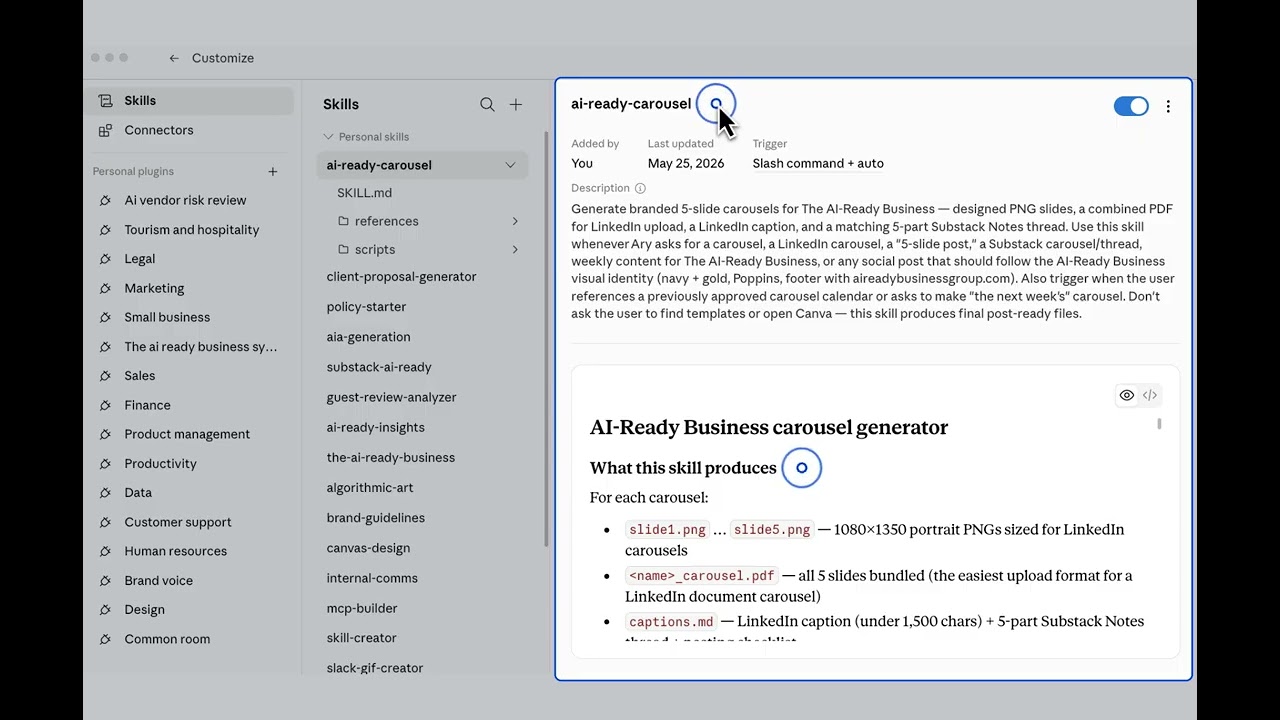
Yep, let's do it. And I see somebody saying hello there. Hi, Shaq, nice to see you. Milagros, good afternoon. Thanks so much for joining. All right, keep those hellos coming so we know you're there, and feel free to add your name to the sheet. All right, so how does scheduled task work? It is very, very easy to use. I'm going to demo it, and just at a high level, it's basically you identify the what, the when, the how, and it does the task for you. It could summarize emails, generate a report. You can update a spreadsheet, even update your HubSpot, your CRM. All you have to do is tell it to schedule it and let it run, and I'll be demoing it for you in just a second. Hello, Bill and Jim, Renee. Hello, Matthew, welcome back. Thank you so much. Nice to see everybody. All right, so one thing to remember is if you have, uh, joined us before— and let me just hide this here— if you've joined us in the last few sessions, you know that we covered, uh, Claude skills. And how is— you're probably wondering, how is a Claude skill different from scheduled tasks? So a skill, think of it as your SOPs, your domain expertise, It's the how-to that we give to Claude, right? So we've— we can write a skill that tells Claude, write LinkedIn post in my tone of voice using my content pillars. The difference with scheduled task is that you're actually, just like the words say, you're telling Claude every Friday at 4 PM, pull from my project notes and write a weekly status update. So the skill is the domain expertise that powers the task. So this is a visual here to kind of distinguish between the two. And again, if you'd like the deck, reach out to us, share your email with us, and we'll share the decks after the presentation. So moving on.
Security and privacy. It's with any AI tool, you should be aware of the information and where it can be searched. But with Claude and Claude Coworking, this task, you're going to link it to a specific folder when it does its task. You're going to link it to a specific section on your server, on your network. It doesn't just go through your whole system. You should also be aware that Claude is SOC 2 compliant. It doesn't use your information to train data. But with that said, I would still recommend that you consult your IT team and any company policies regarding AI before you start using it. But let's actually jump in now and why you're actually here today and see how it actually works. We have some demos. So Ary, let's take it away.
Awesome. Yes, let's go ahead and dive in. And let me just say hello to everyone. Jennifer, so nice to see you. Navshair from Toronto, welcome. And someone from London, awesome. And hello, Brian, so nice to see everyone. Thank you so much. And I just put in that link to the, uh, sheet so you can share your information. All right, so let's dive in. Let me remove this and let's take a look here at Claude Cowork. So here we have Claude Cowork, and, uh, if you look here on the side where it says scheduled, uh, you will be able to schedule your task by clicking this button here, or you could simply use the forward slash and then start typing schedule. And notice that it comes up, and here you have the instructions: create a scheduled task that can be run on demand or automatically on an interval that you choose. So remember, a good framework to remember is what, when, and how. Notice that it generates this template here and you can type in the what, when, and how, but I'm just going to go ahead and click Let's Go so that you can see how it takes you through a series of questions. I see a question in the comment, which Claude model is required to implement these prompts? This is the Claude Cowork, so you would have to download Claude Cowork, onto your desktop. I'm not sure if it, if it's available on just Claude.ai. I don't think so. But we could check toward the end of the session here. So notice that it starts asking you a series of questions. So it looks like you'd like to create a scheduled task. Since we don't have a specific task together yet in this session, I need to know what you'd like to automate. So I'm just gonna say, um, let's see, let's do a daily briefing. But as you can see, you could do your email check, which I'll show you. I have it connected to my Gmail so it could give me a daily summary of what emails I should pay attention to, what, um, I should, uh, reply to. So I'll show you that in just a second. You can also customize it, and we'll show you some examples of custom tasks. So I'm just going to do daily briefing and it'll take you through that series of questions. Um, and then this is the when. So the what, the when, I'm just going to say at 7:00 AM. And then what kind of daily briefing? Um, I'm going to select, uh, either you type it in what you want it to do, or it could be connect. You can connect it to your email and select email, your calendar, or both. So what I'm going to do is I'm just going to select both here, but I'm going to jump right in. I'm going to stop it because this is going to take— actually, it's going a lot faster than I thought. Great. I'll set up a daily morning briefing at 7:00 AM on weekdays that covers your calendar. So notice that it asks for permission to schedule it. And so I'm going to go ahead and schedule it. I'm glad that it's actually working live because sometimes it is a little, a little Slow. And there we go. It's set up. It's as simple as that. That took what, like less than a minute? So your daily morning briefing is all set. Here's what you've got. Every weekday at 7:00 AM each morning, it will pull up your calendar for the day, summarize your recent important emails so you can start your day with a quick overview in under 2 minutes. And you'll find it in the scheduled section of your sidebar. The first one will run tomorrow morning. You can also run it manually anytime. So let me jump in to— so that you could take a look at how you can run these manually if you need to. So if you go here to where it says Scheduled and you click those, you'll have a dashboard with all of the scheduled tasks that you've set up. So these are all the ones that I've set up. Here's the one that we just did, um, and I'm just going to jump into this one because I had done it before. Now notice that it generates the instructions for the task. You don't have to write that, it generates it for you. And I'm actually going to show you how the one we just did— notice how it generated those instructions. And it is powered by skills, right? Its ability to interpret, to write a summary. So it is powered by skills. So if you wanted to test it and run it, you would just run it now. You would hit that. I'm not going to hit it right now. But I'll show you the one that it did for me today. So here is a summary of my emails here, and there's nothing really confidential, so I'll go ahead and share this with you. So it read my emails and it gave me an inbox summary for today. It told me what emails need my attention. There's a Mervis. I know that you, you are joining here. So there's an email from you that I need to pay attention to. Also different emails that are worth reading, low priority. And it basically told me that it reviewed 48 emails, 3 that need action and 9 worth reading. So this is able to provide the summary because it is connected to my Gmail. So one thing to keep in mind is that you do need to— you can connect it to QuickBooks, you can connect it to HubSpot. We've talked about connectors in the past, in past, um, sessions. So whatever third-party tool you have connected, you can create these automations for yourself. I'm going to show you 2 more. Um, let's see, but before I do that, let me take a look. Uh, can you access tasks feature from the mobile device? I don't think so. Um, you cannot. I have Pro version but do not see the menu option. So this, you need to have, uh, Cowork, um, the, the desktop app. So you need to download it, and if you go to clod.com, all the instructions are, are there. Or you can reach out and we'll send you the, the instructions as well. All right, so, uh, let's take a look at daily sales. So this is a scheduled task where let's say that you connected this to your Drive, OneDrive, Google Drive, another tool like QuickBooks, for example, and you asked it to tell you average daily sales for the last 7 days. Again, it generated the instructions and then let me show you what it did. So it pulled, it found the file, Then it read it, it ran an analysis, and it gave me a daily sales briefing for today. It gave me information regarding the prior day sales, what the total revenue was, and this is just synthetic data and a 7-day average. You can test it also. You can ask it to generate synthetic data for you for whatever your use case is and test it this way. to tweak it and make sure that you get the scheduled tasks that you need. It gave me a revenue breakdown, a 3-day forecast, and then it identified which day had— which day of the week was the strongest midweek. So imagine again, you can ask it to help you with the type of scheduled task. Depending on your, on your context. So let's take a look at another one. Um, another thing that will happen is once you have all of these scheduled tasks here, they will also appear here on the navigation menu. And see, this one is a weekly inventory check-in. Again, think of a third-party tool that you would like to connect— Slack, um, HubSpot and, uh, or your Google Drive or OneDrive, and it will pull from that wherever that data, that knowledge base lives. This one is for inventory. Again, synthetic data. It was able to check my inventory, my data from, uh, my Drive, and it identified what was out of stock, What was in low stock, what was the estimated reorder cost. So it's looking at that data, that spreadsheet, um, stale orders, recommended actions, etc.
The other powerful thing with the tool is you can build a whole financial dashboard where every day you could have your cash balances sent to you, your receivable balances, your inventory balances, or whatever information you want on a daily basis. If you work on a sales team, you could have sales information, how many proposals, how many calls went out, all sorts of different information you can gather and build a dashboard that you get daily, weekly, or however often you want to get it. And the beautiful thing about this is, is the tests never get sick, they never take a day off, and they're always running 24/7.
That's right, that's right. And that's a great point, Ben. So let's say that you wanted to take this report and actually create a dashboard you can ask it to create a dashboard because remember that it is powered by skills. And with that, I am going to very quickly share an actual landing page, not a dashboard, but you, like I said, you can create a dashboard. I'm gonna share with you a, landing page that I created based on, um, one of these tasks. So this is, um, available to you. Share your email and we will share with you 26 different tasks from A through Z that you can automate using, uh, Claude Scheduled Task. And we'll share the link for you. But this was a landing page that was created by Claude. So instead of a landing page, if you wanted to create a dashboard, you could take that information and ask it to create a dashboard for you. So this is an example here. So reach out and we'll send this free A through Z list of all the different scheduled tasks that you can create. So coming back again to, um, scheduled task, I want to show you a couple more. And feel free to drop your questions in the chat and say hello if you haven't said hello. And, uh, feel free as well to share your information on the sheet so that you can join our community. So putting that there in the sheet. So let me show you a couple more. So we showed the daily sales tech news briefing. A lot of people ask us, you know, how do you stay, um, informed and updated on all of the different trends and tools happening every day? This is one way. We have daily briefings sent to us just to our— directly to our inbox, um, on small business news updates, uh, different trends, different tools, so that we are staying, staying abreast of, of all of the news that, uh, all the changes taking place daily and very, very quickly. And this is an example of one of those scheduled tasks. You simply ask it to share, to search the web for the latest news from the past 24 hours, um, on topics like AI tools, relevant to small-medium businesses, new AI product launches, practical AI adoption, AI regulation and policies. And it's going to share that information. And also we've asked it to include a source, to include links. And so here is the one that it shared this morning. So now I can quickly go through this and click on the links and it will take me right to that source. And that's how we stay up to date all the time. Now another one I showed, the Daily Inbox. Here's another one for marketing. Again, if you are a content creator, you are a small business owner, you want to, uh, do more with your social media, especially on LinkedIn or even Instagram or or any social media platform, you can have a scheduled task that generates content for you. Here's one, uh, on, uh, 5 LinkedIn post ideas for this week. Some of these are great. And then I can just open it here and, you know, I can decide, I can continue to have a conversation with it, and I can even connect it to LinkedIn so it posts for me. So a lot of different things that can be done. So with that, I'm going to come back here to the, to the, uh, to the deck. So again, share your email with us and we will share those 26 A through Z use cases. But just here are some, um, uh, just off the top of our heads here: morning inbox summary, social media drafts, Client follow-ups, weekly sales reports, as you saw, inventory alerts, competitor watch. Um, think beyond the obvious. These are just some examples. Uh, think of your unique use case. What are some things, some tasks that are repetitive that you can automate? Drafting a meeting agenda, creating a monthly cash flow, monitoring industry news, etc. So a good rule of thumb is what is it that you want to accomplish, when, and how? And here's a fun thing to do. You can stack these. So let's say that every morning at 7 AM, you want to start off your day with some humor, and you get jokes, Seinfeld-style jokes, or your favorite comedian, and you get those jokes sent to your inbox. Or exercise, you get an exercise or a meal plan. Or maybe you're traveling and you want itinerary ideas while you're traveling, or you're learning a language, or you want to stay up to date with AI. You can stack all these different scheduled tasks— sorry, tongue twister there— to create your own personal AI team. Same thing with work. Create your own work AI team, whether it's learning and development, project management, AI news, marketing, even investments. You could set up a scheduled task that keeps an eye on certain stocks that you're invested in. So some questions for you: what role would you want to create a small AI task for? What tasks would it include? Would your tasks build on each other, like getting an AI daily news feed followed by a LinkedIn post, or would they be unrelated? So these are some questions for you to think about, and I'll turn it over to Ben here.
Yeah, there's all sorts of tasks that you can set up from an AI sales perspective. If you want to monitor your competitors, you want to monitor information in the industry. Um, this is an assistant that can give you daily updates, daily briefs every single day right to your, your email. You just set the parameters and it does it every day. It's a powerful tool as opposed to you going out and having to search the web and doing your own research. This just comes to your inbox every day and, and it's customizable. You can change it, you can add to it. Um, and then if you're looking for a job, it can help you do job searches if there's a particular type of job that you're looking for, a specific industry title, geographical area. This can help you go out and search and give you the information every Monday morning, every Tuesday morning, or however frequently you want it. And it does it every day, uh, consistently.
Yep.
So, um, and why this matters— think about all the time that you spend running around your office trying to put your own dashboard together, finding out what yesterday's sales were, trying to find out what your accounts receivable is, trying to figure out how much inventory you have and what's not good. This brings it all together instantly into one simple schedule or form. Or if you're doing marketing, or think about when you sit down, your social media, your marketing people trying to figure out what to write about, what to post, what to do. This just customizes it all for you and makes it a lot quicker, faster, and simpler. Um, and you— all you have to do is link it to the folder, the system, the file, and, and it pulls the information. So it's not only fast and quick, but it's also very timely, it's accurate, and then you can make real business decisions, uh, getting stuff every day as opposed to waiting a week to get the information. You can get it daily, you can spot trends quicker, you can spot issues quicker, and then you can act on them, and you're not waiting a week or 2 weeks to get the information. Um, this does it so much faster.
That's right. Yep. So again, these are the instructions. I just demoed, um, these instructions for you. If you want the deck, feel free to reach out, add your email, and we'll send you the deck. Or you can DM us and we'll send you the deck as well with these instructions. However, uh, one thing to remember, ChatGPT also has scheduled tasks, and the difference with ChatGPT schedules tasks and Claude's is that for Claude, your desktop has to be open. So that's the only slight disadvantage. So if your device is closed, if your laptop is closed, or you don't have Claude Cowork running in the background, then it's, it's not going to, um, to run. It only runs while your computer is awake. So Again, think about the what, the when, the how. There's so many different tasks that we do manually, a lot of different busywork. It saves Ben and I tons of time. Um, and why not let Claude Cowork handle it for you? Uh, again, this is the article from claude.com that has more information. Share your email with us, we'll share that 26 A through Z tasks. that you can schedule and it can serve for inspiration as well.
And then I recommend that everybody join our AI community. It's where business leaders and people are sharing AI experiences, good and bad AI experiences. If they have an issue or a problem and they're looking for an AI solution, it's an area where people can just share their ideas and see what's going on in the world of AI. One thing I can tell you is AI is evolving every day, every minute, every hour. You might think you know it today, but by next week there'll be new products, new opportunities to use AI for. And then we also have an exclusive newsletter that's going to keep up to date. It comes out twice a month and it's going to be shared with all AI stuff. But the key with what we're trying to do is not just give a lot of tech talk. We're trying to give a tool that you can actually implement, use in both your personal and your business life. Because AI without good implementation is just another piece of software that sits on your computer. Um, one reason Ari and I did this is because we realized that implementation with AI is the key to successfully using it. Uh, and then part of that will also be tutorials and videos and trainings on the different tools. And what this is meant to do is just keep you up to date on what is going on. And we're going to be listening— we listen to a lot of our subscribers and we customize the newsletter based on their questions and concerns, because one thing I've learned is if someone has a question, a lot of people probably have the same question, and we try to tackle those with the newsletter, with our Lunch and Learns, with the AI community. We're trying to tackle all the different AI issues as they arise. But I want to thank everyone for joining us today. And like I already said, if you can drop your email, we'll be happy to share our deck with you, the 26 prompts, and share. And if you have questions, let us know. If we can answer any of them, we'd be happy to do that. But we're staying on top of the AI and what's going on and anything we can do to help you and support you in your careers.
That's right.
Thank you.
Thank you. Thank you so much, Ben. And I do see a question in the comment. Can it connect to multiple email accounts or just the one subscribed to Claude Pro? You can connect it to other email accounts and that helps you to get summaries from you know, all of those different emails that, uh, you, you have. If everybody has multiple email accounts these days, so yes, you can definitely, you can definitely do that. So—
And we also have a LinkedIn, we also have a LinkedIn page that's going to be posting and tracking current information about what's going on in the AI world. And so I recommend you follow us on LinkedIn. I think that's how, uh, everyone belongs to LinkedIn now. And, uh, you can Keep up to date on the— in the AI community.
Yep, that's right. And I just want to show, uh, since we do have a few more minutes left, just want to show the LinkedIn page there. Follow us there, DM us there, or you can find us on LinkedIn and just DM us. And finally, I did want to bring up again, um, these examples, the scheduled task Are pretty amazing. We were pretty amazed by some of the things that we've been able to do.
So, um, this literally just came out a couple weeks ago and we were blown away by it. And that's why I already said we have to make this one of our Lunch and Learns right away because it's a very powerful tool, um, and, and we need to get it out so people understand what they can do with it and, and take advantage of it.
Yep, that's right, that's right. Feel free to DM us. We'll send you the link to the 26 tasks. It's absolutely free. We thank you.
Then next week's Lunch and Learn, if you want to share about the topic for next week, Ary.
Yeah. Next week, Ben and I are going to talk about all different types, all the different AI tools that are out there and LLMs like Perplexity, Claude, Gemini, ChatGPT, and we're going to have a battle of the LLMs. We're going to share live. We're going to have a comparison. We're going to have different prompts. And we're going to do a battle where we'll see which one gives us the best output. So come with your questions, your use cases, your challenges. And we hope to see you again next week. Tell your friends. Tell your family, and we're very excited that you're joining us. We have some regulars that are joining us each week. Great to see you all. So thanks again, and we will see you next Wednesday. Thank you, everybody. Have a great week.
More from Ary




Create and Automate a Scheduled Task in Claude that Scans for YouTube Videos about AI for SMBs