This is a YouTube video titled "Chapter 5 Missed Calls with Quiz" created in July 2024. The content is an instructional presentation explaining how to manage missed calls within a communication center system, detailing steps for returning calls, identifying customers, and handling call dispositions. The excerpt is a monologue by a single speaker providing a detailed walkthrough of the missed call features and workflow.
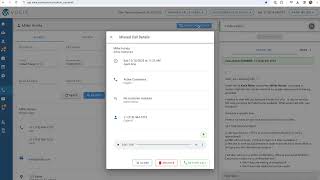
On the left hand banner you have the missed call selection above queue selection and you will also see a beacon there as well. If there are missed calls to return here, it will list any outstanding missed calls that you have in your account. So you'll see the date and time of the missed call. The purpose so whether this is a voicemail left after hours or potentially the customer hung up while they were on hold, the store they called into and the reason the customer called in. So the campaign name, if we know who the customer is, meaning the phone number belongs to one customer and one profile, we will auto pull up the customer. Otherwise you'll also see their caller id. The last column is Affinity. So if your team uses Affinity and the customer belongs to a specific rep, you would see their name listed there. To return a missed call, select the blue return button and now you're in the three areas of the communication center. You'll see the search screen with the phone number auto populated. In the search you'll have some possible matches that Bali believes the customer may be. Otherwise, if this is a brand new customer, you can click Create and enter in the information as needed. Once you've located the customer, you'll select the green check mark. If you're unsure or want to confirm you have the correct customer, you can click the missed call details and see that initial information again. This includes the date and the time of the call, the reason they called the campaign, and if they did leave a voice message. At the very bottom you can hit the play button and listen to the record. From here you can click the green return call button to call the customer back. Otherwise, if you don't need to return the call, you can click the red archive once you've hit return. Now we're dialing the customer and calling them back. You'll see the phone ribbon populate in the top right. After you've confirmed you have the right customer, select the green check mark to pull up the profile. Now, just like a normal call, when you're finished with the call you would disposition hit save and it would clear that missed call from your list and bring you back to the index page. If you ever need to go back and continue working on a missed call that you were previously working on, you can click the orange continue button to be placed back within these three sections. If you don't return those missed calls that you started within 30 minutes, they will go back available to all members of the team for other agents to be able to respond to. Otherwise, if you don't need to return the missed call, you can click the red Archive button to remove it from your list.