This is a YouTube video titled "Chapter 9 Communication Center Timeline with quiz" created in July 2024. The content is an instructional explanation describing how to use the Timeline feature within a customer communication interface, detailing how to view and filter communication and transaction events related to customer interactions.
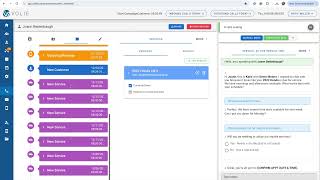
In the call screen included in the section with the customer's information, we have an area called the Timeline. You can access that information by clicking on the Timeline icon. The timeline will allow you to see a color coded and date ordered summary of the activity with that customer, both from your communication in Volley as well as any sales or service history. You'll be able to see in date order with the most recent date at the top, any past communications including inbound and outbound calls, as well as incoming and outgoing emails and SMS messages. You'll also be able to see when the customer was enrolled into a campaign via the blue New Customer icon and in purple, any sales or service history for that customer. You'll also be able to see the date and time of communications as well as click in each area to expand and read further. You can also sort the timeline by communication events or transaction events. So if you would prefer to only see communication history such as inbound and outbound calls or outgoing or incoming messages or emails, you can click on the Communication Events icon. You can do the same for the Transaction events, which will filter and display those items where a transaction took place, such as past service or sales. To see all the activities in the Timeline again, click on the All Events icon. You can also expand all of the Timeline activities if you'd like to scroll through and view them further when you're finished. To close, select the Close all icon to return the timeline items to their original view.