4 Types of CRM Software You Need to Know
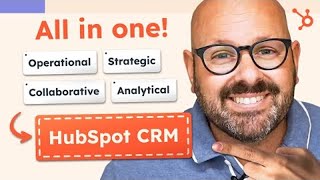
A HubSpot video (presented by Mark) explaining the four main types of CRM—operational, analytical, collaborative, and strategic—and demonstrating how HubSpot CRM implements features from each category. The video walks through HubSpot's contact record, meeting scheduler, sales pipeline and deal creation, landing pages with AI-powered Content Assistant, and automated marketing emails, positioning HubSpot as an all-in-one CRM for scaling businesses.
Chapters
If you're a scaling business looking to move your team off of countless spreadsheets and softwares to a single CRM platform, you've totally come to the right place. I'm Mark from HubSpot and today I'm going to show you how HubSpot CRM can help your business grow efficiently. To sign up for HubSpot's free CRM, click the link in the description below. It only takes a second and it's totally free for life. Most scaling companies have several tools, softwares and ways to manage customer data. But with one CRM acting as your single source of truth, all of your teams can look at the same customer data in the same place in the same now there are four main types of CRMs. Let's quickly take a look at each one. An operational CRM is here to help your company streamline and simplify all of its business processes. Think about generating leads, converting them into customers, providing world class customer service, and delighting them throughout the entire process. Analytical CRMs rely on data gathering and analysis to help companies best serve their customers. Think of things like customer preferences, behaviors and contact information. A collaborative CRM brings together all of your departments like Sales, Marketing, Service and Operations to help them work together to identify customers, needs, wants and preferences. Strategic CRMs are often lumped in with collaborative CRMs because they share a lot of the same features. But whereas collaborative CRMs focus on the short term servicing of customers, strategic CRMs focus on long term customer retention and and loyalty. Now HubSpot is an operational, analytical, collaborative and strategic CRM. Let me show you the features that make it a super versatile all in one CRM platform that aligns your entire company from marketing to ops. Let's jump in and I'll show you how it works. The cornerstone of HubSpot CRM is a contact. To get started, scroll up top to Contacts and select Contacts from the dropdown menu. Here you'll be brought to a page where all of the contacts are listed. You can filter them by contact owner, the date they were added or created, the last activity date, the lead status, or a bunch of other advanced filters that we have. To look at a contact, you can simply click on the contact name and it will bring you to a page with all of that contact's information. You can take a look at what's happened across sales, marketing or even customer service in one centralized place. I can see that Jesse is the Chief Operating Officer. I can take a look at this activity tab and see all of the activity that has taken place. It Looks like there was a meeting that was scheduled and I can see who was invited, who attended, and see how long it lasted. I can even take a look at the emails that I sent to make sure they were opened and if any links were clicked on, et cetera, I can click an email to get deeper detail and get a sense of what's happening with this particular customer. I can even reply forward or even delete the email right from within HubSpot. But that's not all. If you scroll up top, I can see if there's any notes that were taken after a phone call or a meeting. I can track all the emails that were sent, take a look at any calls that were scheduled. It looks like I left Jesse a voicemail. Any tasks associated with this customer, and finally, any meetings that have taken place. In the right hand column you get a sense of what's happening with this customer, any deals that we have going on, any service, tickets that they may have submitted to your service team, any payments that have been made, attachments that you sent, and a lot of other associated information with that customer. One feature we hear that people love is the meeting scheduler. Let me show you how to schedule a meeting with your contact in a few clicks of a button. To get started, scroll up top to Sales and select meetings. Here you'll see all the different meeting links that you have. But if you'd like to start a new one, click Create Scheduling page. This can be a one on one meeting between one contact, a group meeting that will automatically search your calendar, another colleague's calendar, and your customer's calendar to find times that align or or a round robin invite. This is where a meeting will automatically be directed to one of your service team members based on their availability. To get started, I'm going to select one on one and I'm brought to a page where I can give it an internal name. I'll call this Follow Up Meeting with Mark. I'll give the event a title and the location. I can add a video link to connect to Zoom or any other apps, and a description if I want. Next Click Next Here I can see that my scheduling page is actually starting to take place. I've got my picture, I've got my meeting name and I can see that my schedule is actually updated from my Google Calendar. So here I can give the schedule a title and just say Follow up with Mark. I can give options for a 30 minute, a 45 minutes, or even a 15 minute meeting. I'll make sure that my time zone and my availability is all set. Then I can click on form. Here I can make sure I want to collect the first name, last name and email of a customer before a meeting is scheduled. And I'd like to add a custom question. Say what would you like to talk about? I save it and now you can see the form is taking place here on the right. In the preview I'll go ahead and click Next. I'll send a confirmation email to the attendees immediately after they schedule the meeting and I can opt in to send a pre meeting reminder with them one hour before the meeting. The meeting. Finally I'll click Create Scheduling page and voila, my new meeting page is set. I can even click this link to see what it actually looks like in real life. Here you can see that people will be able to schedule time with me as my calendar allows and as they select a time, they'll go ahead and fill this out and we're ready to go as an operational CRM. HubSpot's there to help your sales team close deals. Let's take a look at the sales pipeline to see how it works. To get started, scroll to the top and select Sales and Deals. Here you'll be brought to your sales pipeline. You can see that we have different stages of our different sales pipeline and we can see the deals that are currently in those different stages. At any point, if you'd like to move a deal forward, you simply select it and can drag and drop it into the next stage. If I want to learn more about a deal, I can simply click this link and it will bring me to the deal page where I get a sense of what the deal activity is, who's involved, what companies, and any other associated information about the deal. You can also customize your pipelines. At any time, simply select Sales Pipeline Edit Pipeline. In here you can edit any of the stages, the probability of the deal closing, or any other information about your sales pipeline. Again, this is 100% customizable to you as a company because you all have your own sales processes. Creating new deals is super simple. Also, let's create a new deal together. Simply scroll up to the top and click Create Deal and here you can enter all the associated information. This will be Acme Hotels North American Desserts Deal. We're going to add it to our sales pipeline and we've already connected with them and we're currently uncovering their challenges. We estimate that this is going to be a $230,000 deal. We'd like to close this by the end of next month. We can Select Deal Owner, which deal type it is, and associate the deal with a contact. So we'll go ahead and select Andrew and go ahead and click Create. Now you'll see that deal is automatically populated and if I'd like to take a look at it in the pipeline, I can simply scroll back and there is my new deal right there. There. Let me show you how HubSpot helps marketing teams create amazing content with the click of a button to get started. Click Marketing from the top menu and select Landing Pages. Here you'll be brought to a page where you can see all the landing pages where you're working to convert leads into customers. Here I'm going to click one of our existing landing pages and go ahead and edit it. Here you can see this is a landing page which is for people to sign up for our newsletter. Now I've got some edited copy right here, but I want to go ahead and edit it using Content Assistant, our AI powered tool. I'm going to go ahead and select that text, click the Content Assistant and I'm going to ask it to actually summarize this, make it a little bit smaller for me, and with the click of a button I can go ahead and see that that content has now been rewritten and summarized in a nice easy format for my readers to use. And there it is. AI powered marketing content at the click of a button for you and your team right inside HubSpot. Next, let's take a look how HubSpot can help you build great marketing emails and send them out to your customers. To get started, click Marketing and scroll down to Email. Here you'll see any marketing emails that you've previously sent where you can manage them, analyze their performance, and even check the health of each email that you're sending. Today we're going to go ahead and click Create Email. And this is going to be an automated email that we send. Now you can either choose from one of these templates or create from scratch. I'll go ahead and select this basic template and this should look familiar to you. It's HubSpot's easy to use Drag and drop builder. Again, I'm going to leverage the power of AI to help me write this marketing email. To get started, I'm going to delete some of this copy, hit the slash button and ask it to generate a paragraph about why customers should register for our 2024 Global Dessert Summit. There is some copy. I'll go ahead and insert that. And I'll go ahead and make some of these a little bolded so they stand out. So now I'll go ahead and delete all of this. Thanks Mark from Mark's Donuts. I'll go ahead and give this email a name. Then we'll click Settings. We'll make sure that we have a subject. I'll go ahead now and click Review and Publish. Looks like everything's ready to go. And now I can publish that email. Now, since it's an automated email, it's ready to go out in any of my automated marketing email campaigns. Coming right from HubSpot. Remember, there are four main types of CRMs operational, analytical, collaborative, and strategic. And HubSpot is all four. HubSpot serves as the single source of truth for all of your customer data so that your sales, marketing and customer service team can look at customer data in one simple place. It gives your customers a better experience and it helps your company grow better. To get started with our free CRM, click the link in the description below and sign up for your free account today. I'm Mark from HubSpot. Thanks for watching.









