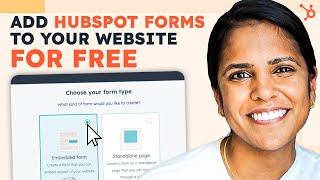
A HubSpot tutorial video where Adrithi demonstrates creating an embedded form in a HubSpot Marketing Free account to capture leads for an ebook. She selects a templated "Email ebook download" form, adds extra fields (company name, country), configures options to create contacts and label submissions as marketing qualified leads, customizes styling (button shape and colors), sets up automation to email the ebook link after submission, and publishes the form. The video emphasizes speed and that these features are available in the free account.
Chapters
You know what we could all use more of in our lives? Leads. And you know how you get those leads? Forms. Hi, I'm Adrithi from HubSpot and I'm here to talk to you all about Forms. Come join. So in your HubSpot marketing free account, you have access to create forms. Simply click into Marketing Lead Capture and Forms. Now, this might look a little different if you have HubSpot free or HubSpot paid, but forms will always live in that top. Navigation. Once you're on this page, click Create form. And I want to create a form for my ebook. I spent so long creating this ebook and I want everyone who visits my website to know that this is an option for them to download. So I want it as an embedded form instead of a standalone page. And I'm going to click next. Now, lucky for me, Email ebook download is already a templated form, so I'm going to click that and press start. Now, even though it's already templated, I can still edit it according to my standards. So because I spent so long on this ebook, I'm going to be asking for a couple more properties rather than email and name. So I definitely want their company name and I want their country. Now that the content is squared away, I'm going to head over to Options so I can further edit my form. Now, in addition to just thanking them, I also want them to be downloading the ebook. So I'm going to put a link in there. I want everybody who fills out my form to be labeled as a marketing qualified lead. And then I always want to create a contact for new email addresses. So this means that anyone who fills out the form will be listed in my CRM. Cool. Looks good. Now, since my website looks pretty good, I want to make sure that the form matches. So I definitely love this rounded button and I'm going to change the style a little bit. So let's change this color to a nice green. Yes. And the button. You know, I love HubSpot orange, but we're going to go with red. Yeah, that looks good. Very Christmas vibes. Okay, now my favorite part, automation. So I want to make sure that anyone who fills out this form also gets an email with that link just in case they didn't click the link the first time. So a contact submits the new ebook form form and they are going to get this email. Perfect. All right, going to click update. No warnings to review. Did a pretty good job. Publish, y'. All. That took like just a couple minutes of my time and I was able to create a form. Make sure that everyone who fills out that form is also going to be in my CRM and send them an email after they filled out that form. Or talk about a productive couple minutes. If you want to be as productive as I am, make sure to sign up for HubSpot Marketing free in our description box below. What do you think is a good rule of thumb for how many questions you should ask on a form? Let me know below. I'm adrithy and I'll see you in our next video.