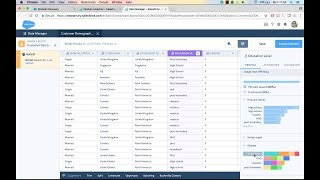
A walkthrough of Einstein Analytics' Smart Data Prep, showing how to clean and transform customer data using AI suggestions. The demo covers clustering inconsistent strings like education levels, grouping countries, rounding credit scores, and joining datasets via lookup on last name. You can audit every transformation and schedule the cleaned dataset to save automatically.
Questions this video answers
September 25, 2017
Chapters
We're going to take a look at Data Prep recipes and how business users can analyze their data and prepare it for analysis. We're going to create a new Data Prep recipe based on the customer demographic data set, give it a name, and are presented with a preview of the records in this specific data set. Data Prep also allows the user to browse a preview, a column profile of the preview data, and also the entire rows of this data set if it's larger than the sample. And this column profile adapts to the specific type of field that we're looking at, for example, measures or dimensions. And for example, in terms of the measures, we have histograms available and statistical information about the values shown in the specific field that we've highlighted. And also it allows me to interact with the data. For example, in this case it identified anomalies since we have married and single values here as data values predominantly, but we also have anomalies. And I can select an anomalies and for example, interact with the Smart Suggestions bar that's powered by Einstein discovery to perform transformations on the data that I've just created here, for example, a replace operation to clean up my data anomalies. In addition, I can go in and for example, create groups here I can make selections for Canada, United States and maybe also Mexico and create a North America column and say maybe I want to filter by these North American countries and maybe I want to bucket those into a North America bucket, for example. In addition, we could go in to the education level field and I have always all of the transformations available here in the drop down, but we've made it really easy for the user to to interact with the column profile and the Smart suggestions bar at the bottom. So in this case we also have a cluster analysis applied to the specific field since we identified relevant clusters and if you notice the specific values that are saved in here. So we have a couple of different spellings for high school, we have a couple of different spellings for the other education levels, and and our machine learning algorithm has identified that these are in fact part of a larger group and has rolled them into these specific clusters. I can also act upon this analysis by clicking the bucket by clusters option. And the smart suggestions are clean up my bucket values here. But notice that these are automatically populated by all of the different spelling versions that were identified in the data set. And then remaining values can simply be moved into a not available type of category. Now that I've added this specific education level, I can remove or hide the originating column and also Go in and rename this column in the attributes level here. So this is my new field label called Education Level Clean. And I can also rename the name of the data set as well if I wanted to. Good. So taking a look at measures next in the column profile we have a credit score here and maybe I'd like to clean up the credit score here as well and create a derived column and perform a round function on this. I can see the pre populated formula for this specific measure that I can then apply and have a rounded formula available. These derived columns are also available in Einstein Discovery to create derived columns based on the data set here. For example, creating these different operations on measures and different type of operations on dimensions. Moving back into recipes, let's take a look at how we can enrich our data here with additional information, for example contacts that we also have in the system. And notice how Smart Data Discovery identified the join keys that are suitable for these two data sets. Looks like we're only able to join on last name. There are no ID numbers like this ID number. There's no corresponding mesh in the contact field, otherwise it would have suggested it by default. So let's accept the suggestions on last name. And in the next screen we are making a selection on which specific fields shall be moved in from the lookup data set. So once this is done we can notice that there's a few overlapping rows here or a few matches that the lookup operation has identified. And notice the trail of transformations here on the left. So there's sort of an audit trail that I can go back to. For example remove specific transformations upstream and the recipe will update and only now transform the downstream operations that are still active. The next and final step is to either just save the recipe and move on, or also create a physical target data set for which I can define an app, or to save it I can define my target data set name and I can confirm the fields that shall be part of it and either schedule this or run it just once.