How Sales Automation Works | HubSpot Sales Hub
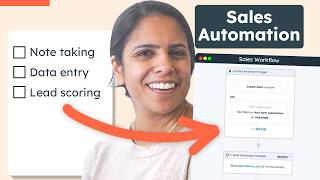
This YouTube tutorial (presented by Adrithy from HubSpot) demonstrates how to automate end-to-end parts of a sales process using HubSpot Sales Hub. Key demonstrations: contact-based Workflows to auto-route leads (round-robin by territory), the Prospecting Workspace for managing tasks/leads, Sequences to automate outreach (with A/B testing and LinkedIn Sales Navigator integration), Playbooks for call guidance, and deal/pipeline automations. The presenter reiterates product availability and limits (pro/enterprise features, sequence and email limits) and ends with a call-to-action to sign up for HubSpot's free CRM.
Questions this video answers
Pro and Enterprise users.
Over 300 customizable options.
Up to 5,000 sequences.
500 emails per day.
Yes — Playbooks are available for Pro and Enterprise users.
Chapters
All right, sales teams. If you're ready to get off spreadsheets and if you're ready to stop doing everything manually, if you're ready to finally use a software that helps you save time and close more deals, you've come to the right place. Hi, It's Adrithy from HubSpot and I'm here to talk you through how you can automate every part of your sales process using HubSpot Sales Hub. Come join. So as a sales rep, you know that there's a lot that goes into every step of the process. And the first step of the process is actually assigning those leads and making sure they get to the right person. Now, instead of doing that manually, we can do that automatically through Workflows. Workflows is a HubSpot tool that lets you automate a lot of mundane business practices. Now, I'll be honest, Workflows is a really robust and powerful tool. It is available just for our pro and enterprise users and it comes with a ton of functionality. In fact, you can create over 300 customizable options through workflows. So on the top right, I'm going to click Create Workflow and I'm going to do one from scratch. Now you can create workflows based on contacts, companies, deals, tickets, et cetera. For today, we want to create a contact based workflow that routes leads to the right person based on territory. So I'm going to set up a trigger that says when a contact lives in Austin, Texas and they've filled out a certain form, let's do our help form. I want them to be routed to a specific owner. So I'm going to click rotate record to owner. I'm going to choose my North American sales team and HubSpot will now evenly round robin these leads to this team. So everyone is going to have the same chance of getting a lead. It's going to be as fair as possible. So in less than two minutes we've been able to create a process that can automatically route leads to the right owners. Now, as I mentioned, Workflows is a super robust tool. This is just one of the following things that you can do, but you can do a ton of other things. You can create quote based workflows. You can even send out communications. So, so you can send internal emails, you can send external emails, you can send WhatsApp messages. Really the power of workflows is tenfold. And if you do want to learn more about workflows, I highly recommend clicking Create Workflow and looking through our templates. Templates is a really, really great way to understand all of the robust functionality of workflows. On the left hand side, go ahead and click Sales hub and here are just a couple of ideas that'll help you get started with workflow. All right, so we've created a workflow that rotates our leads. Now we need to actually work those leads. Enter the prospecting workspace. The prospecting workspace is the perfect place to work leads because it has everything you need in one place. A lot of sales reps will spend their entire day in this prospecting workspace and for good reason. It has all of the list of tasks you need to do. Looks like I gotta get started on my 57 overdue tasks. It has a list of sequences that I need to enroll my contacts in. Also, it has an overview of my leads. So leads that I need to reach out to reads that I've already connected with, and leads that I'm still attempting to connect with. On the left hand side, you'll also be able to see a schedule of your calendar once you've connected. If I click into leads, I'll be able to see the people who I need to reach out to. Now, these are people that were assigned to me via that workflow or these are people who somehow have gotten to my desk. Now, we do want to talk very quickly about the differences between contacts in your CRM and leads. Contacts is every single person in your CRM. These are the folks maybe marketing has added. Literally every single person who is in your CRM will be in the contacts tab. Now, leads, on the other hand, are a little different. These are the folks who are a little better fit for you to reach out to. So instead of looking through thousands and thousands of records, you have a more specific list of people you need to reach out to. So just so we're clear, all leads are contacts, but not all contacts are leads. So just a high level overview of your leads tab. You can filter by lead stage. So this is the communication stages that I have with my contacts. You can also filter by companies, target accounts, if they're in sequences or targeted emails, and more. So let's say I have just been assigned Juanita. The first thing that I'm going to do is click into her name and just get to know this contact a little bit more. I can see that in the past, someone has actually connected with her, which is great. That means she's open to talking with us. And I can also see the notes and the prior communications that she's had with folks in my company, if I go into about, I can also see quick information about her, any notes that people in my company have left about her and associations, including what company she's a part of, if there have ever been any deals associated with her, tickets, etc. Now let's say that Juanita is actually someone who I really think I need to reach out to. I think that she has potential into turning into a customer for us. What I'm going to do is enroll her in a sequence. If I check, mark her name and click Enroll in sequence, I can choose a set of emails to send her. A sequence is a way to automate your sales outreach. So it's a set of targeted and timed emails that help you nurture your leads. So on the left hand side you'll be able to see the different steps Juanita will go through once she's enrolled in the sequence. So, so as soon as I click Send now, she'll get this automated email. Then in one business day I'll get a task to call her and then in three business days after that another automatic email will be sent out. Now let's say Juanita has responded or booked a meeting with me through the HubSpot meetings link. After this fourth automated email, she will automatically be unenrolled from all of these subsequent emails. So that takes away a lot of the manual pressure of knowing, oh, do I need to unenroll her from a sequence? I would hate to have her, you know, go through this email once she's already booked a meeting. No problems there. HubSpot's got you covered. Let's actually go into creating a sequence in your HubSpot account. If you click into automations you can click Create sequence and here you'll be able to either start with a pre made sequence or start from scratch. Now a couple things that I want to note about sequences. One, it is for our pro and enterprise customers. Two, you can create up to 5,000 sequences and believe me, that's enough for you folks. And three, you are limited to 500 emails sent per day. Another cool thing about sequences is in addition to sending emails and tasks, you can Also connect your LinkedIn Sales Navigator account if you have one. And you can get task reminders to send InMail and connection requests as well. Let's actually go through the process of creating one. So I want to start with an automated email and I want to make sure that that's a new thread and I want it to be this first email. If that looks good, I'm going to click the add button. And I want to send another email in the same thread, which is my prospecting email number two. Now, if you notice, you can actually a B test these emails. This is a great way to optimize your sequences and make sure you're communicating in the very best way. So I've seen a lot of folks send emails. Maybe some have their contact's name in the subject line. Sometimes they don't. But in order to really know what works, it is a great idea to a B test so that you're really optimizing this experience. And of course, I want to also add a task to call this contact after two business days. Now, as you can tell, sequences is a really, really great way to automate that follow up so you don't have to remember, oh, it's been two days since I've talked to this person. Maybe I should call them. Maybe I should email them. This does all that heavy lifting for you. Another really cool thing about sequences that I want to highlight is that you can actually automatically enroll people in sequences through workflows. So if I head on over to workflows, I can create a workflow that says if they filled out a specific form, then I can enroll them in a specific email and I can even choose the sender name and email address to make sure it's coming from their point of contact. Now, I really like this option. I do think one of the benefits about sequences is that you can edit the sequence before you send it out. So that way you can make it a little bit more personalized if you'd like, by doing it via workflows. Of course, you can't edit that sequence as you might like to. So just keep that in mind that a real benefit is you can edit it and make it more personalized when you send it via workflow. That might not always be the case. All right, so let's say Juanita got your series of emails via sequences and she actually booked a meeting with you. This is great news, right? This is what every sales rep wants. Well, the next step is for you to do your research and really understand everything you can about Juanita before you go into that call so that on the call, you're asking the right questions. This is where the prospecting workspace really makes sense. So if you go into Juanita's information, you can actually click this view record and be taken to her record in the CRM Here, you'll be able to see even more information about her dating back to as soon as she became a contact with You. Another thing that I love about our CRM is the ability to add Playbooks. And a playbook is basically a content card that helps you guide the conversation. So, for example, here is our qualification playbook, and our sales reps have this open for every single call that they make. So the first thing that the playbook tells them to do is ask them for a budget. Ask them who will be involved in this purchasing decision, what challenges they struggle with, and how quickly they need to solve your problem. This is a great way to make sure that one, you are taking notes on this customer when the time comes. And it's also a great thing to look at beforehand so that you know how you want to guide this conversation. So those notes, of course, will live on the CRM record, but it'll also live on the lead record as well in your prospecting workspace. So, as you can see, it changed to connected. And we're able to see our recent communications. I logged a call with her, and here are the notes that we jotted down. Playbooks are available for pro and enterprise users. All right, so let's say the call with Juanita went really well and she wants to take it to the next step and schedule a demo with her boss and myself. This is great news. This is what I want to hear as a sales rep. Now, instead of working her in the leads tab, she's now gone up in my eyes, and I think of her as an opportunity, not just a lead. So I am actually going to create a deal with her in my CRM. Now, your deals tab is where you're going to track all of your opportunities. You can create deals either manually or automatically via workflows. For today, though, let's just quickly create a deal for Juanita manually. And there's actually a lot of automation that we can add to this pipeline. If I just click into actions and click add pipeline automation, I'm able to create workflows for each stage of the deal process. So, for example, when a deal reaches contract sent, I can actually create a workflow that sends myself a task to follow up with the contract in three days. So I just want to reiterate all of the automation we were able to add throughout the entire sales process. One, we were able to automatically route our leads. Two, we were able to automatically get them into our prospecting workspace and send them automatic sequences. We were also able to create playbooks and make sure our notes are showing up on the proper contact records. And we were able to create deals for them and automate actions within that deal pipeline to make sure that we're staying on top of our prospects so we don't let anything slip through the cracks. If this seems like something that you folks want to use as well, make sure you sign up for our free CRM today. If this wasn't enough to convince you, G2 has also crowned Sales Hub as a leader for small business, mid market and enterprise customers. So what are you waiting for? Sign up for our free CRM today.









