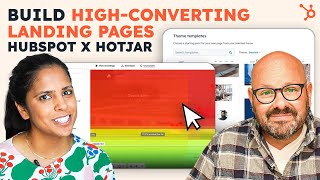
Adrithy walks through building a landing page in HubSpot, from picking a template to using AI for copy and swapping images. Mark then shows how to analyze the live page with Hotjar to see where visitors click and drop off.
Chapters
Ever feel like you have too much to do and not enough resources? Probably all the time. Right. Hi, I'm Adrithy from HubSpot and I'm here to talk to you about how you can create a landing page with minimal resources. And stick around afterwards because this guy is going to talk to you all about how to analyze those landing pages using hotjar. Come join. So one of the best parts about using HubSpot to create a landing page is I can do it just myself. I don't need a design team, I don't need an IT team. I can do this. On the top right, I'm going to click Create and select landing page. Now I'm a real estate agent and I work out of Los Angeles and the market is hot. I don't know if you folks watch selling Sunset, but you got to get in. So I'm going to make a white paper about the Los Angeles housing market. Going to click Create page. And the first thing that I'm going to do is select a theme. And a theme ensures that your visitors see a consistent website experience. So I'm going to look through these and select one that matches my current look and feel of my website and that session. So I'm going to click View templates. And now within the session theme I'm able to select a template that I want. So landing page perfect select template. And I'm taken to a pretty well laid out landing page. Everything here is editable. It's easily can drag and drop it to wherever I need. The only thing that's not editable is actually the global header and footer. But, but that's okay because that's something that my manager actually inputted into HubSpot a while ago and that's something we want on all of our our websites. So I'm going to leave that as is. And when I'm thinking about creating a really great landing page, I really need four things. A good cta, a unique selling proposition, a hero shot, and features and benefits. So let's start with the cta. And this is going to be a form. So a white paper form. Already created that form. Great. But I do want to edit some of this so I can go into form content. For starters, the form title is not Send me the ebook, it's Send me my LA home. And you'll notice the button text isn't just submit, it is something more specific. You want to make sure that that button is as specific as possible so that the visitors know what they're getting once they submit that form. All right, so the CTA looks good. Now let's focus on the heading or the unique selling proposition. So what's really cool about HubSpot is that if I'm just out of thoughts for the day, I'll ask HubSpot to write it for me. So let's generate a heading. Learn about the LA housing market and why it's a good fit for you. Generate. Discover the vibrant LA housing market and find your perfect home. I love it. Insert. And of course I can edit it as needed. So I'm going to make sure that is a heading. Maybe H2, a little smaller. Diverse neighborhoods, booming real estate opportunities, endless amenities. Oh, I want to live in la. Alright, great, that looks good. Now I love this photo, but it doesn't really encapsulate la, you know what I mean? So let's replace it with this. The palm trees, the buildings don't have ocean in there, but we'll take what we can get. Okay. And the last thing is the details. So again, I don't really want to write something, so let's make HubSpot do the work for us. Generate paragraph. Wow, that's pretty good. I didn't even finish my thought.
And.
It already wrote it for me. I love it. Looks great. Okay, let me preview it. Okay, there's an extra space here that I will go in and fix, but honestly, I think it looks great. All right, I'm going to copy the link and I'm going to publish. Now to find out how my landing page has been performing, let's go to.
Mark Adrithy's webpage performed so well. Let's take a look at some other landing pages and how they performed within hotjar. As soon as you log into the Hotjar dashboard, you can see plenty of user data that is great for you and your team to make great decisions. To get started, we'll scroll on over to the left and click Heat Maps. Here you're going to be brought to a page where you can select any of your web pages and see where users are actually engaging with your website. You can see that every point and every dot is somewhere that a user had clicked. You also notice that the colors change as things heat up. The they turn to a hot color and as they cool down, they'll get to a darker blue. You can also even take a look at what elements of the webpage are people interacting with. If nobody's clicking on your button, maybe it's a great time to start experimenting with different typefaces, different colors, or changing the location or size of your call to actions or buttons. We even have some great features here on the side you can click on scroll and it'll automatically show you where these zones where people are scrolling through your website. Here we can see everything is nice hot red at the top, but it starts to cool off as we scroll down through the webpage. It's a great way for you and your development team to look at your website and how users are actually performing within the website. The further down you scroll here on the right hand side, you'll see a bunch of data that is great for you and your team to digest and help you make informed decisions on how to best optimize your website. Hotjar's got great ways to visualize all of your data, but the real magic happens when you combine HubSpot with Hotjar. Let's jump inside a HubSpot portal and take a look. To begin, simply download the hotjar integration from the marketplace and you're ready to go. Simply navigate to one of your contacts and you can see that hotjar is directly embedded into the contact record. For example, we can see that right here. On April 27, Emma spent 18 seconds on our website visiting eight different pages and taking 21 different actions. We can see which page she landed on, which was our pricing page, and more importantly, what page did she exit on? It looks like one of our signup forms, but if you really want to see the magic of Hotjar, simply click View hotjar Recording and you'll be able to see a video recording of what Emma did on our website. You can see her mouse moving around seeing what she clicked on, but more importantly, what didn't she click on. Again, this is great data for all of your teams. Developers can figure out how we can best optimize things. Things like button size, typeface and colors. Your sales team can figure out what is this customer looking for and how can we help them solve that problem. And your marketing team can look at other sorts of data that is directly embedded right here within your hotjar account. Another powerful tool within hotjar is surveys. And having that data directly linked inside the contact record in HubSpot is super powerful. Check this out. As I scroll down through Emma's record, I can see that she answered a few different surveys that we put out. Here's one from January 31st where Emma responded to an NPS survey. I can simply click it. And now I can see not only the questions and Emma's responses, but again, as a sales professional, it helps me understand where is Emma in that buying journey. Plus, you can use AI to help you generate brand new surveys with the click of a button. In this video, we showed you how to build beautiful and converting landing pages using HubSpot and and then how to analyze the performance of those landing pages using hotjar. If you're ready to get started building landing pages with HubSpot, simply click the link in the description below. And if you're ready to start analyzing and optimizing your webpages using hotjar, click the link in the description below to download the Hotjar integration from the HubSpot App Marketplace. I'm Mark from HubSpot. Thanks for watching.