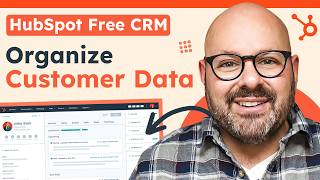
Mark walks through organizing customer data in HubSpot CRM, showing where contacts live, how to view individual records with notes and emails, and how to import contacts from a CSV file with automatic field mapping.
Questions this video answers
January 23, 2024
CSV
CRM Download
Chapters
Are you struggling to organize your customer data in your CRM? Let me show you how to get it done in a few simple clicks. To get started, you'll need a HubSpot account. Don't worry, it's totally free for life. Just head on over to HubSpot.com or click the link in the description below to sign up for your free account. Now let's take a look at how easy it is to set up your company and contact records in the CRM so that your sales, marketing, service and operations teams can all look at the same customer data in one place. Check it out. So to get started, you're going to click on Contacts. Contacts are the center of everything in your HubSpot CRM. Everything is built off of the contacts. Simply click Contacts and here you'll be brought to a page where you can look at all of the contacts. Now these are easy to filter right now I can filter them by Contact Owner and I click that and it'll show you these are all the contacts I currently own in the CRM. I can also filter by these predetermined fields like what date was that contact created? When was the last activity date for this contact? What is their lead status? Or there's a lot of advanced filters that you can select from and customize your CRM. Now if I want to look at any of the customer data from one of my contacts, I can simply either click on Preview and in the right hand toolbar here you'll see that I've got some data, the customer name, their company, their email, and any other information I've got on properties for this contact. Now if I want a little bit more detailed, I can simply click on the customer's name and it'll open up a whole new window with all of the customer data. Here you're going to see that right from the left toolbar I can take a note. I can send this contact an email. I can even give them a phone call, create a task reminder, set a meeting, and more. In this top toolbar here you'll see all the activity that has occurred with this contact over time. You can click on them and expand them. You can even reply to an email directly in this field. You can also look at any notes, log in and check any emails, look at any call notes or recorded phone calls that you had, any tasks, or any meeting notes that you have from working with this customer. You'll also see on the right hand toolbar any deals that you have in the works, any tickets that they have with customer Service or any payments that are pending or orders or shopping carts are all going to be shown right here on the toolbar. This is one of my favorites. If you've emailed them any attachments, all of your email attachments are going to show up right here in the tab, so you don't have to go search through your inbox to find them. The contacts are the center of the HubSpot CRM and they are a super powerful way so that all your teams can look at a customer and see a complete snapshot of that customer. If you've got existing customer data in an old CRM or in a spreadsheet, don't worry, it's super easy to import into HubSpot. Let me show you how to do it. So to get started, you're going to click on Contacts, and in the top right corner you're going to see a little field that will say create Contact or Import. To get started, we're going to import. So once I click Import, I'll simply follow the prompts and it will walk me through exactly how to import this. We're going to use one spreadsheet. It's a CSV file. We're only going to report on one object right now, and we're going to import all of our contacts. I'll click Next. Go ahead and choose that file. It's right here on my desktop called CRM Download. Gonna make sure that I'm updating the contacts and it's in English. Go ahead and click Next. And now you'll see that HubSpot is actually checking for any errors in the data. This is where it gets really cool. HubSpot automatically maps the data fields from your spreadsheet into HubSpot CRM, which watch this and you can see that it's actually mapped all of my fields with no errors. First name, map to first name, last name to last name, et cetera. I'll go ahead and click Next. I'm going to create a list in my contacts of these new contacts. I'm going to agree that everybody's waiting to hear from me, and I'm going to set these folks as marketing contacts so I can send them marketing emails. Finally, I'll click Finish import and watch HubSpot do the magic. Now, it takes a moment, but you'll get an email once it's ready. And what's even better is you'll see how many new records you have populating in real time. If any records were to get updated, it'll tell you and look, my import was completed with no errors. We are ready to go. And now when I go back to contacts and now we're going to see all my new friends are right here in the CRM. HubSpot CRM is built so that it's easy to use and adopt for your team. It's easy for your sales, marketing and service team to align on customer data in one simple platform, and it's grown to customize and adapt with you as your business grows. To learn more about how to use HubSpot's free CRM, click the link in the description below to get started today. I'm Mark from HubSpot. Thanks for watching.