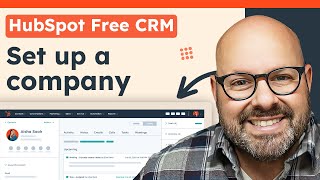
Mark walks through creating a company record in HubSpot CRM, showing how to customize columns by dragging and dropping fields like Industry, then viewing related contacts, deals, tickets, and payments from the company toolbar. HubSpot CRM is free and built to keep sales, marketing, and service teams aligned on the same customer data.
Chapters
If you're looking to set up a company in your HubSpot CRM, you've totally come to the right place. So many people struggle with importing companies and contacts to their CRM and organizing it all. Let me show you how to get it done in a few simple clicks. To get started, you'll need a HubSpot account. Don't worry, it's totally free for life. Just head on over to HubSpot.com or click the link in the description below to sign up for your free account.
Now let's take a look how to set up a company in your CRM. Simply scroll to the top left, click Contacts and scroll down to Companies. Here you're going to see a very similar interface with Contacts. So you'll see the company name, company owner, what data was created, and if you want to edit any of these columns. For example, maybe it's important to me to see what industry this company is in. I can just drag this to the top and click Apply. And now I'll see that industry is right here where I put it. It's an easy way to customize the CRM with this drag and drop feature. Once you click in on a certain company, you're going to see a lot of information. I Again, the power of HubSpot CRM is that anybody in your CRM, whether they're from sales, marketing or customer service, they will all see the same dashboard here and get all the same information so there's no loss of data. Again, with the company. Just like with the contact, you'll see activity, notes, emails, calls, tasks, and meetings. In the top toolbar, you'll also see any contacts that are associated with this particular company, any deals, tickets, payments, and some of the other features that we saw in the Contact. And again, you can always take action directly in this toolbar by clicking Note. You can just literally click it and take a note right there. That note will be saved in your CRM and be visible to everybody on your team. HubSpot CRM is built so that it's.
Easy to use and adopt for your team. It's easy for your sales, marketing and.
Service team to align on customer data.
In one simple platform, and it's grown to customize and adapt with you as your business grows. To learn more about how to use HubSpot's free CRM, click the link in.