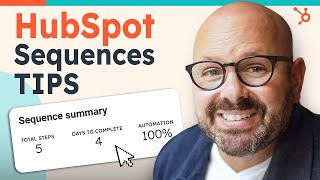
Mark walks through HubSpot Sequences to automate sales outreach. Build a follow-up sequence with personalized emails using tokens like first name and industry, add LinkedIn connection reminders and call tasks, then track open rates, reply rates, and meeting conversions in the Analyze tab.
Chapters
If you're a scaling business looking to automate those laborious parts of your sales outreach, you've totally come to the right place. I'm Mark and today we're going to use HubSpot sequences to show you how to automate your sales. Outreach sequences are an automated tool that allow you to automate those repeatable parts of the sales process like outreach emails, phone calls and even LinkedIn connection requests. Let's jump in and get started. Scroll to the top of your HubSpot menu where you see automation and and click Sequences. Here you'll be brought to your sequences homepage. You'll see three main tabs. Manage where you can see all of your sequences that are live. Analyze where you're going to be able to look at all the performance data from your sequences and scheduled where you'll see any sequences that are scheduled to go live shortly. Today we're going to go ahead and create a sequence. Now when you go to create a sequence, you'll notice you can create one from scratch or. Or you can use one of our pre made sequences made from HubSpot sales professionals. For example, after an event, you may want to follow up with leads that you met. You can see that this sequence has six steps. It will take 12 days to complete. 33% of those tasks are automated and there are two unenrollment criteria. You can also see that the sequence is made up of an automated email, a reminder to connect on LinkedIn, another automated email, and and even a reminder to give a phone call on the fourth day. This is a great example of a different use of different channels to reach your customers and your leads. So once you've looked at all the templates, now it's time to build your actual sequence. Today we're going to build a sequence that occurs after somebody downloaded something from our website. And I'm going to show you how you can personalize these automated outreach emails. Let's jump in and get started. To get started, click Start from Scratch and create sequence. Now, since this sequence is going to occur after somebody has downloaded something, we're just going to title it thank you for downloading. And we'll go ahead and click the plus sign to get our first step which is to send an automated email. I'll go ahead and create a template and we'll call it thanks for downloading. And the subject is going to be like welcome to the 2023 Global Trends Report. We're going to say hi and then we'll click personalize because we want to make sure we put the person's first name in there. I just type in first name and it will automatically enter the person's first name. Hi, first name. We're going to go ahead and save that template. In addition to using sequences to automate emails, you can also automate task reminders for your sales team. Things like remember to connect on LinkedIn or remember to reach out with a phone call. Let's jump in and I'll show you how to set those reminders for your sales team. Next we're going to go ahead and click the plus button and give a reminder to connect on LinkedIn with the contact. I simply click add and I'm not going to wait one day. I'm actually just going to go on the same day so there'll be no time delay. So this way, as soon as the person gets the email, our salesperson will get an email reminding them to connect with the contact on LinkedIn. Now it's time to send another email. Going to go ahead and put in an automated email and and here we're going to direct them to a blog post. So we're going to put blog post reminder, personalize it with their first name. I think you might dig this report or this blog rather go ahead and put their first name in again. I think this blog post is really applicable to the challenges in the and we're going to put the person's industry in here. This is another great example of personalization. So we can say I think this blog post is really applicable to the challenges in the blank industry. I hope you dig it best, Mark. We'll go ahead and save that template again. And now we're going to put in one more reminder to give a phone call in case we don't hear from that contact. We'll set a reminder for the salesperson to give a phone call. And then finally the last task in the sequence is going to be an automated email with a request for a meeting to talk. So we'll go ahead and put request to talk. The subject will be like connect with Mark again. We're going to say hi, we'll put in that first name again. Do you have any time or value for a quick call to introduce ourselves and learn more about the the the work in next quarter for and let's put their company name in there. We're going to go ahead and insert my HubSpot meeting link by clicking Insert Meeting link. Go ahead and send that. Please use this link to align our calendars best, Mark. And go ahead and save that template so now that I've got all my steps of my sequence already set up, I've got five steps it takes four days to complete. Most of it is automated. I can go ahead and just check the settings to make sure that it's going to thread my emails as replies. Execute these only on business days. That way we're not bothering people on the weekend. And finally I'm going to go ahead and click save. I'm going to make this visible to everybody on my team. And now we can see. I can go ahead and enroll contacts. Now if I click here, I can go ahead and literally just start to enroll contacts right here. I'm going to go ahead and click next and it's getting your sequence ready to go here. You'll see when I click on Mark, it automatically puts Mark's name in here. When I scroll down to this email where I had their industry, you can see that it says we're finding this applicable to the challenges in the food and beverage and logistics industry. It's all personalized, ready for them. Once I'm ready to enroll them, I can even personalize it even more. For example, if I met Devin and we spoke and I remember that his kid at a basketball game, I could even put in right here, devin, I really hope your son Jake did great at his basketball game. Now I've got that personal connection that's only going to go to Devin. When I'm ready, I click enroll the contacts and and I'm enrolling two of my contacts and there they are. Now that your sequence is live, it's time to look at the data to see how we can optimize your sales outreach to get those leads to your salespeople even quicker. To get started, click on the Analyze tab in the sequences window. And here you can see all the data for all of your sequences. We can see open rates to see what percentage of people have opened up your emails. Reply rate will let you know how many people have actually replied to the email. A meeting rate will show you how many meetings you have actually booked through your meeting link. Or if no, nobody's responded or those emails have bounced, all the information is going to be available for you right here. In addition, you can even look at each individual sequence to see how it's performing on its own and check out who's enrolled and how they're performing. When you click on enrollments, you'll see the names of the people enrolled, you'll see what stage they're in, maybe they finished the sequence. And when the latest step was completed as a scaling business. HubSpot sequences allow you to automate those repetitive parts of your sales process with features like personalization, task reminders, and even data performance. You're going to set your sales team on a path for efficiency right out of the gate. So to get started automating your sales process with sequences, click the link in the description below to learn more about HubSpot Sales Hub I'm Mark. Thanks for watching.